Channel Controls#
This guide assumes you have installed the driver and software for ThunderScope. If you have not already done do, please follow the getting started guide.
Channel Properties#
To open a channel’s properties, double click on its channel label on the top left corner of its waveform view
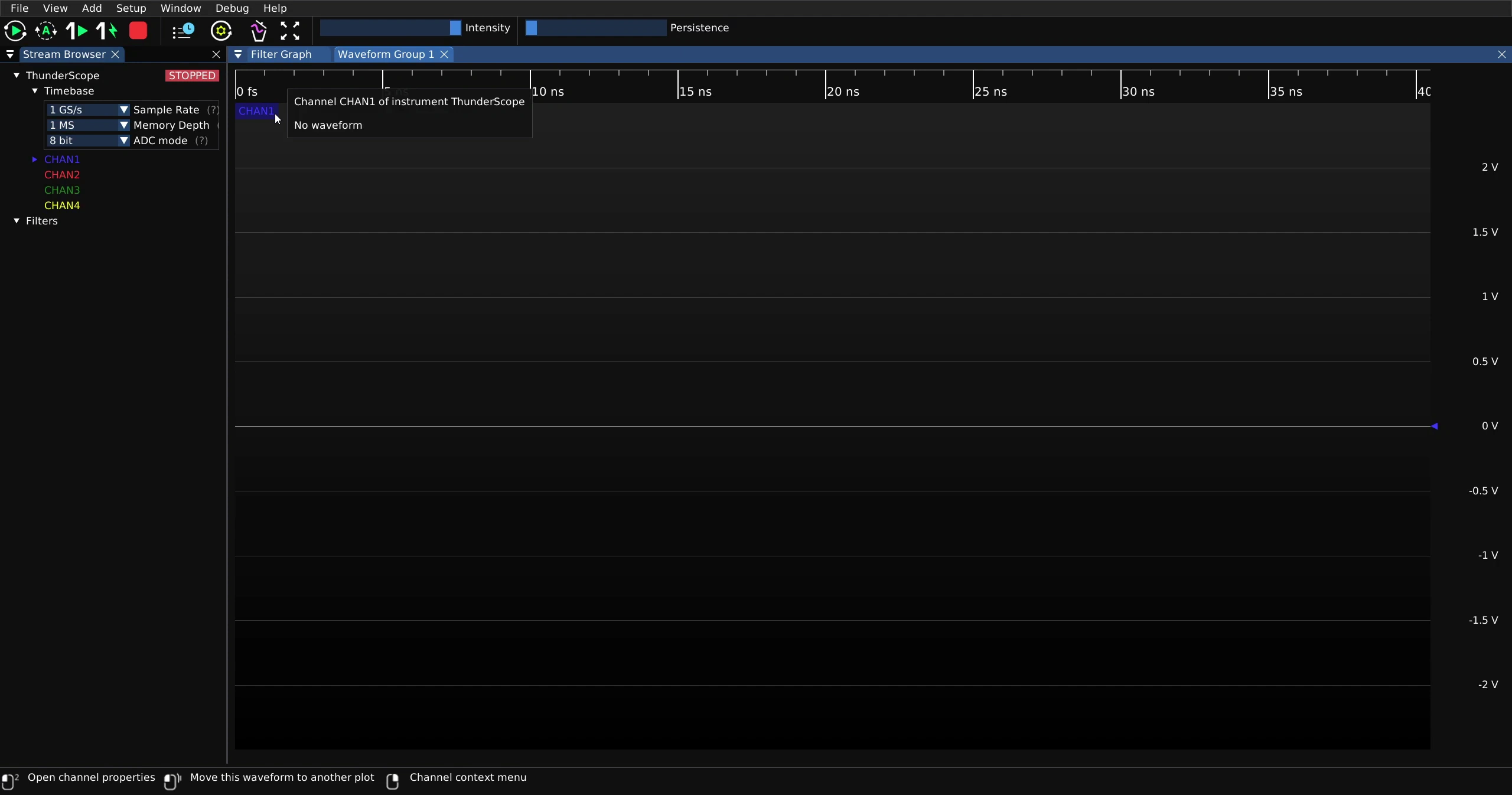
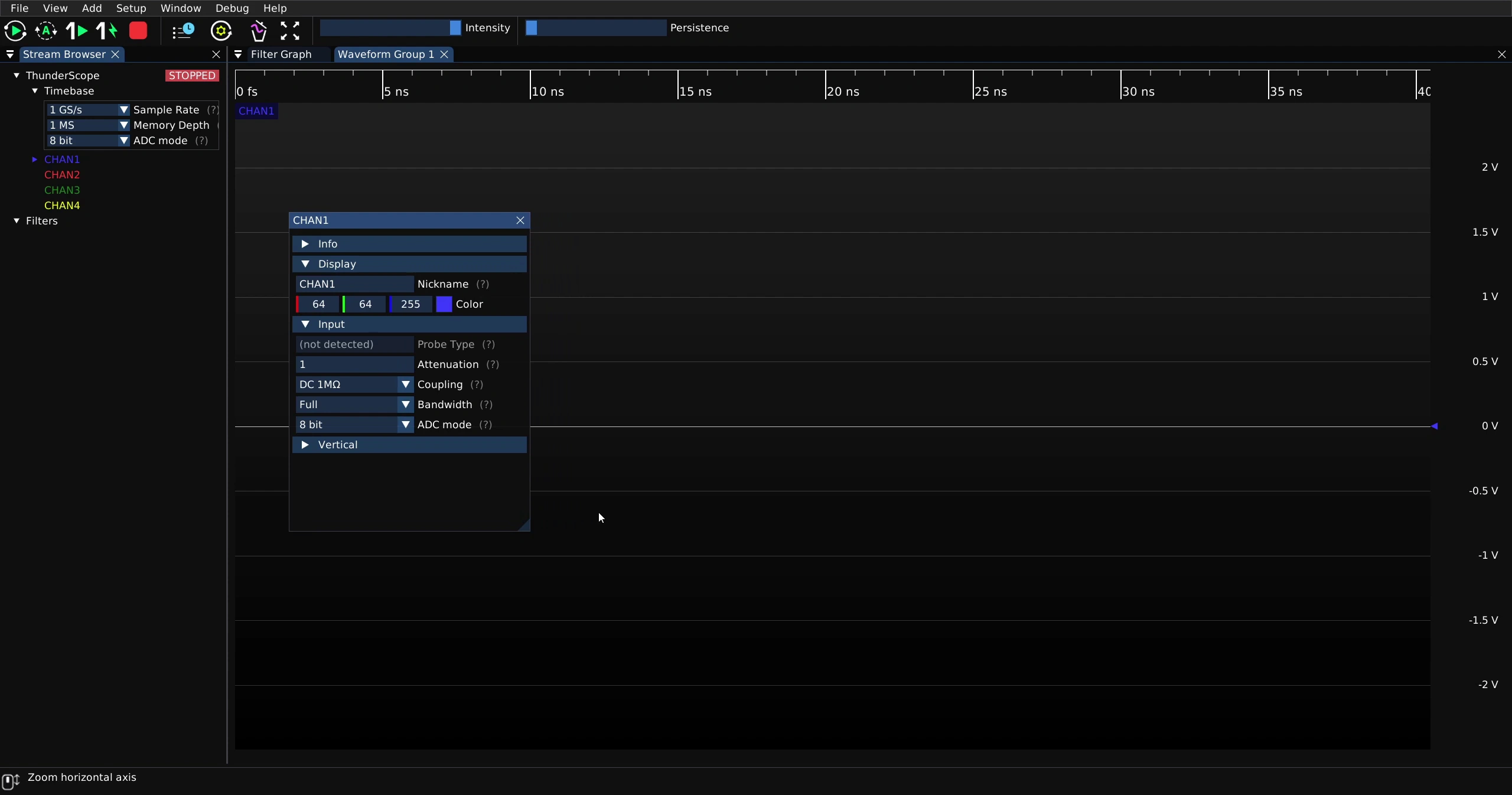
The resulting menu, as with every UI element, can be used free-floating
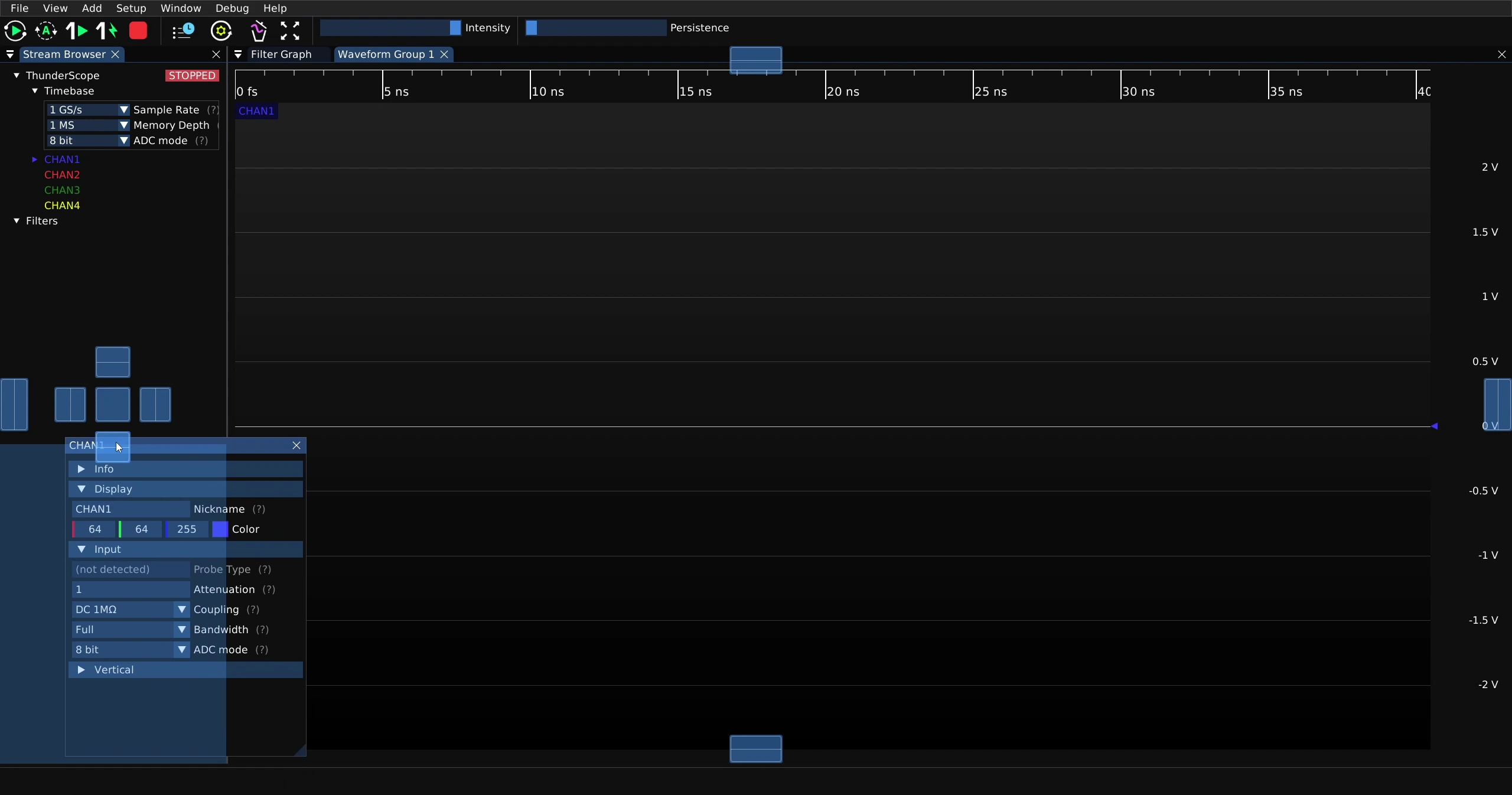
Or docked by dragging it onto one of the docking icons over a UI element
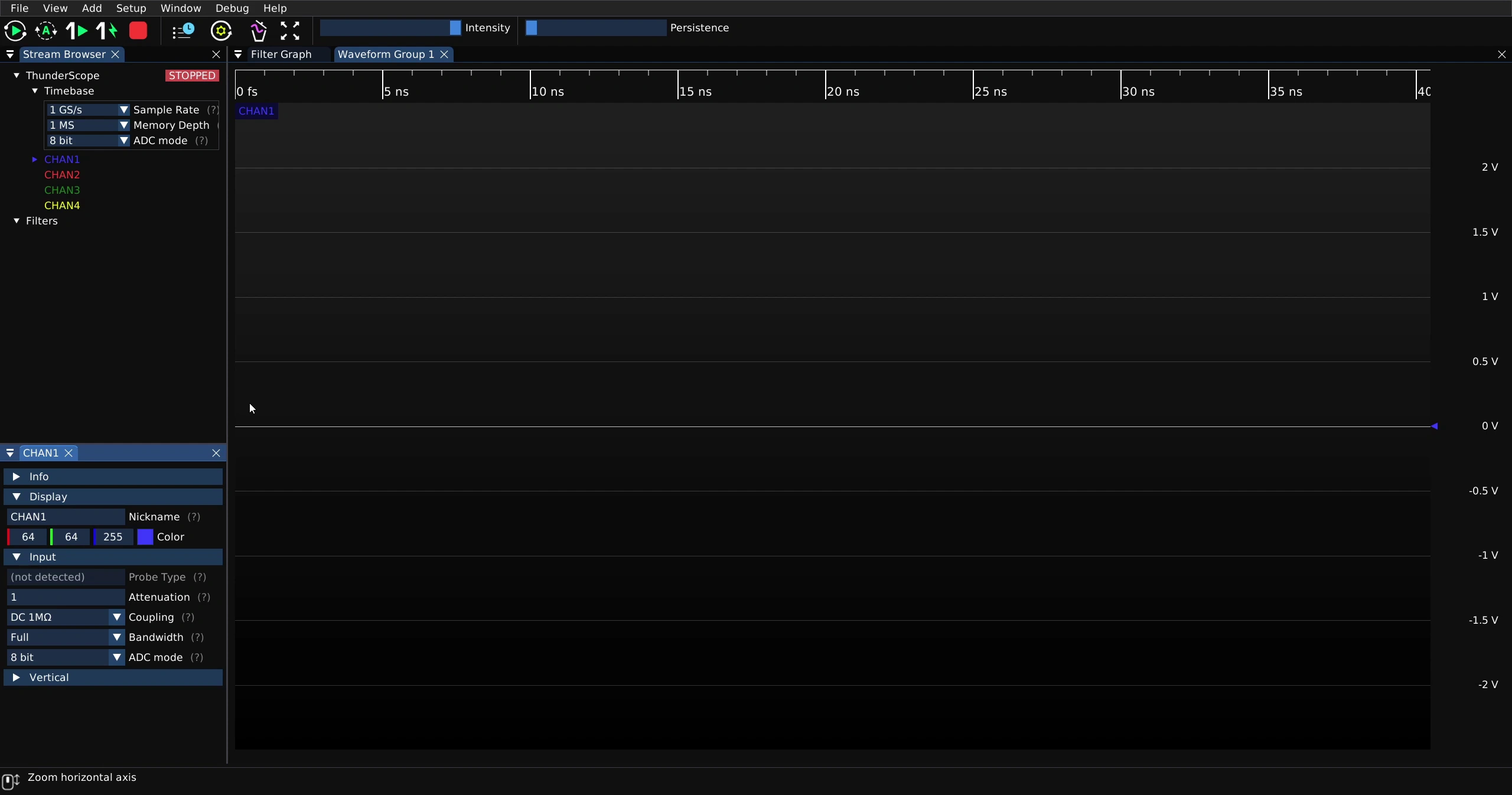
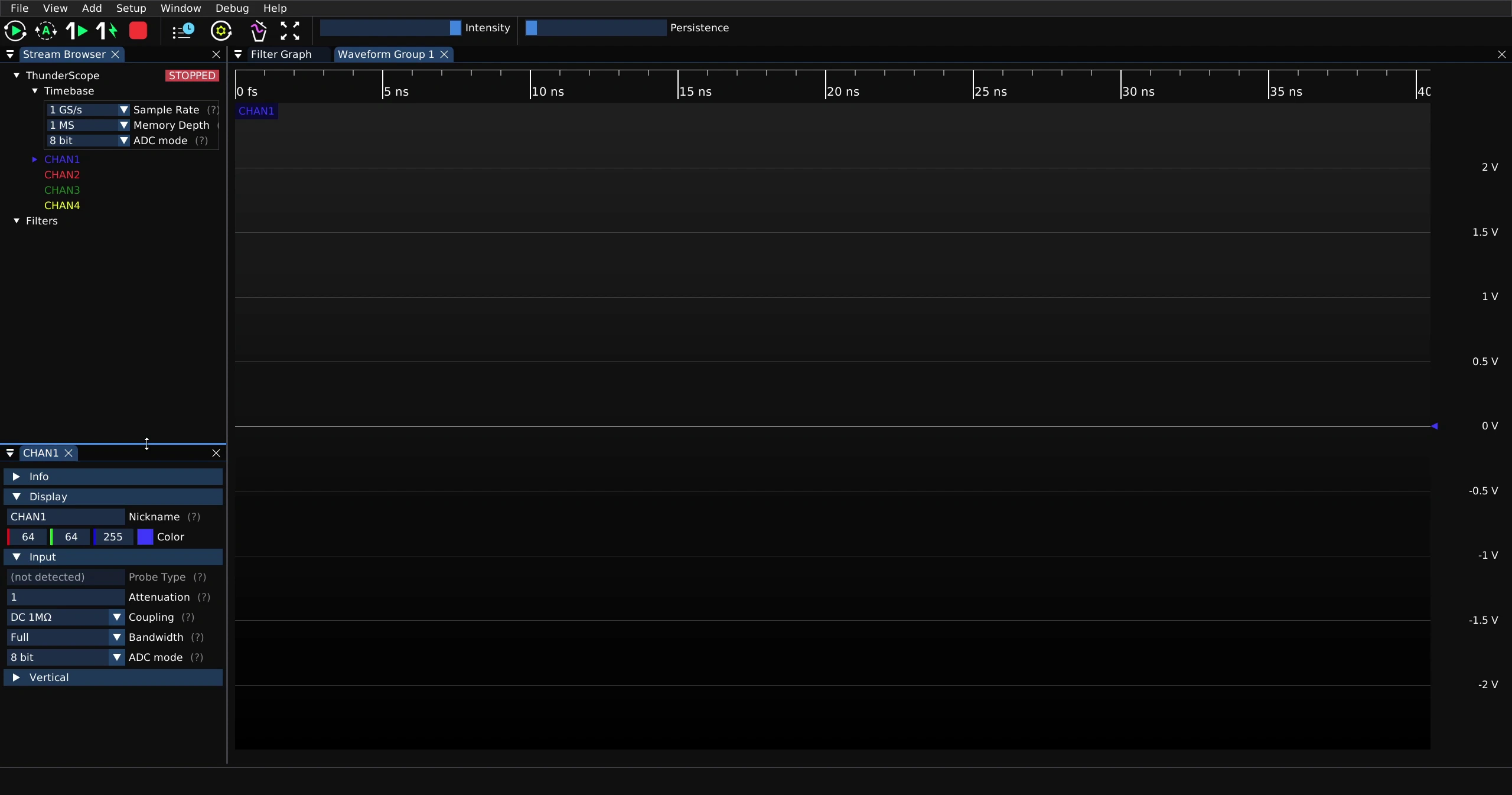
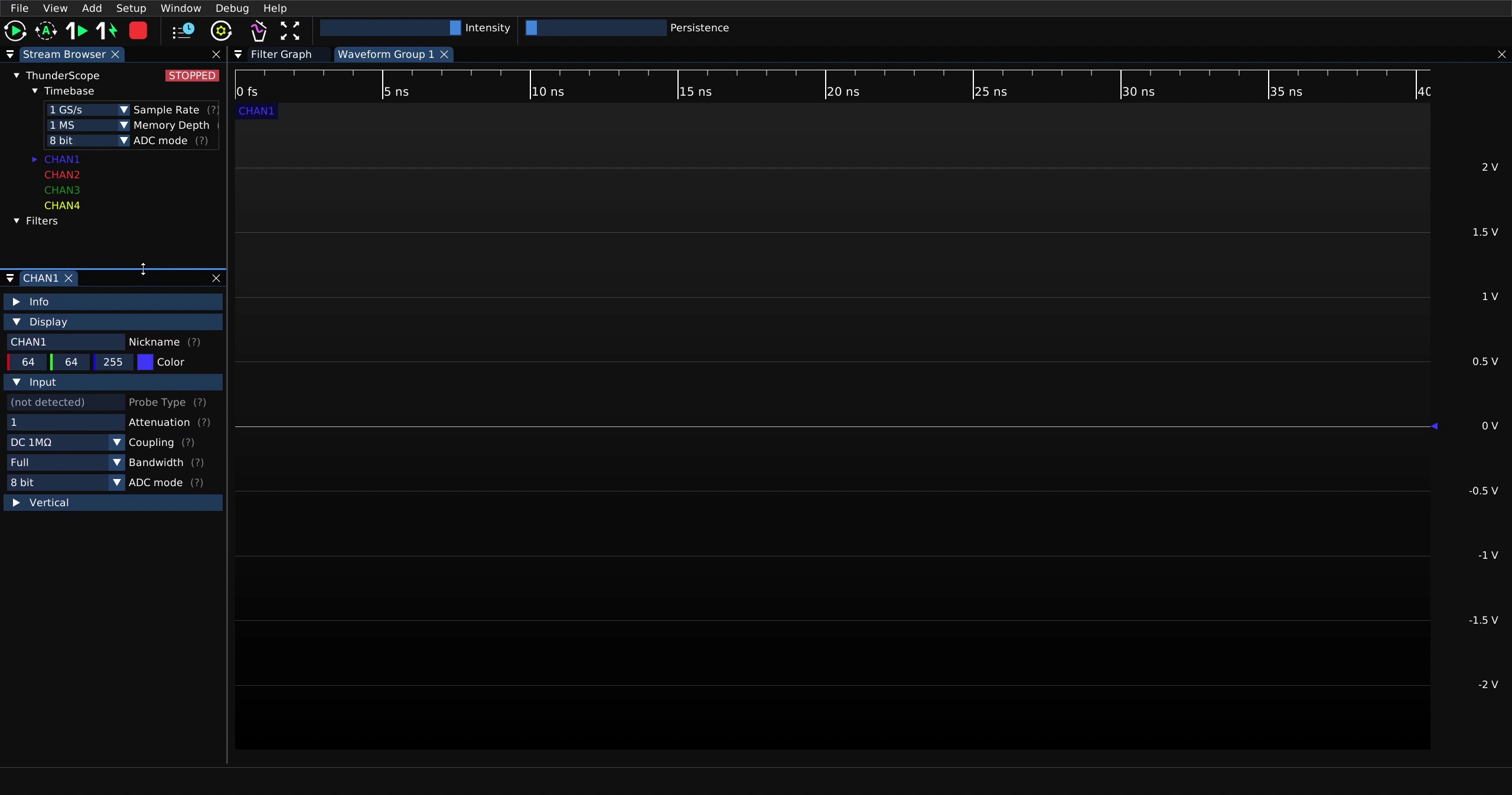
It can then be resized by clicking and dragging its border.
Vertical Scale#
To change the vertical scale for a waveform view, mouse over the vertical scale of the waveform view and scroll up or down for higher or lower vertical scales. This will change the vertical scale for all channels in that waveform view.
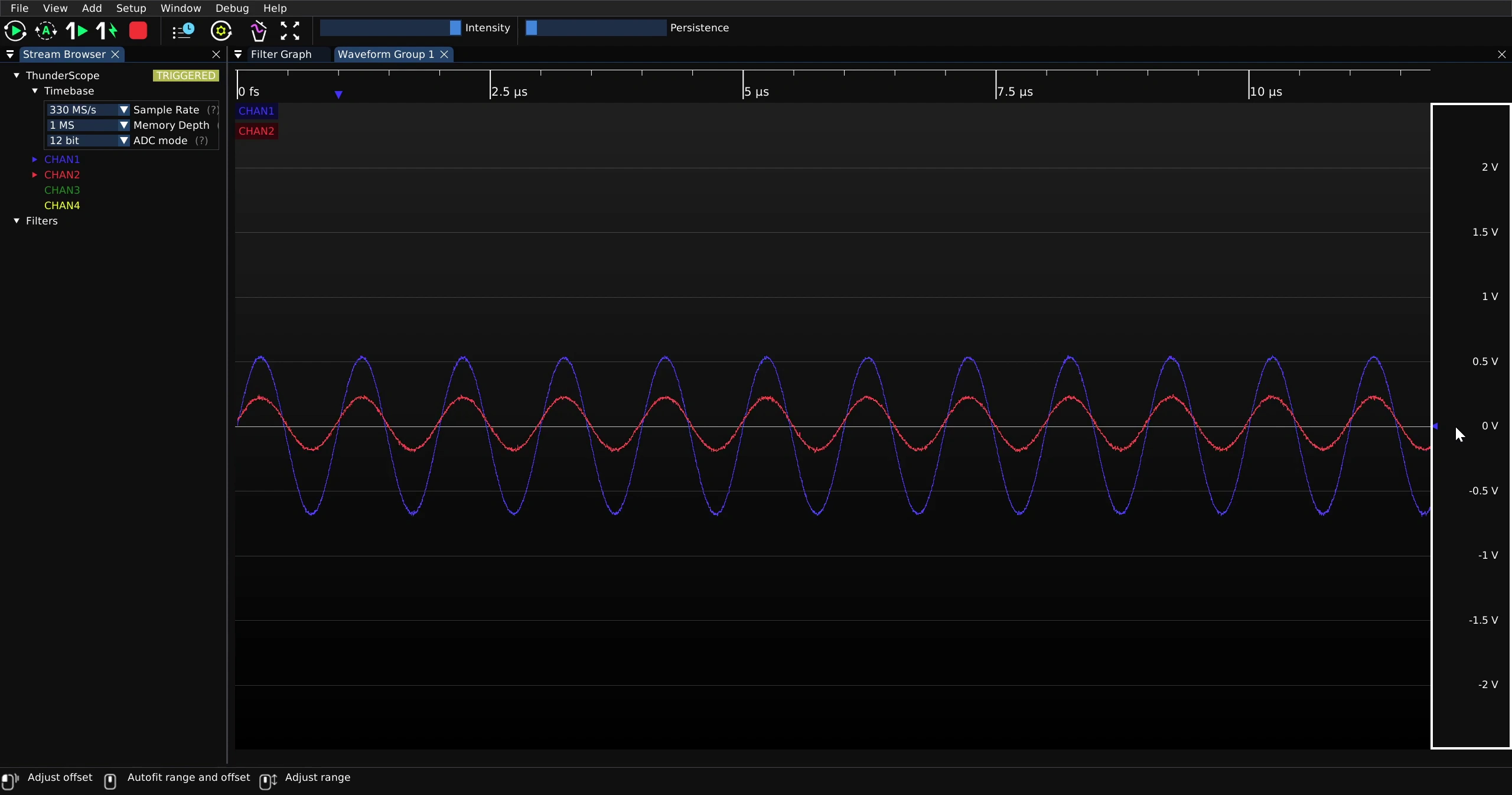
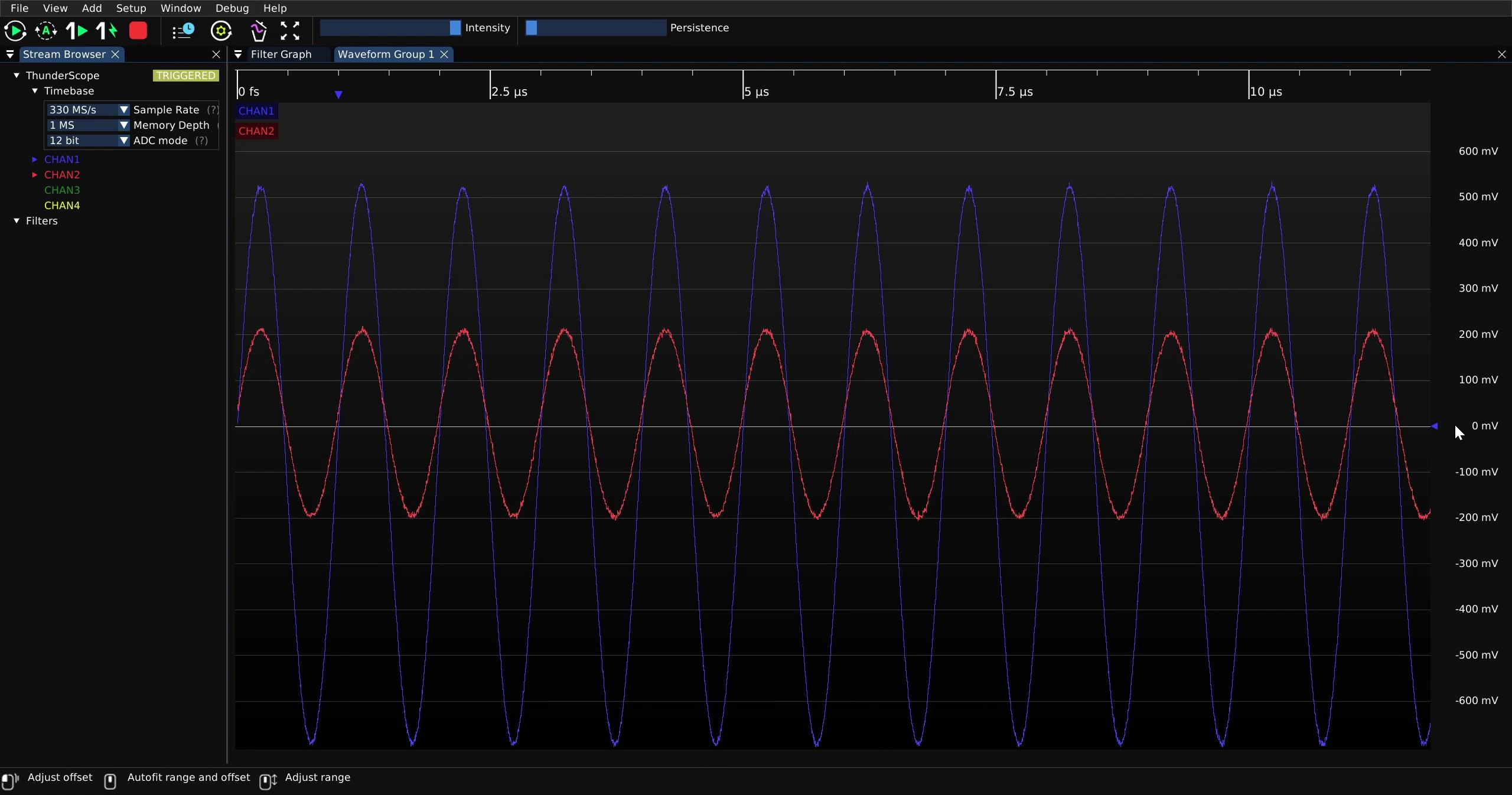
If the channels need to have separate scales, place them in separate waveform views. This may seem odd compared to most scopes where all the waveforms are displayed in the same view, but it has a key advantage! With waveform views, channels can always have the best vertical scale and offset settings for filling the instrument’s ADC range without sacrificing the readability of the signals. On benchtop scopes, some signal information is often lost when adjusting the channels to fit legibly on one view.
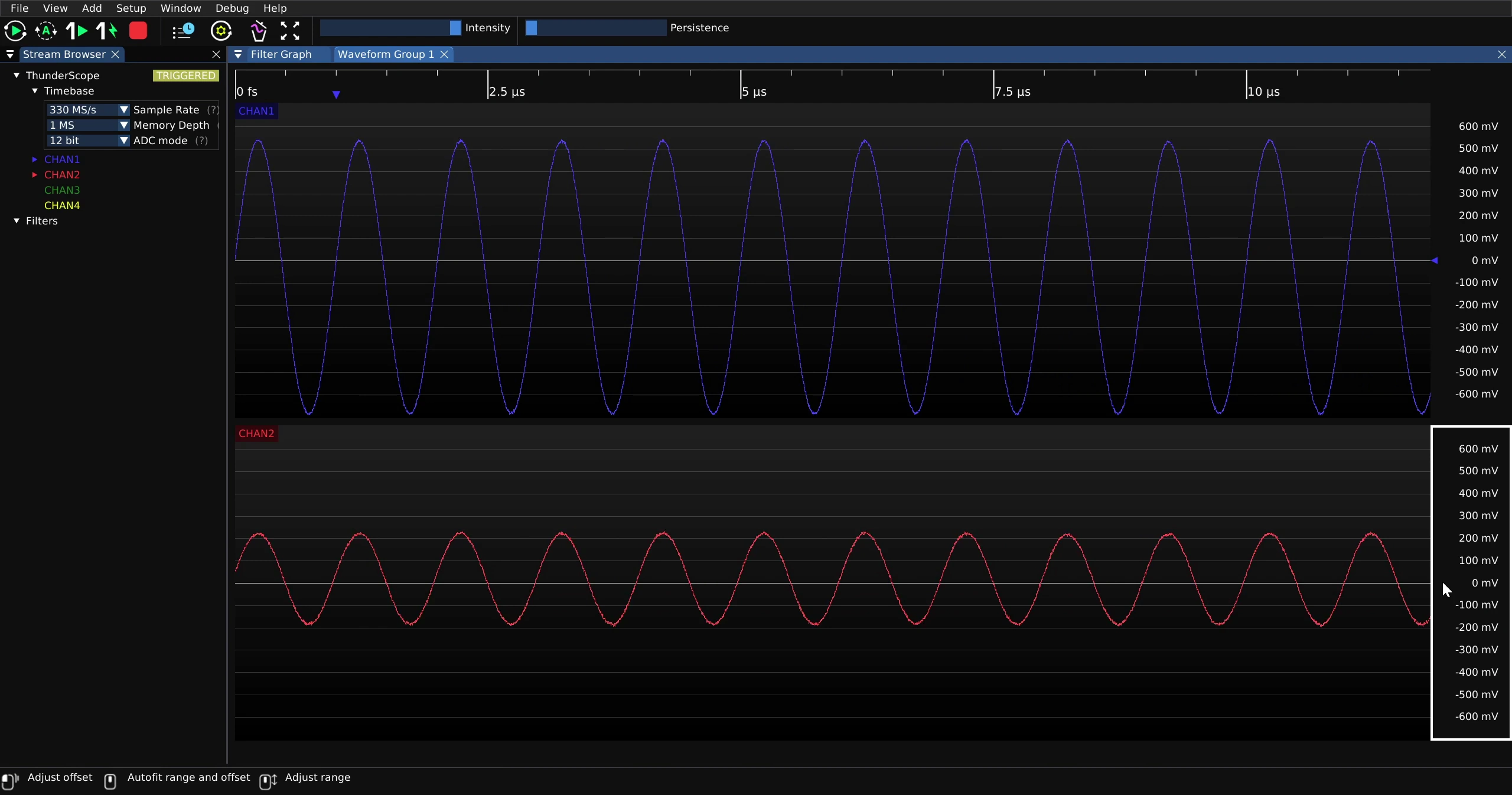
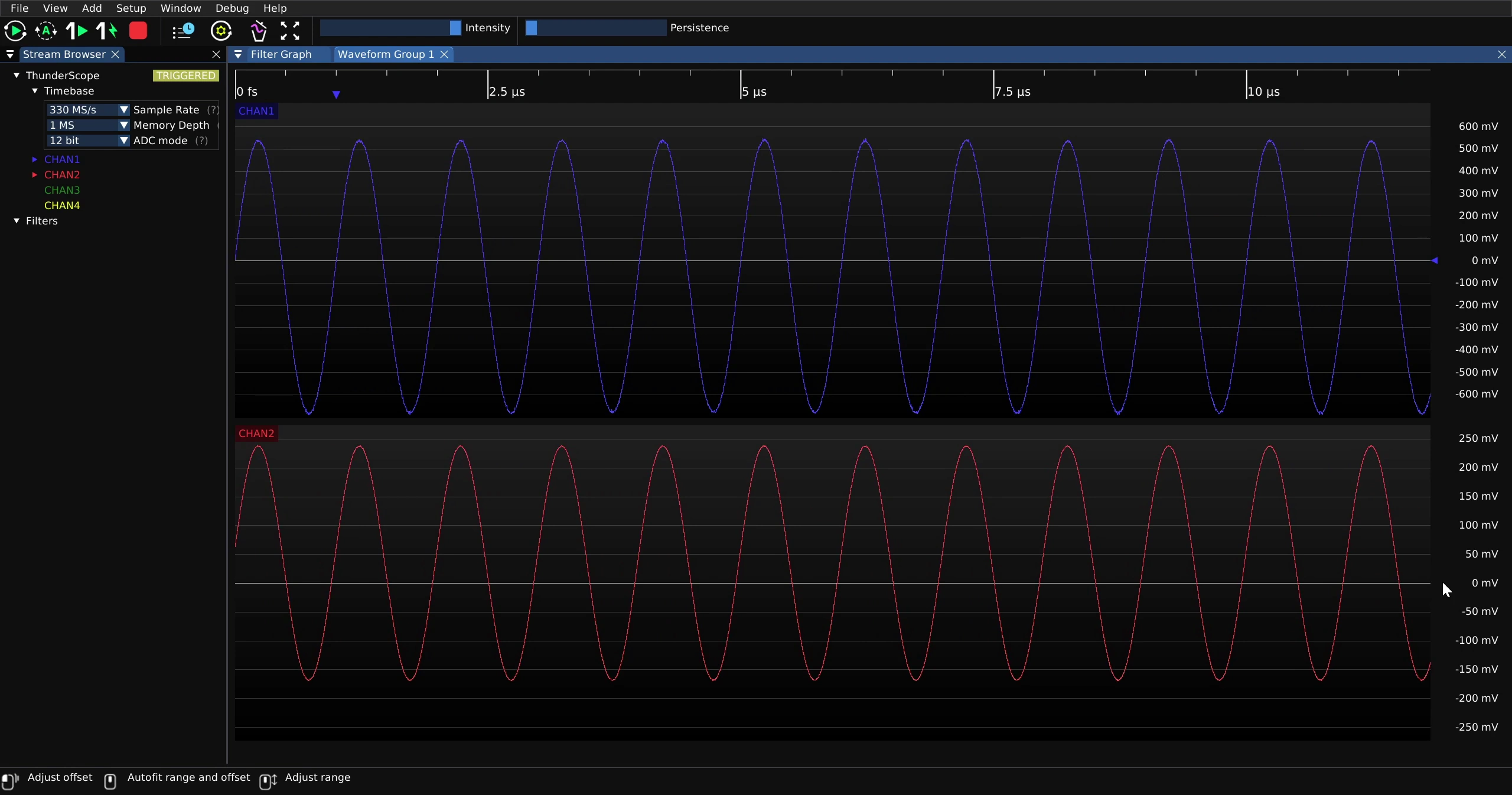
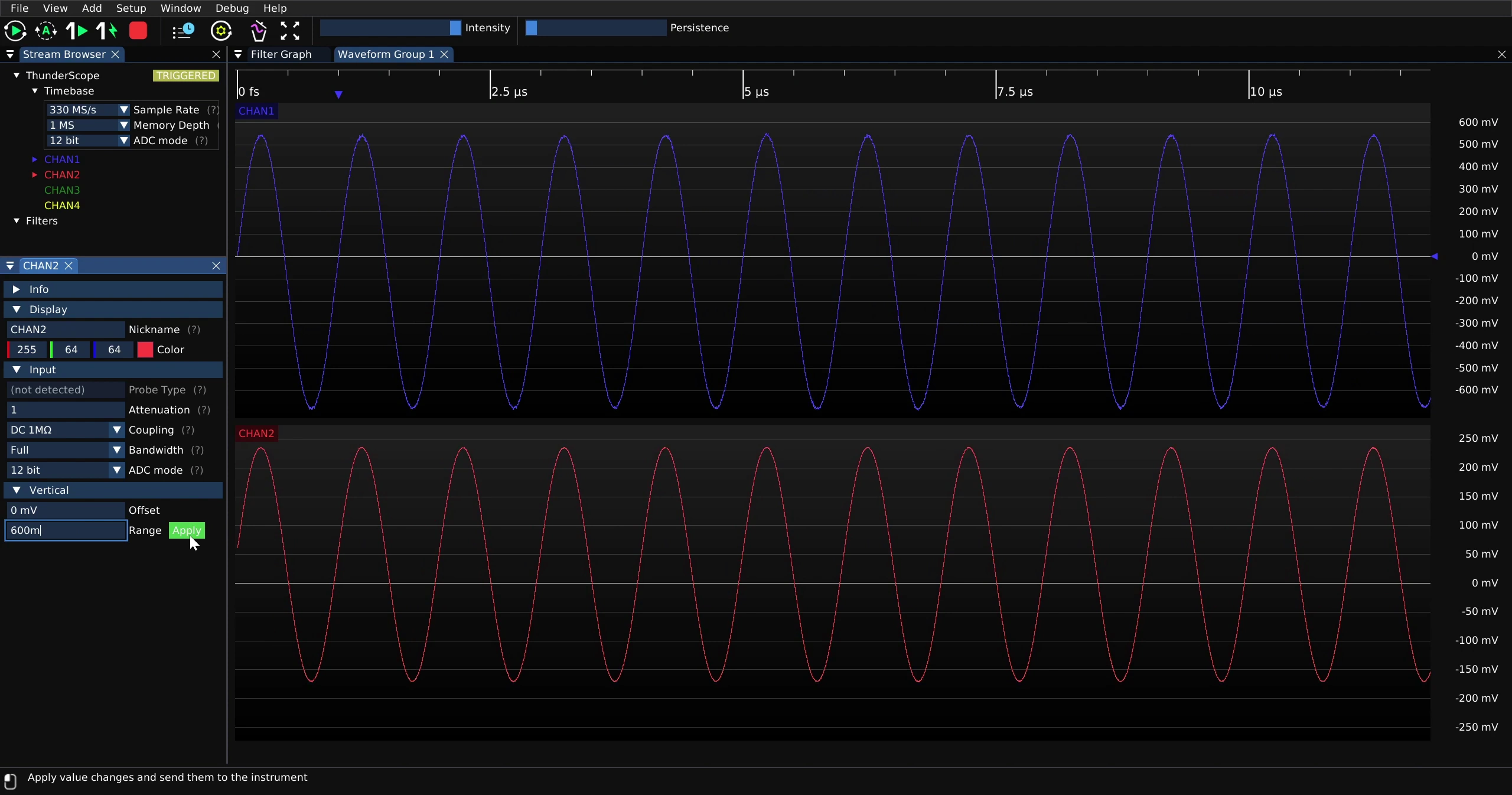
If an exact vertical scale is needed on a channel, it can be entered numerically on that channel’s “Range” setting under the “Vertical” tab in that channel’s properties
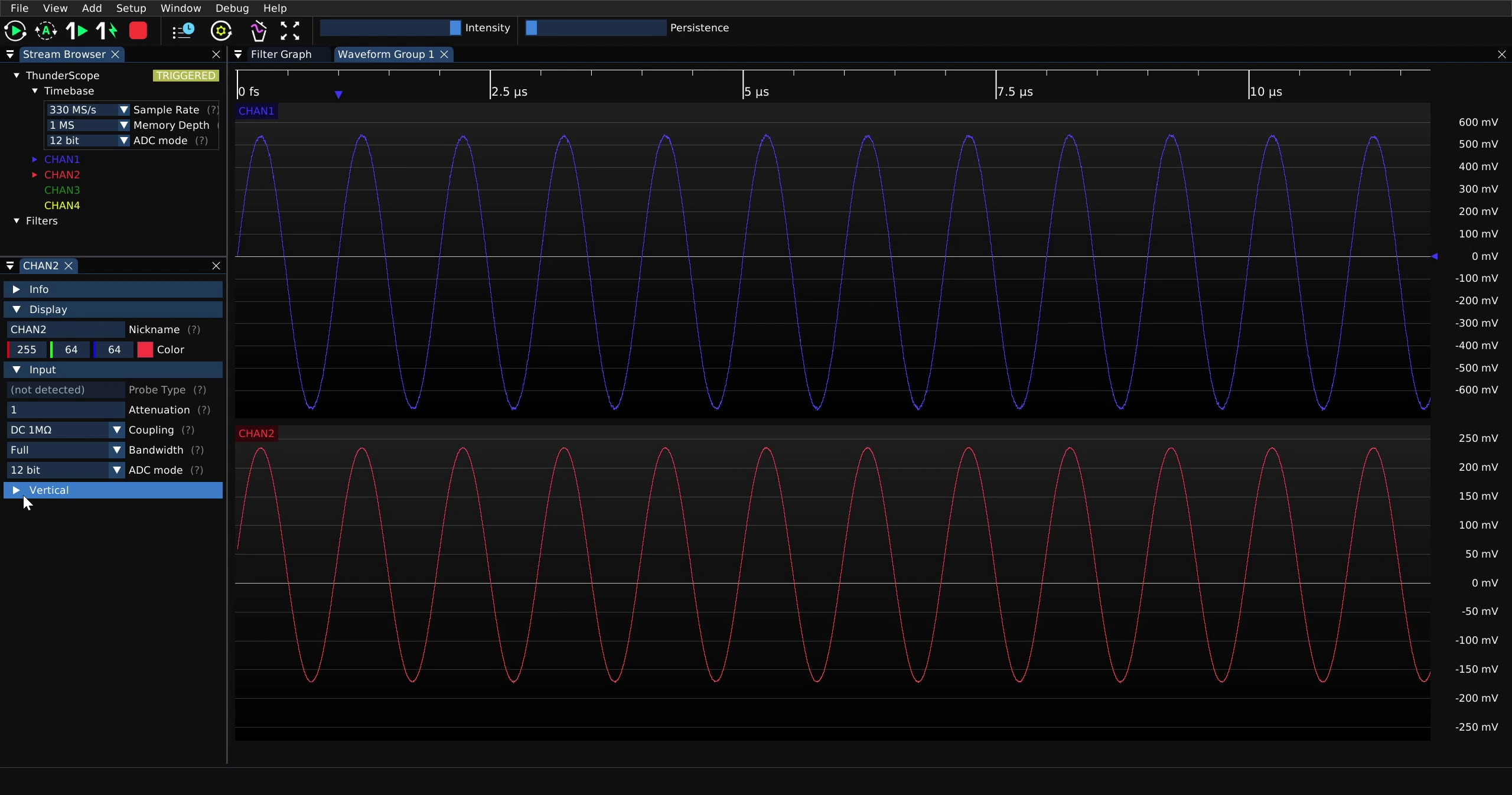
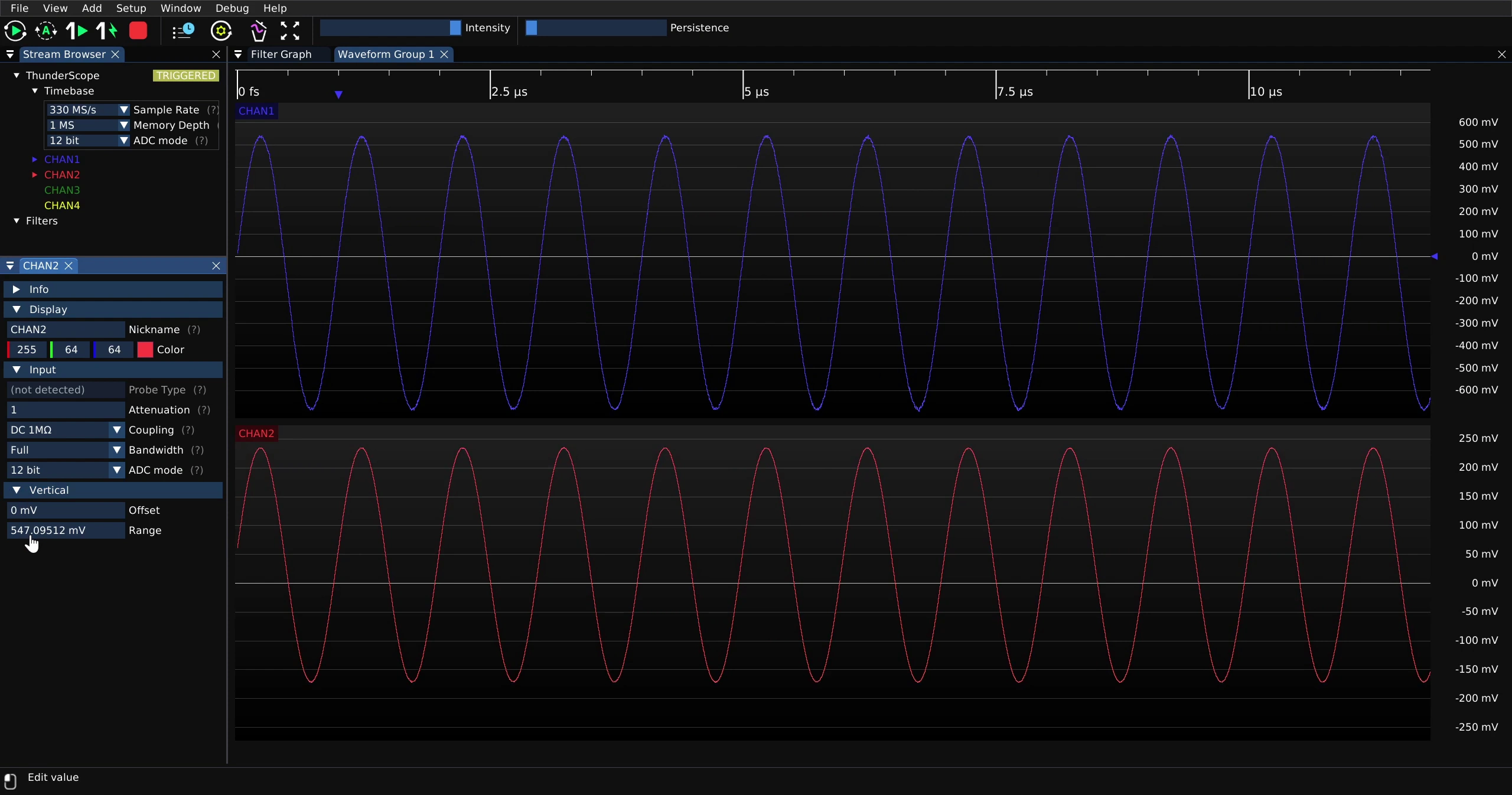
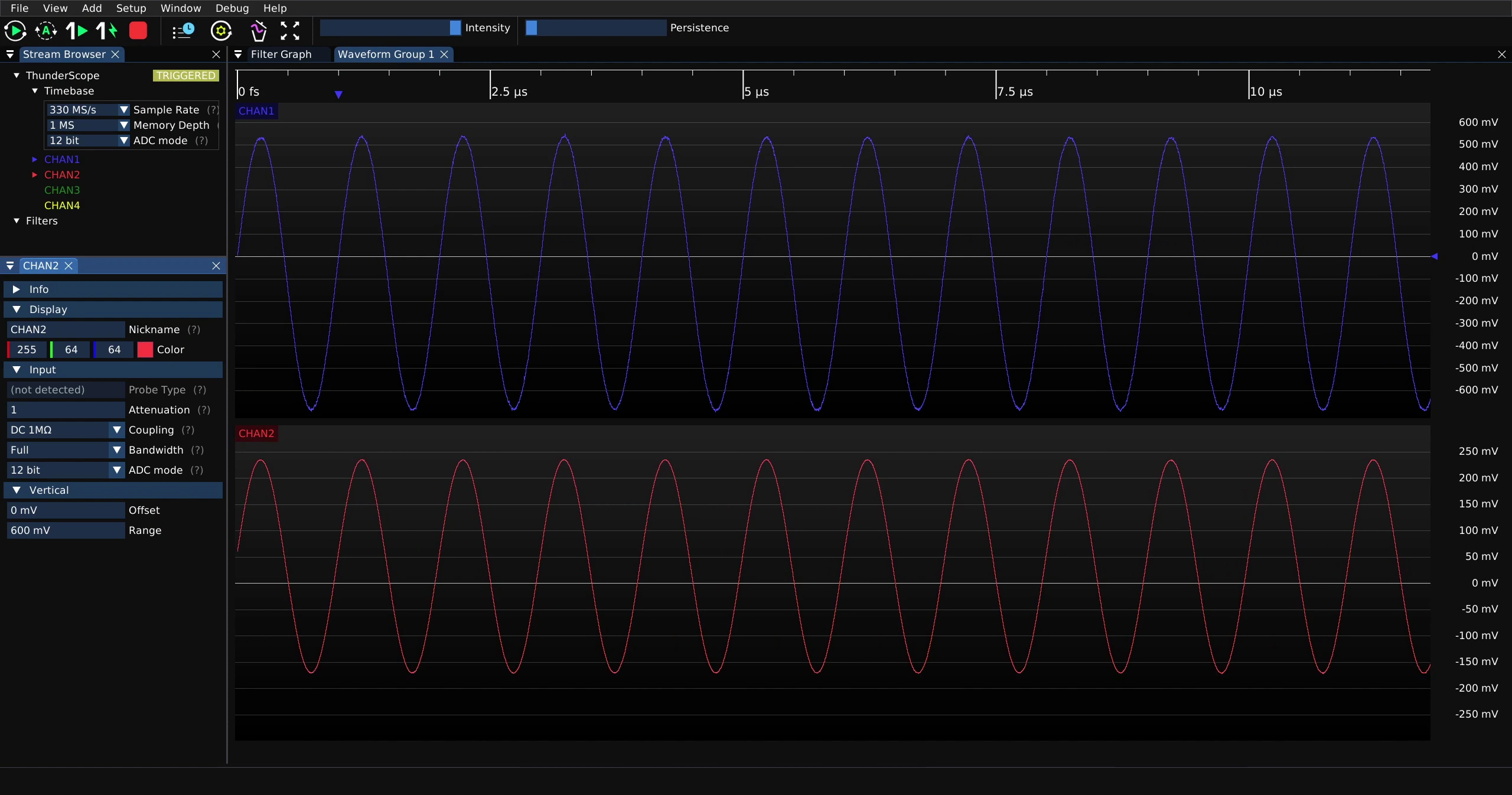
After entering the value, click “Apply” to apply the change in vertical scale
Vertical Offset#
To change the vertical offset for a waveform view, click on the vertical scale of the waveform view and drag up or down for higher or lower vertical offsets. This will change the vertical offset for all channels in that waveform view.
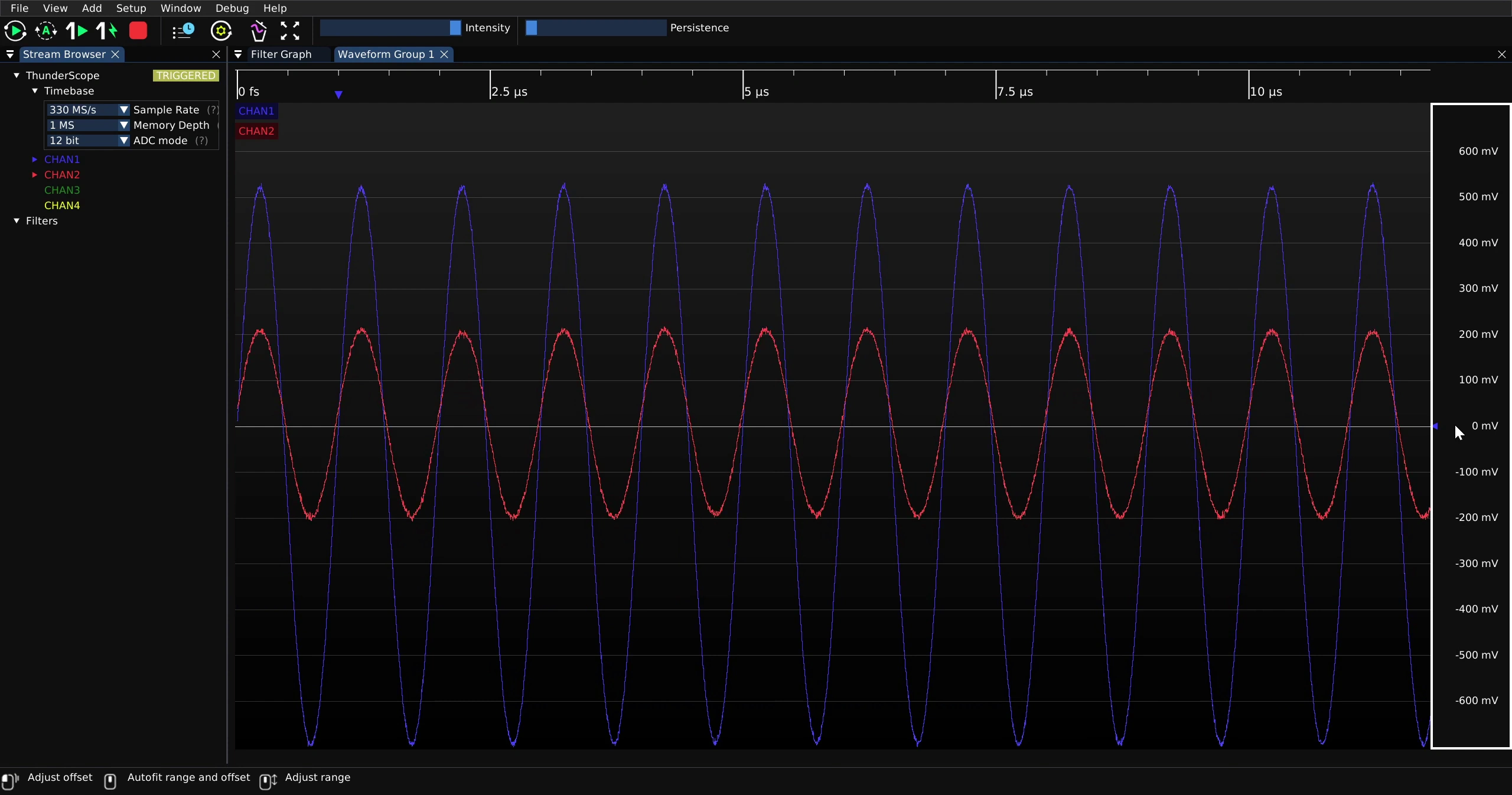
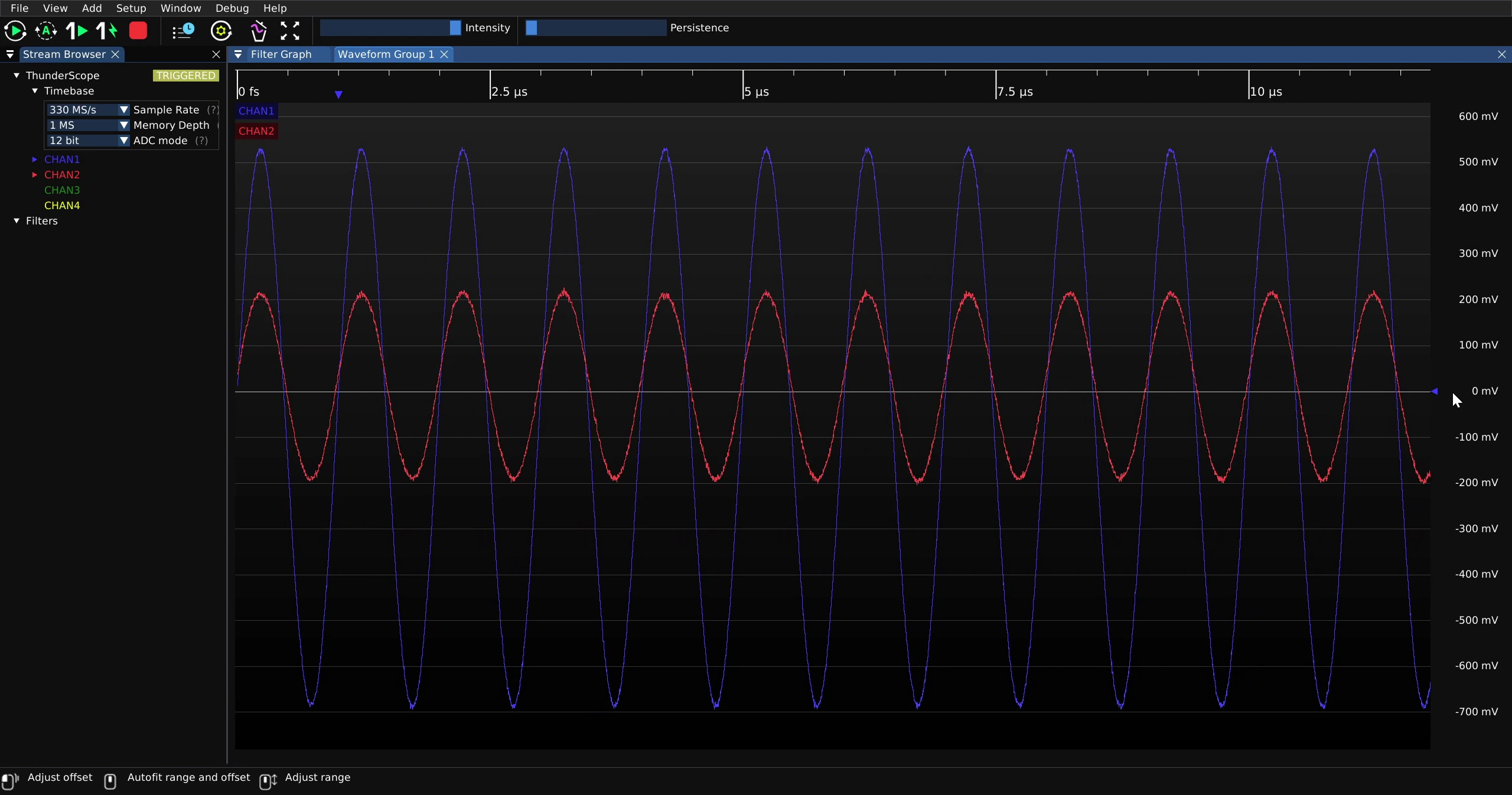
If the channels need to have separate offsets, place them in separate waveform views.
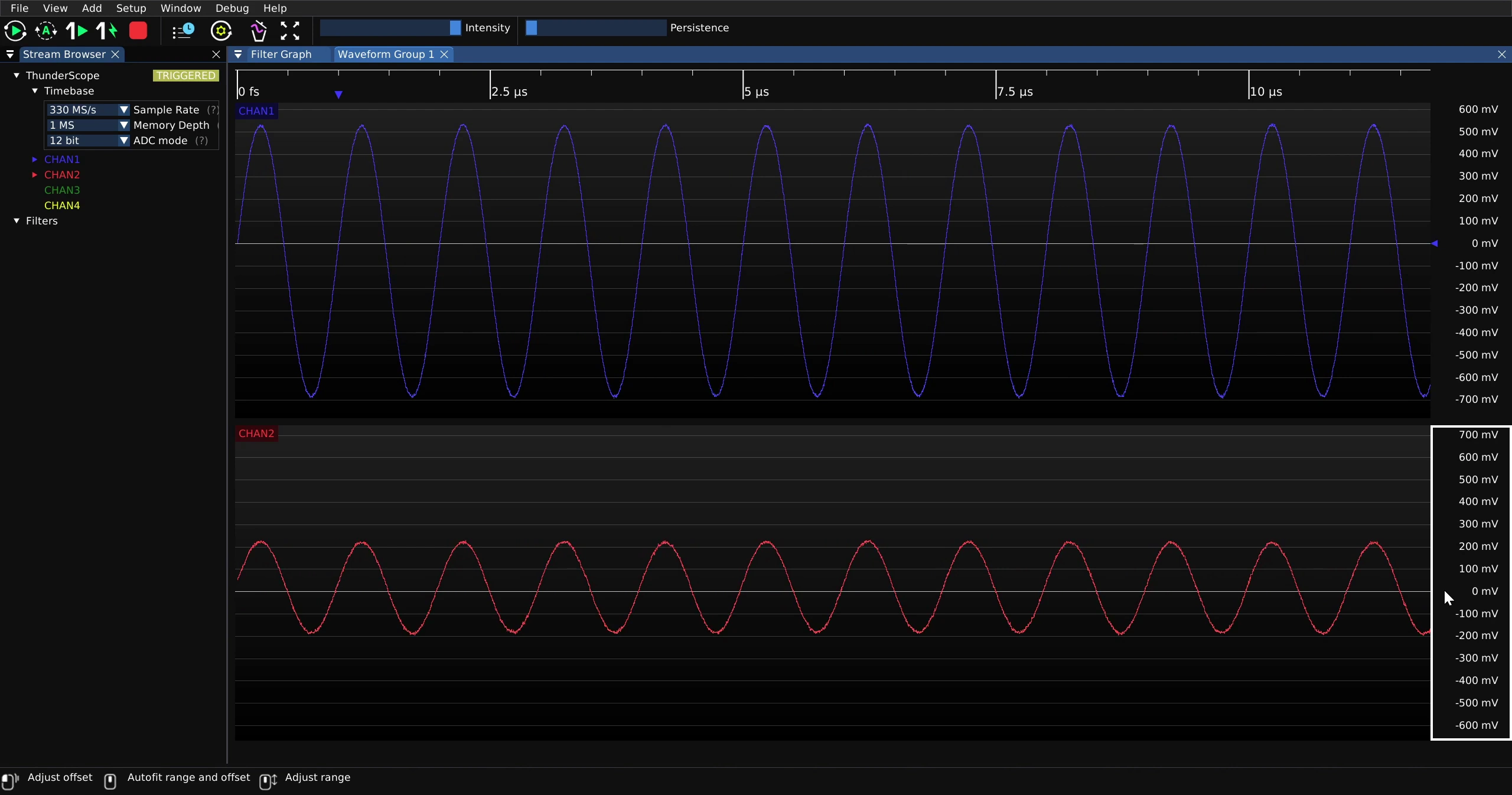
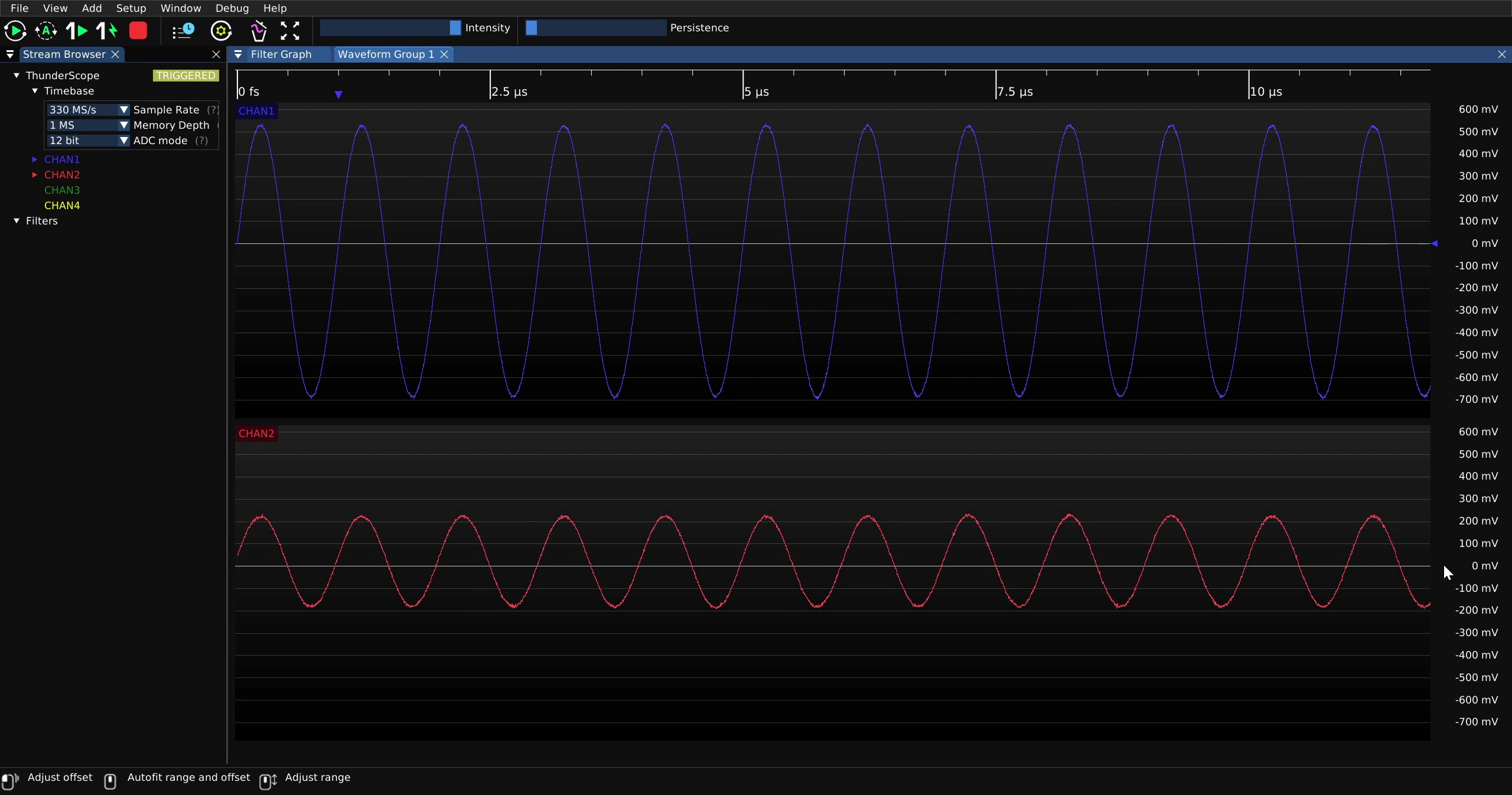
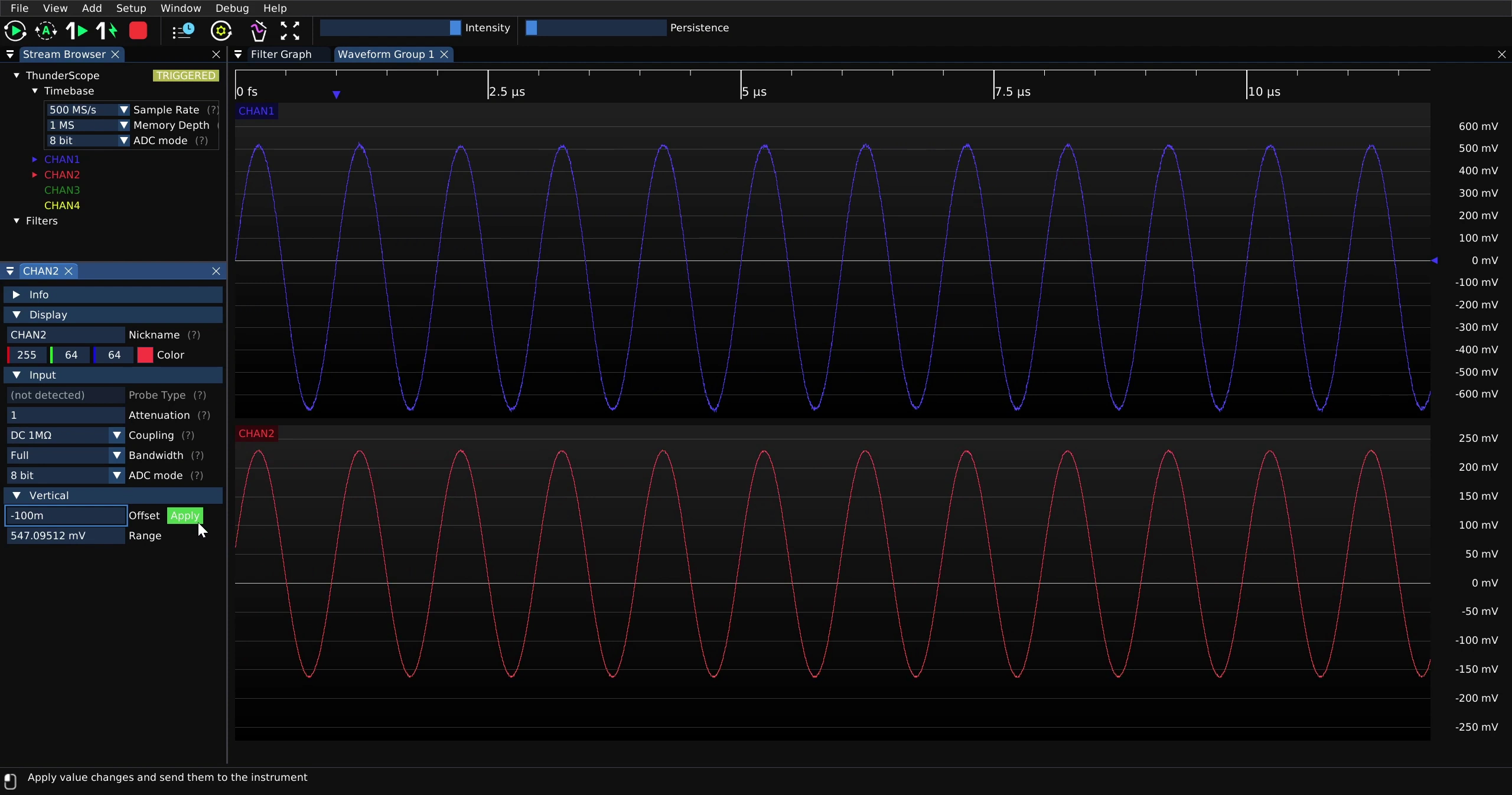
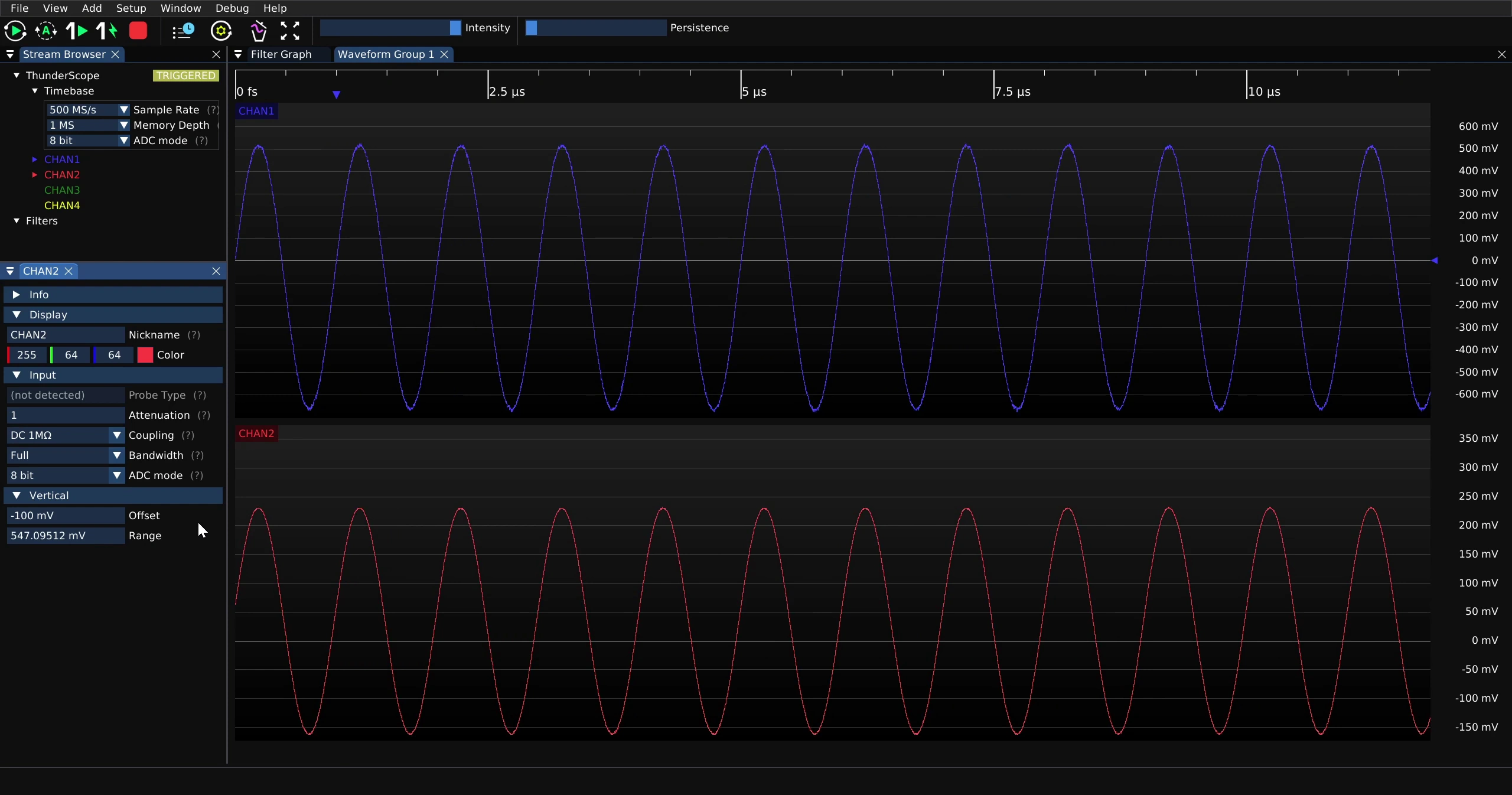
If an exact vertical offset is needed on a channel, it can be entered numerically on that channel’s “Offset” setting under the “Vertical” tab in that channel’s properties
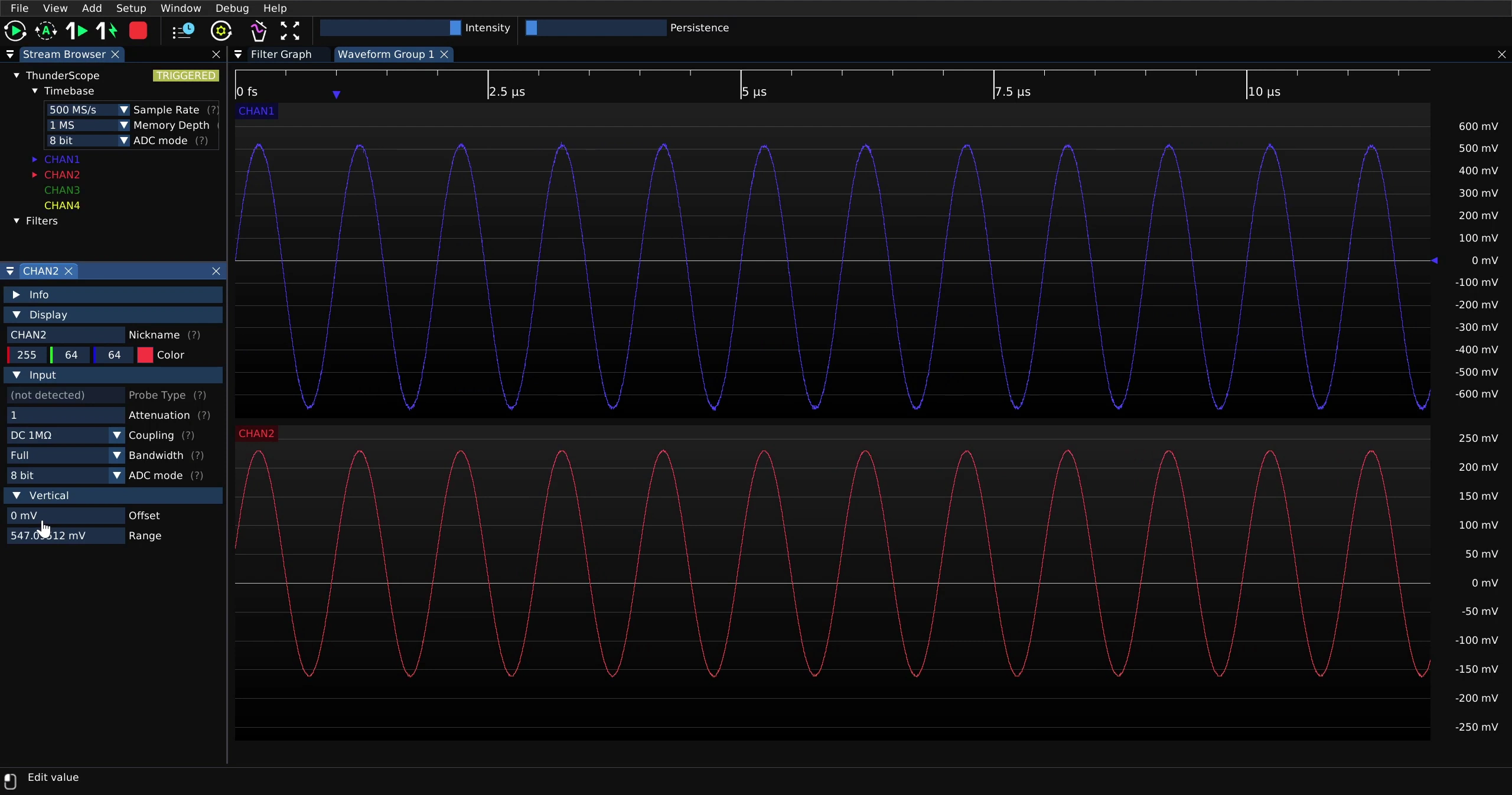
After entering the value, click “Apply” to apply the change in vertical offset
Automatic Vertical Scale and Offset#
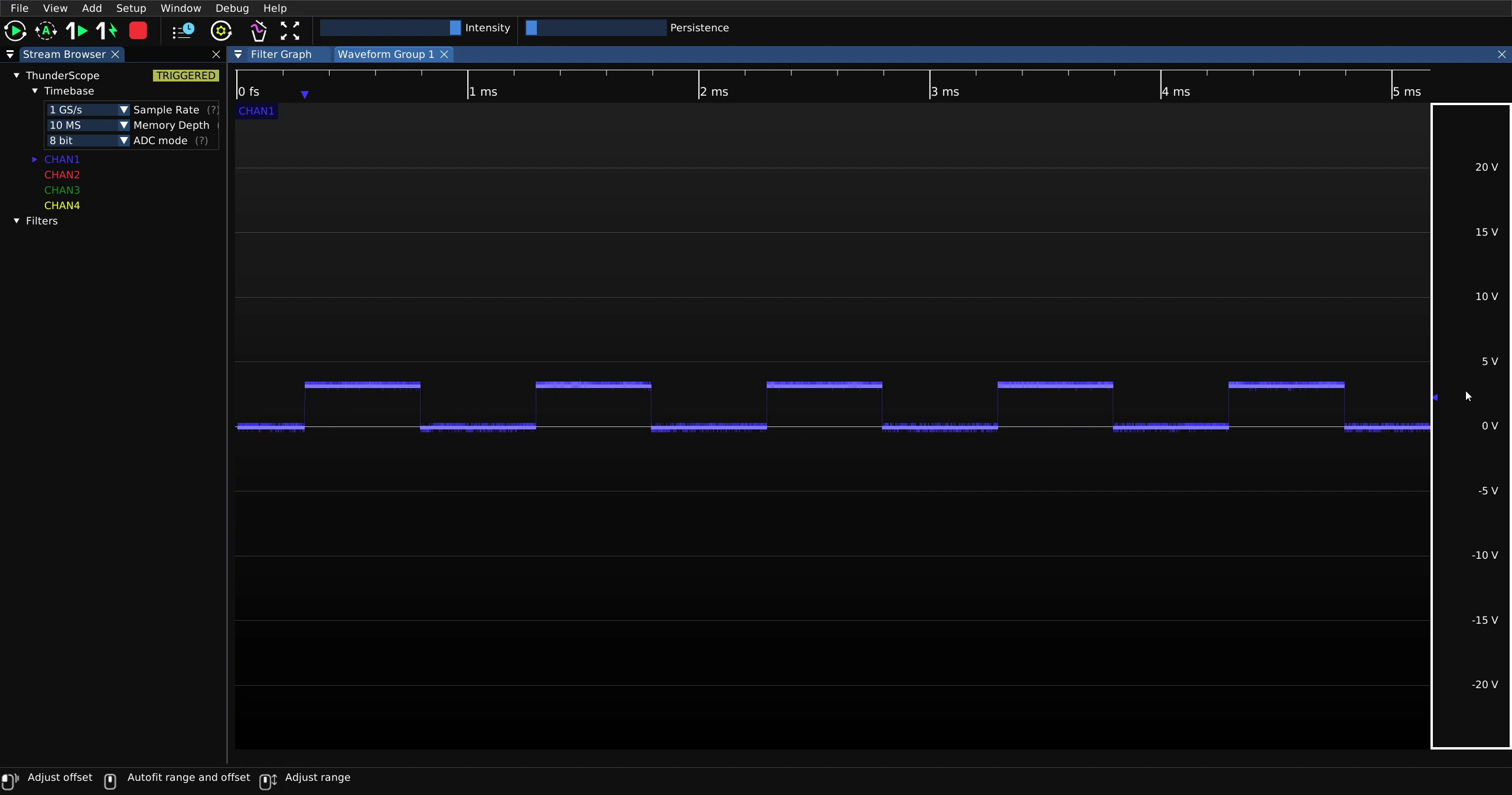
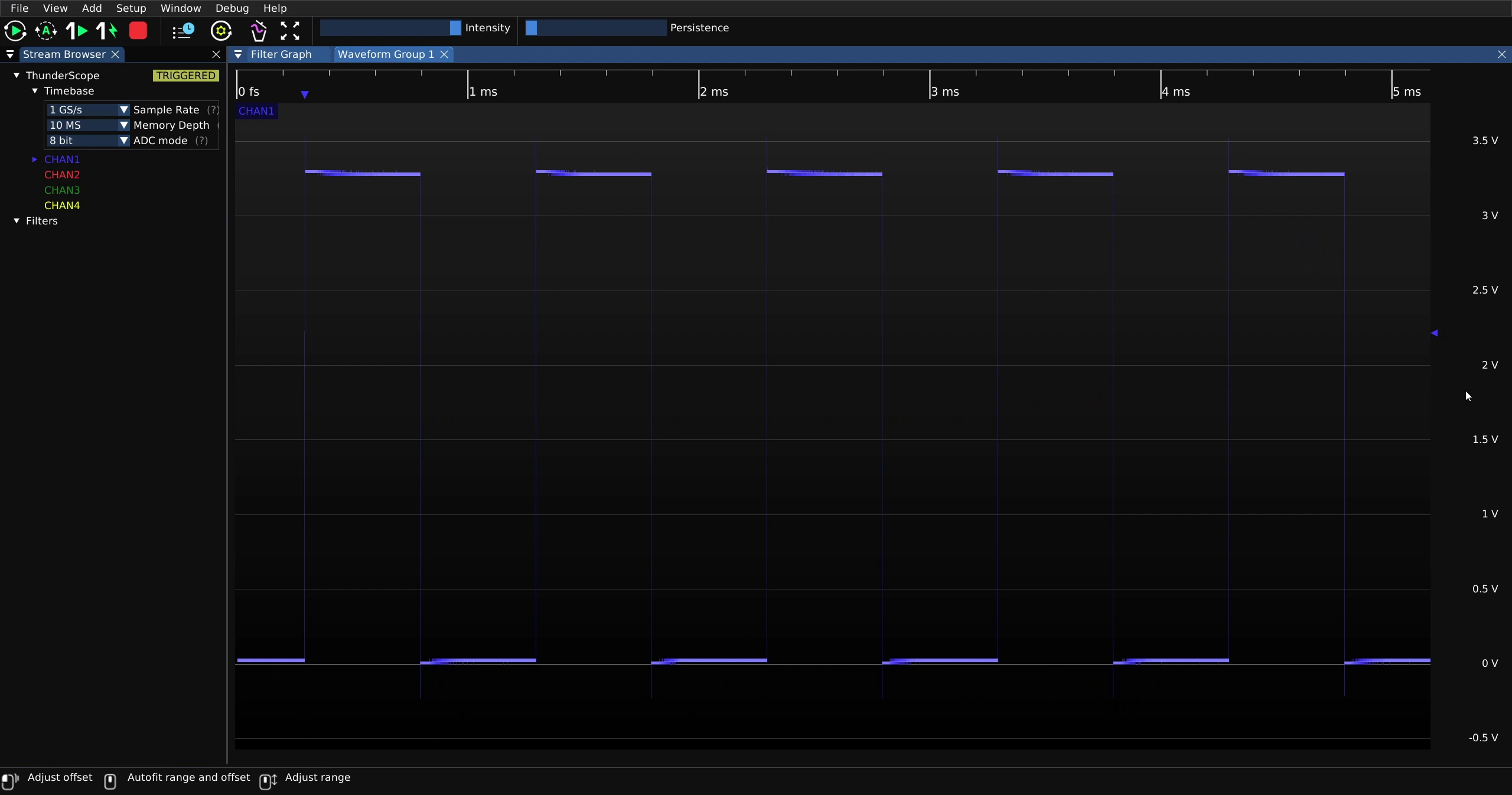
To automatically adjust the scale and offset of the waveform view, middle click on the vertical scale of the waveform view.
Termination and Coupling#
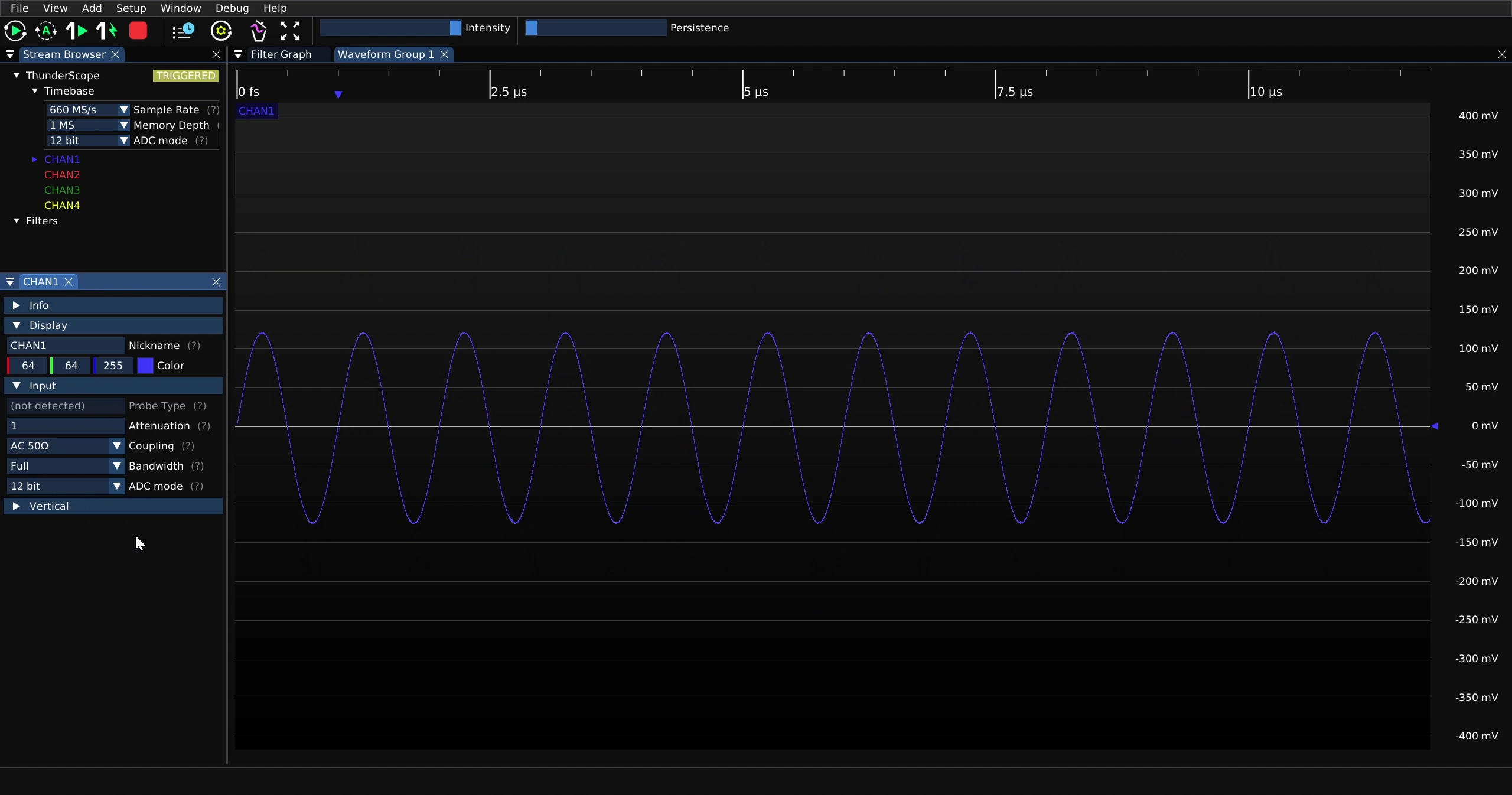
Click on the down arrow next to “Coupling” on the channel property menu and select the desired coupling setting from the drop-down menu
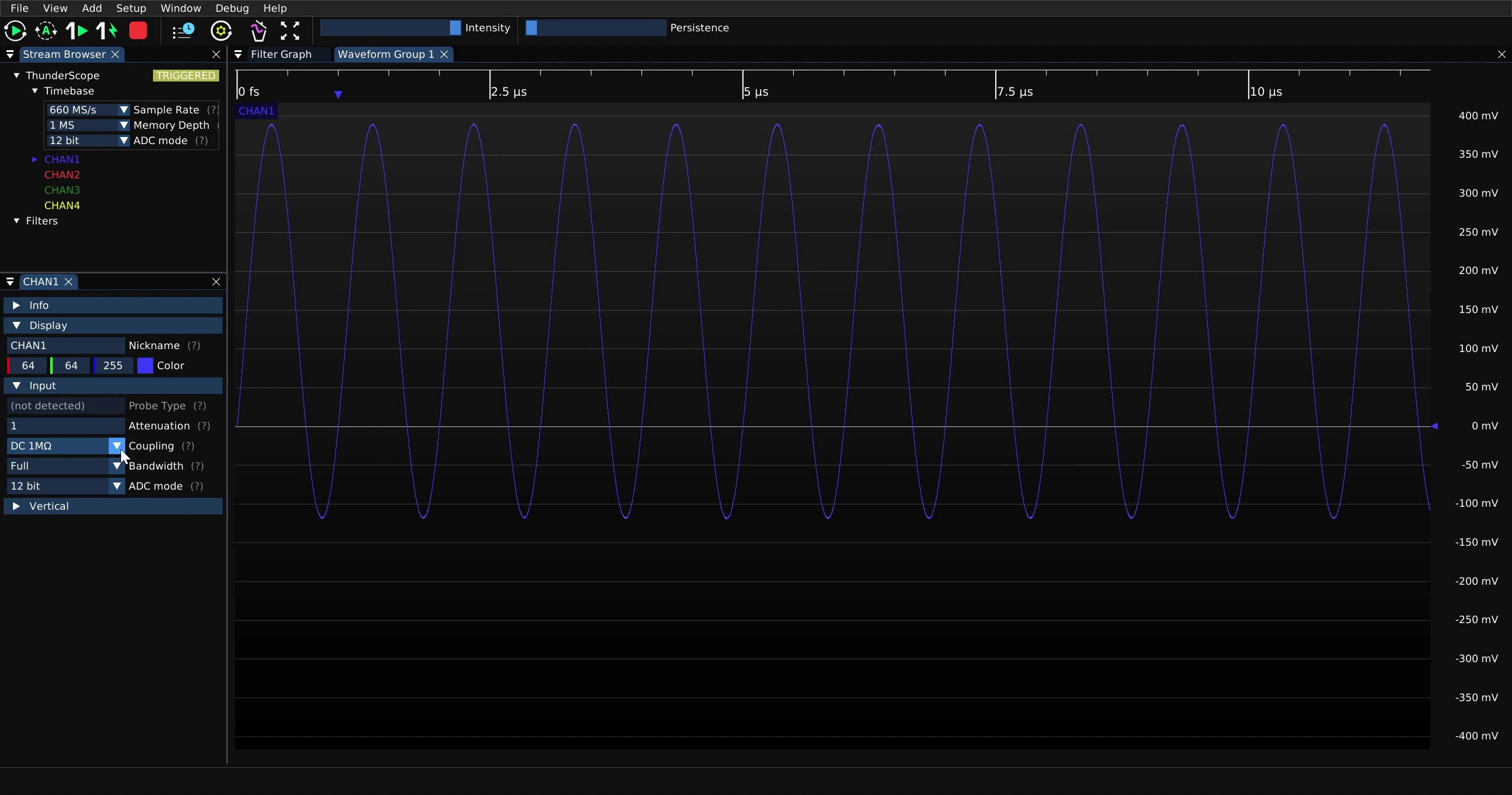
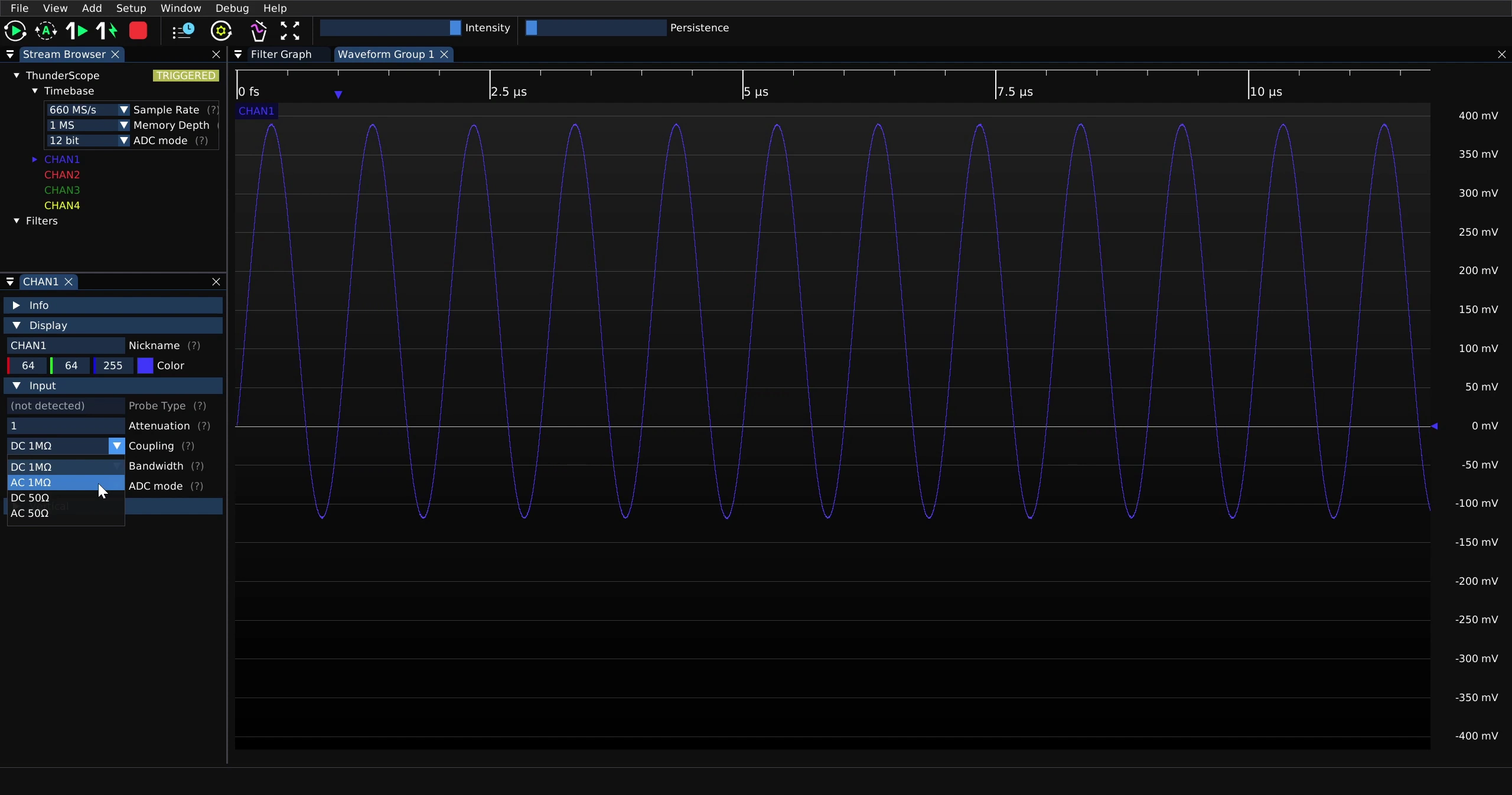
Observe that the waveform is now AC coupled once the coupling setting in the drop down menu has been clicked on
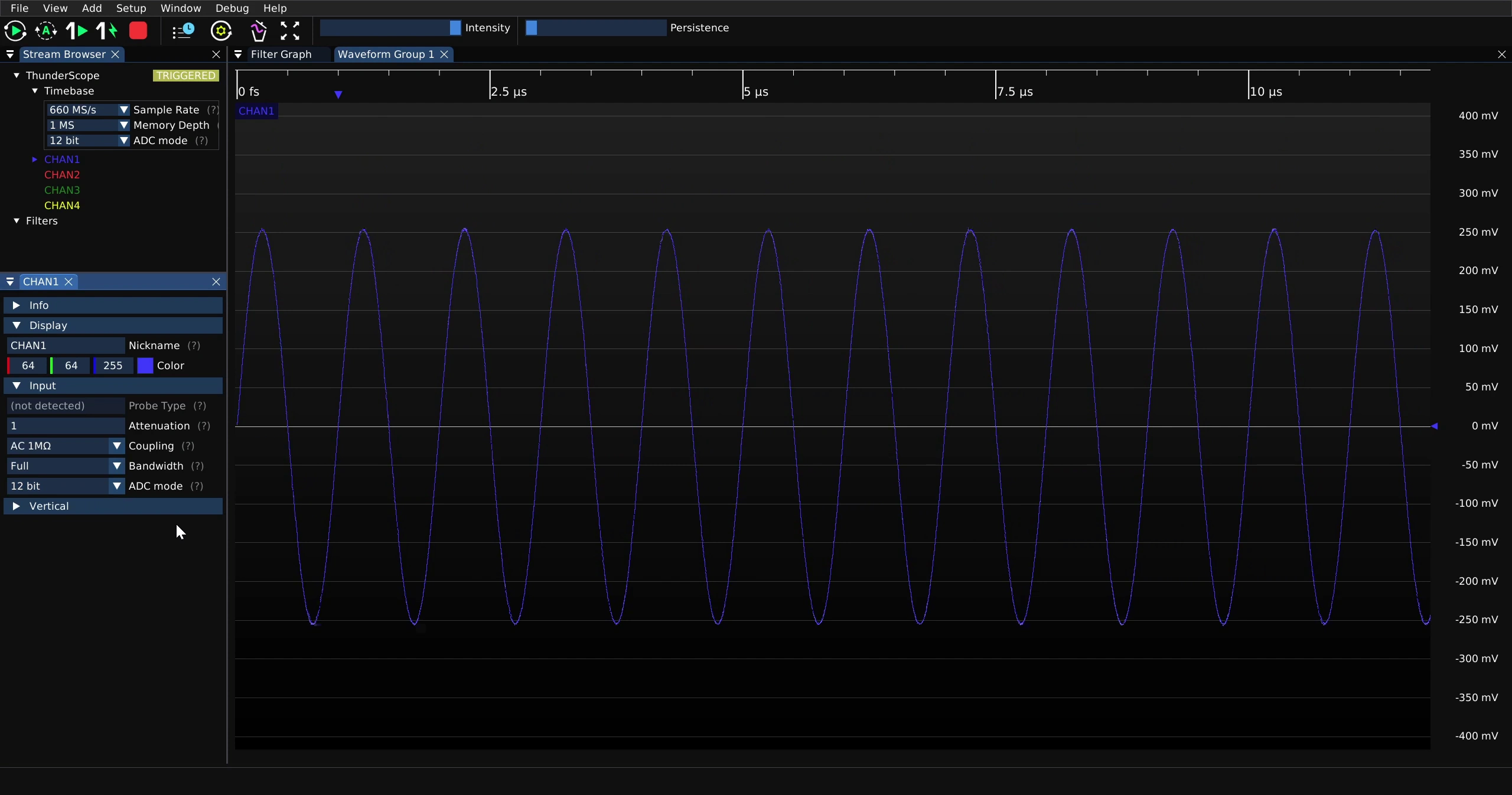
This menu also holds the termination options for the channel
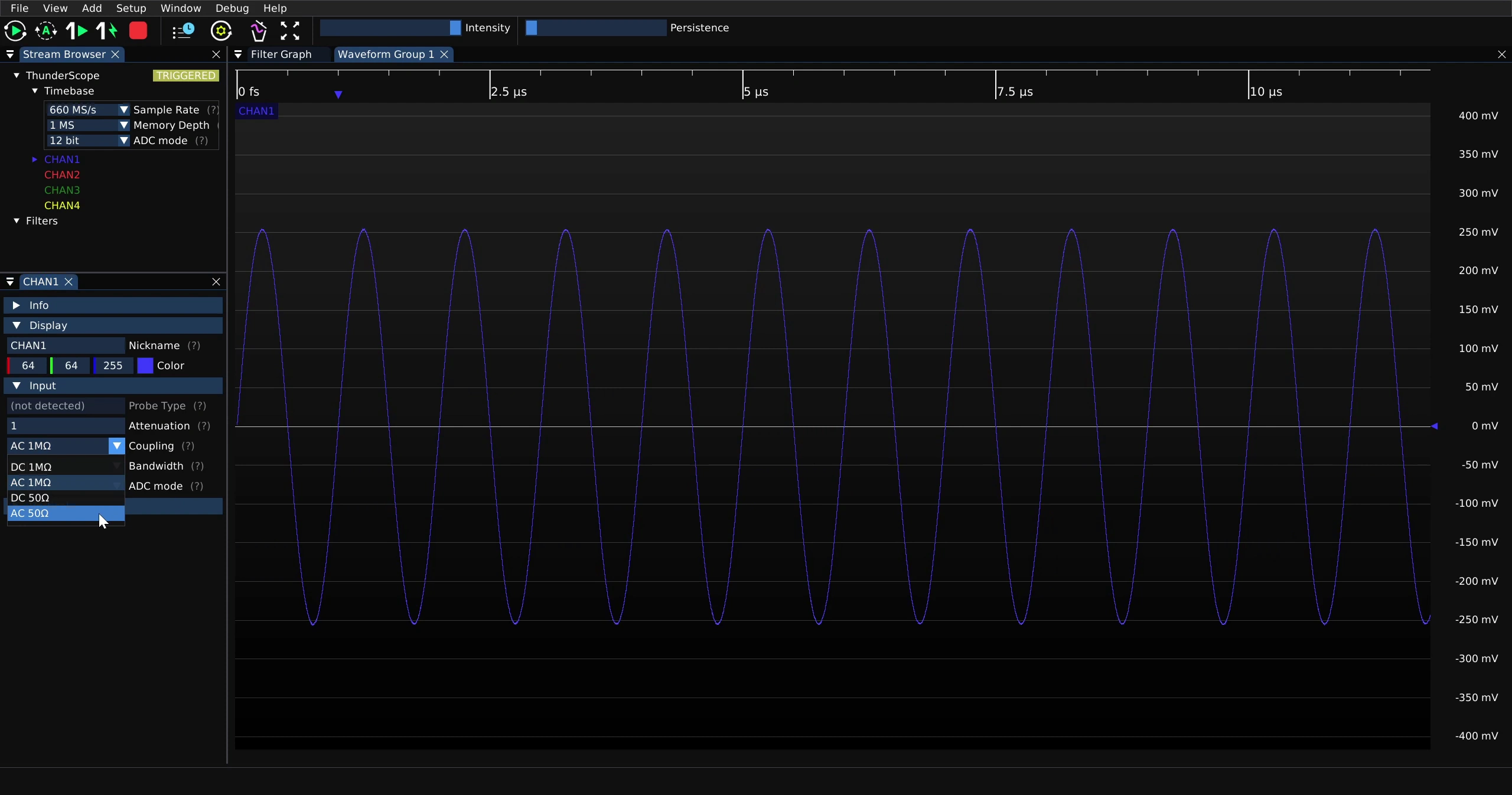
Observe that the waveform has lost half of its amplitude as the 50 Ohm termination option has been selected
Bandwidth#
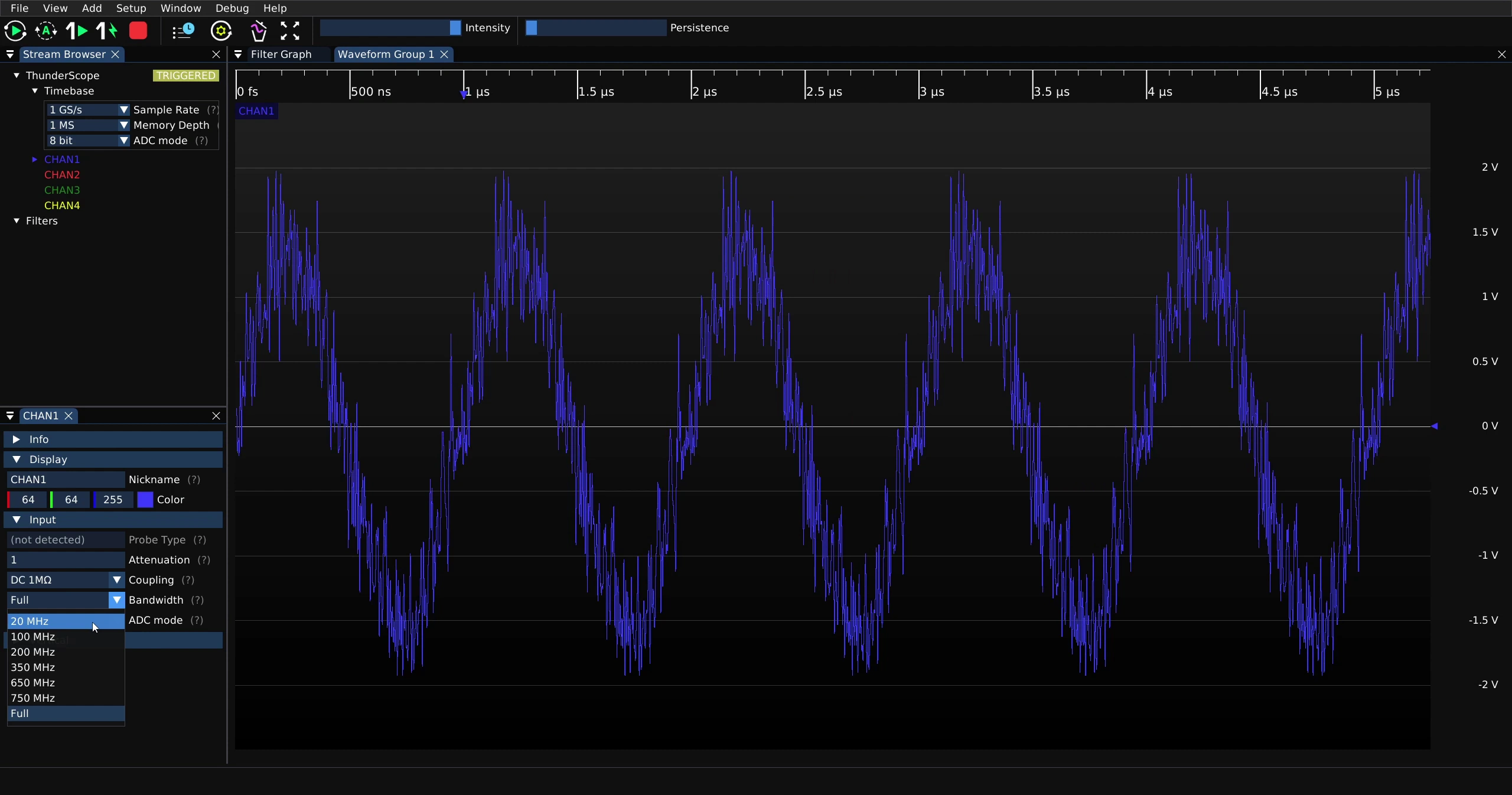
Click on the down arrow next to “Bandwidth” on the channel property menu and select the desired bandwidth setting from the drop-down menu
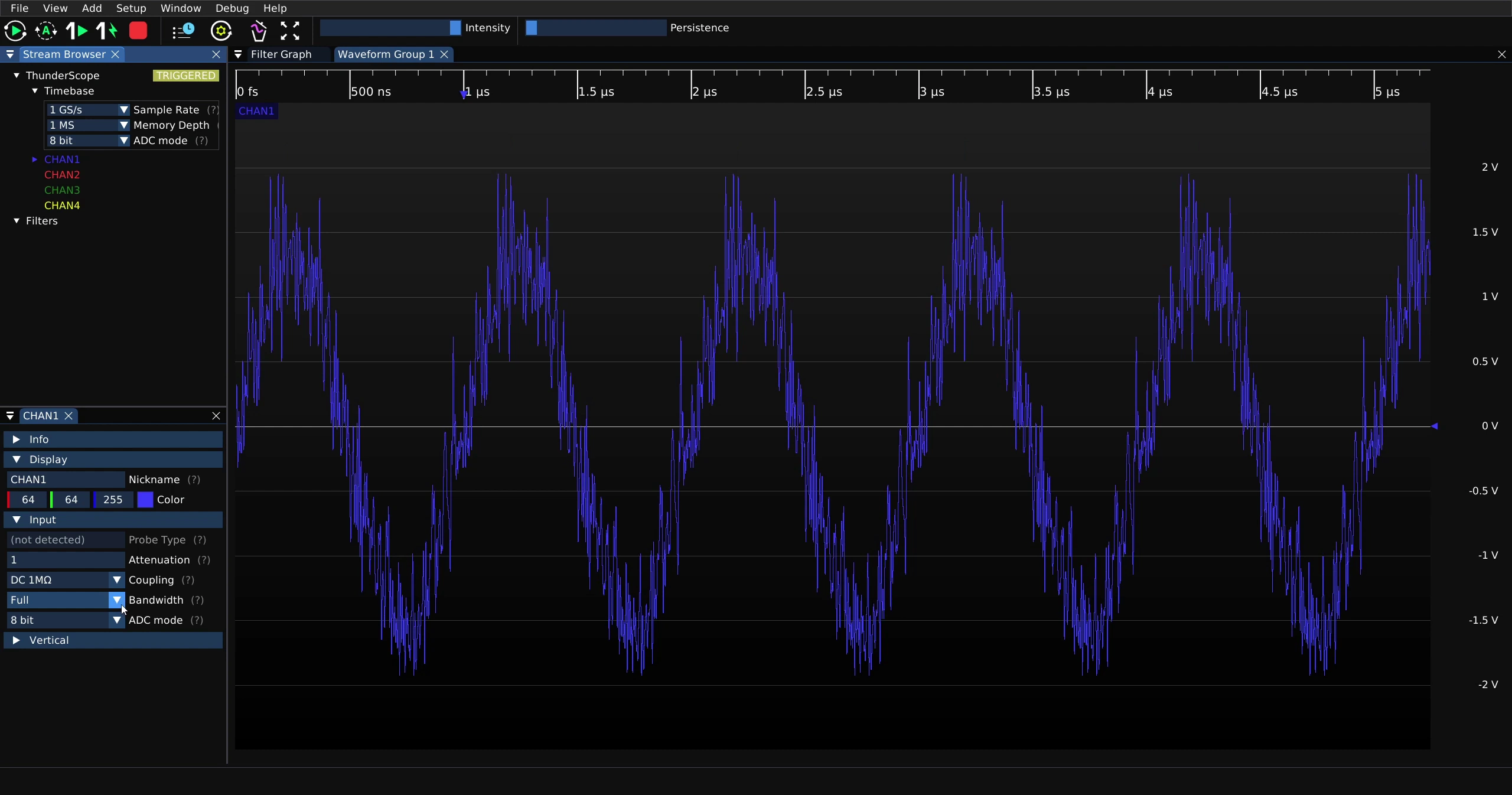
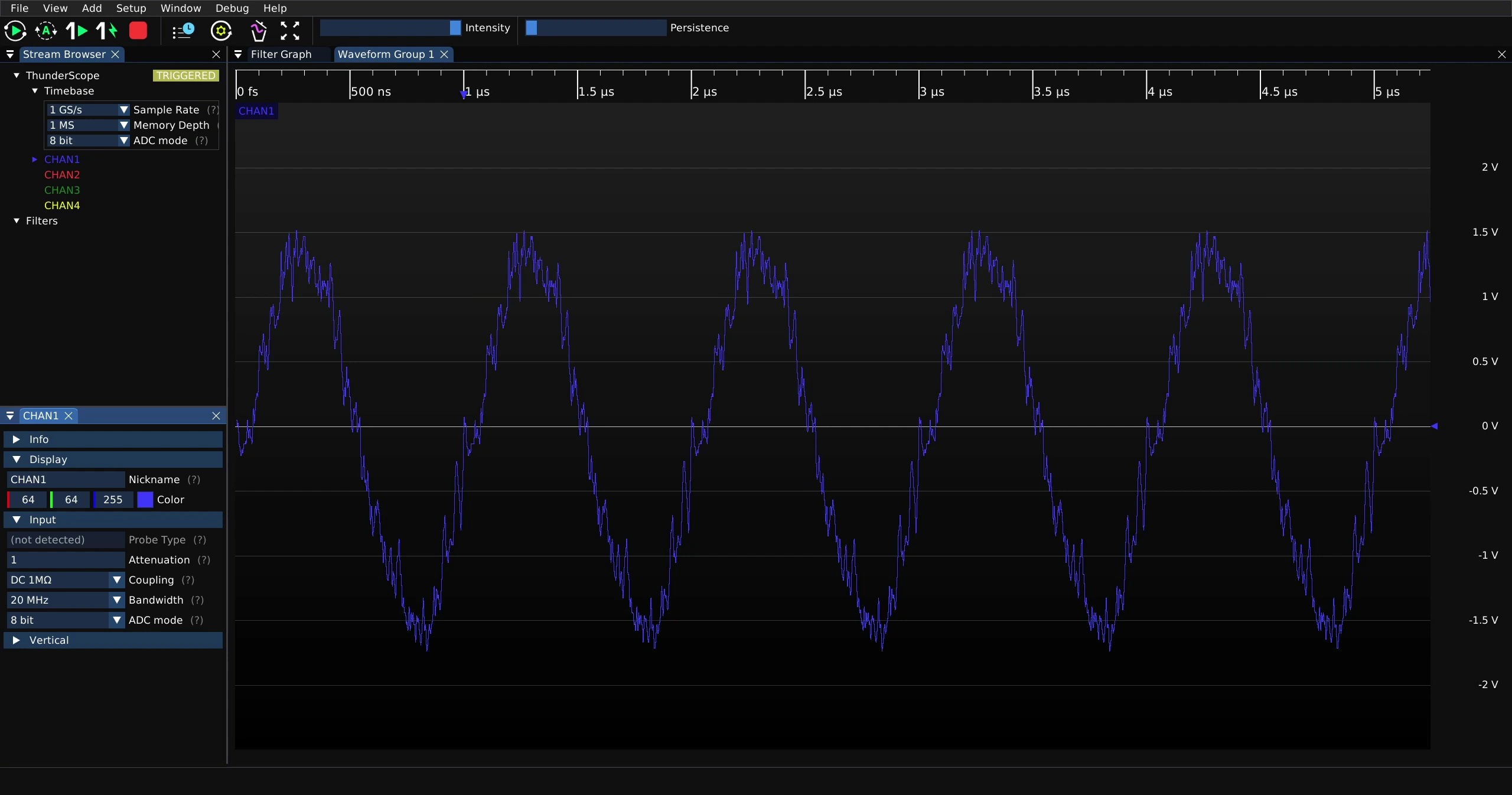
For this example, a 20 MHz bandwidth is used on a very noisy 1 MHz sine signal.
Observe that the high frequency noise has been filtered. The bandwidth setting applies a low pass filter directly to the analog signal chain. Measurements that require the lowest possible noise should use the lowest possible bandwidth setting, as noise scales with bandwidth.
Attenuation#
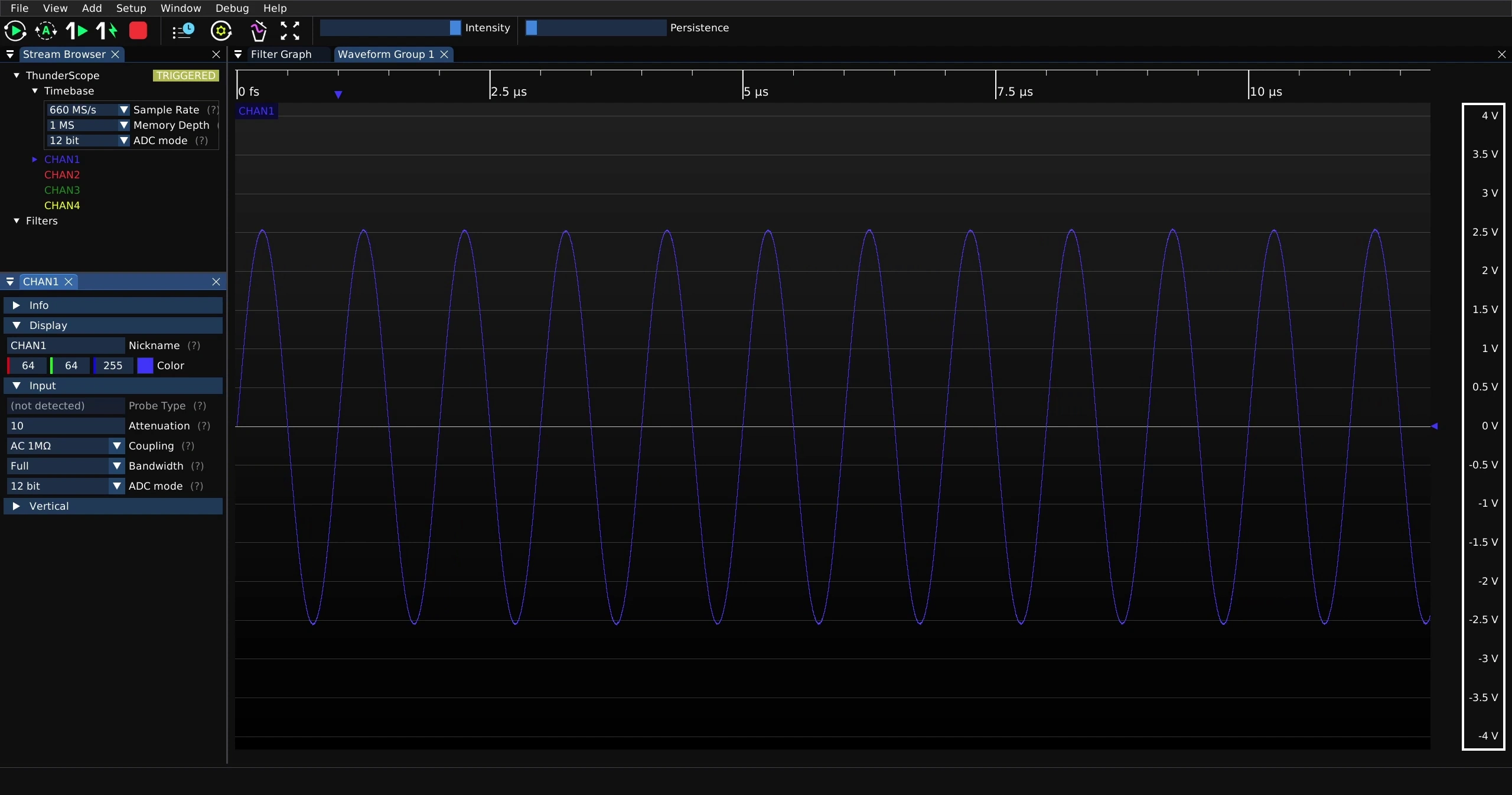
To set an attenuation factor, enter a value into the “Attenuation” field in the channel property menu.
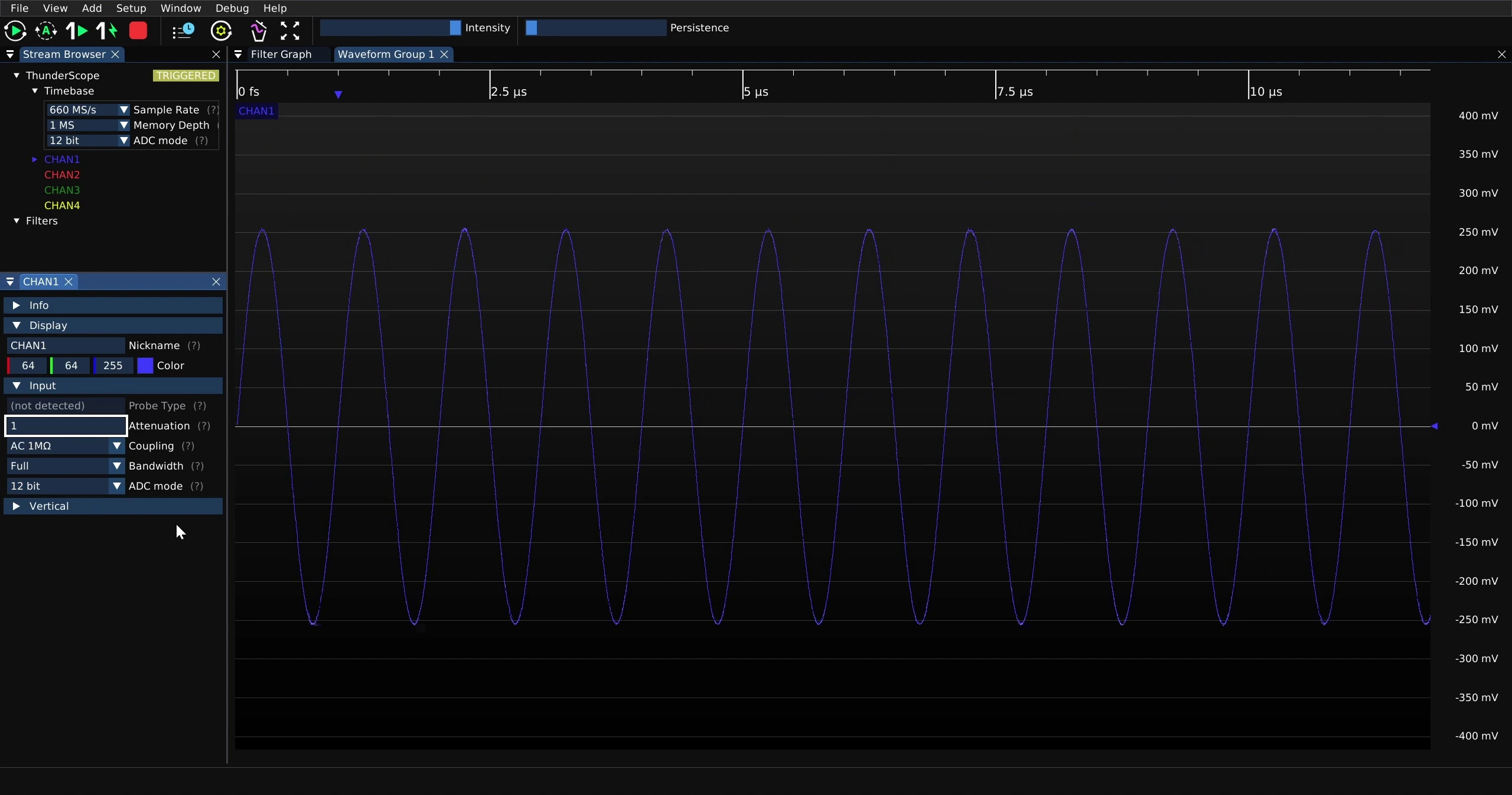
This will change the displayed scale to reflect the attenuation factor. The internal state of the ThunderScope is not changed, this is just a scaling factor on the data. This is useful for making measurements with probes, where there is often an attenuation associated with the probe.
Channel Nickname#
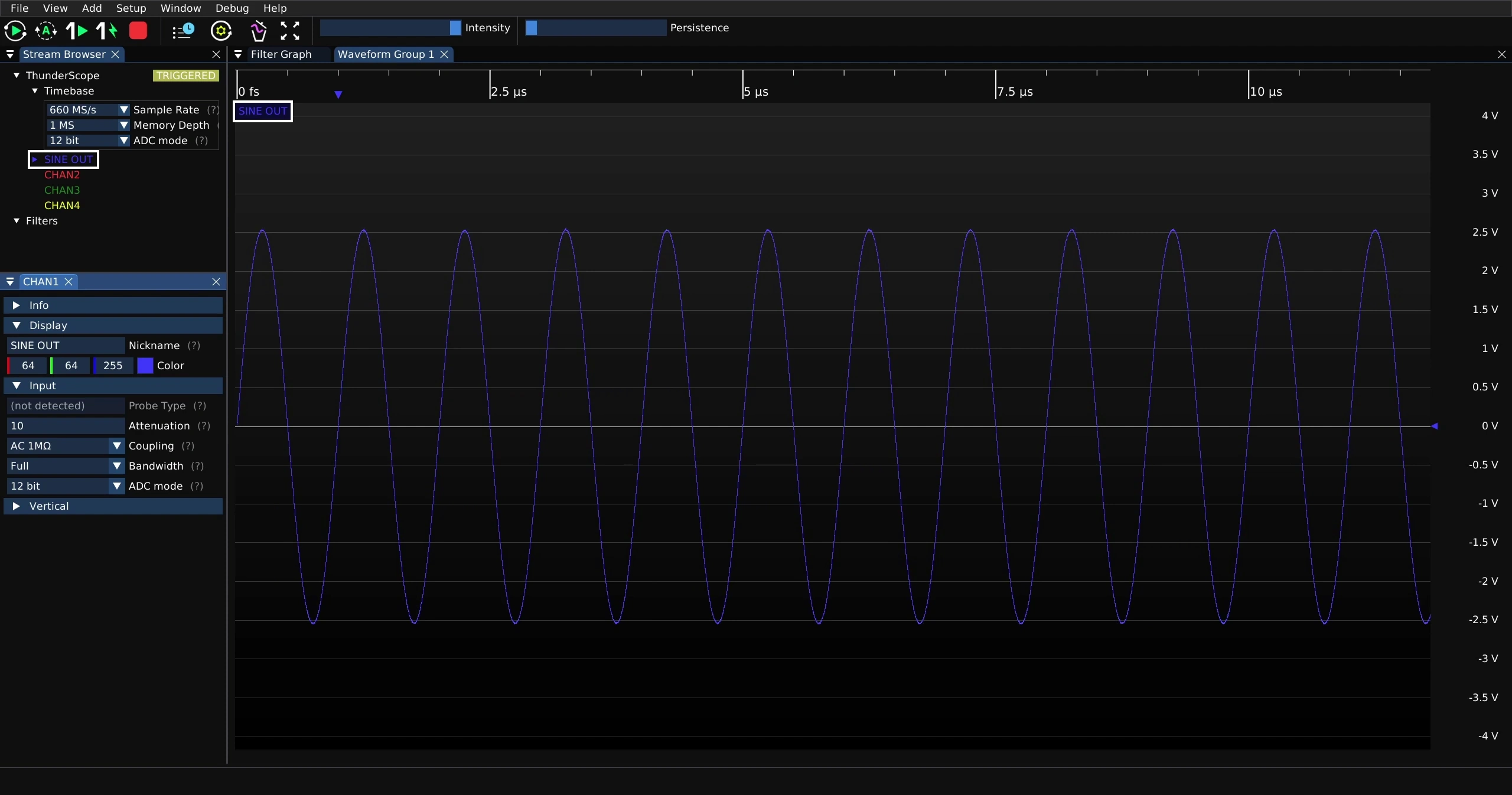
To set an channel nickname, enter the desired nickname into the “Nickname” field in the channel property menu.
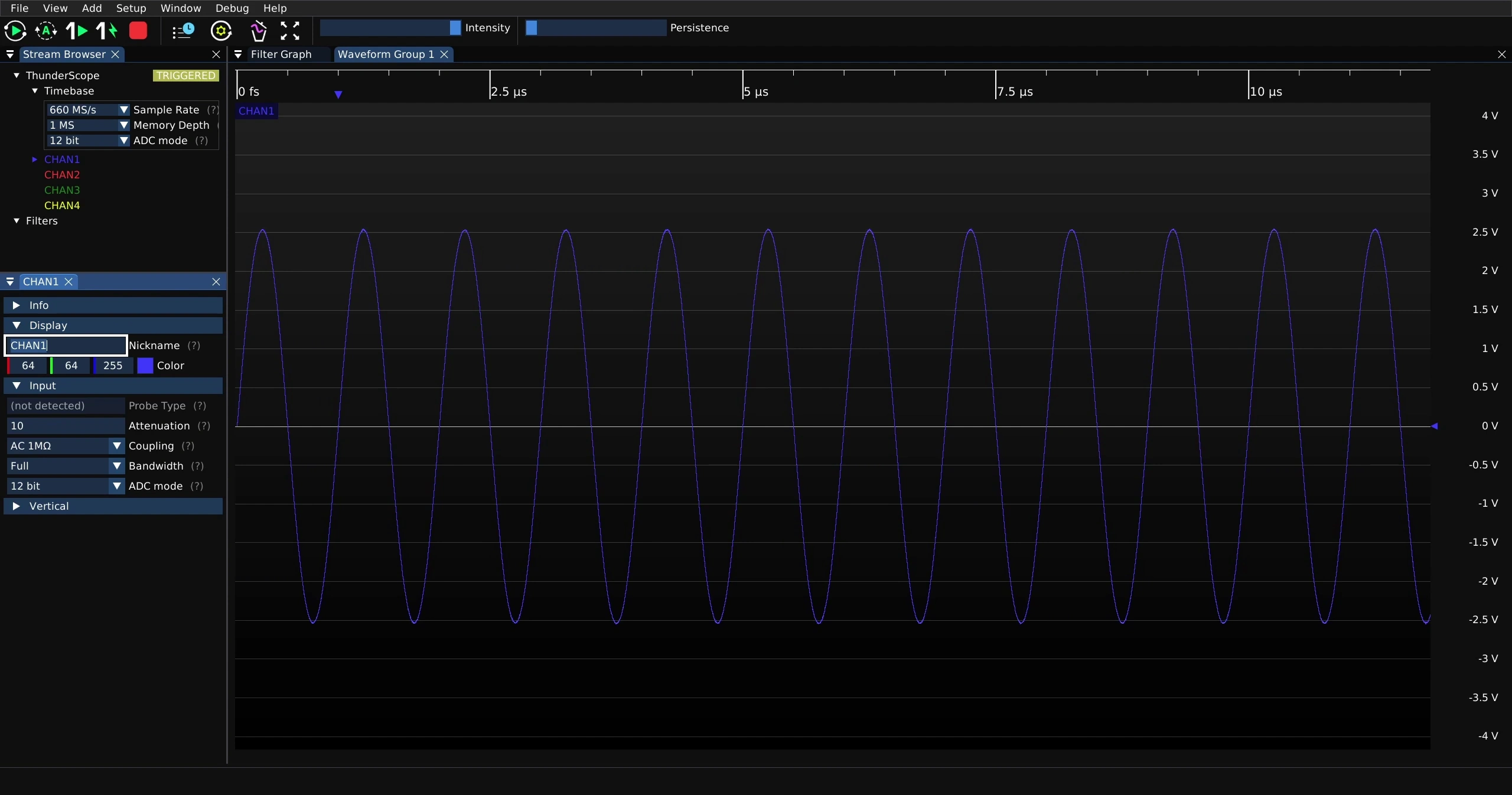
This will change the channel label to the entered nickname
Channel Color#
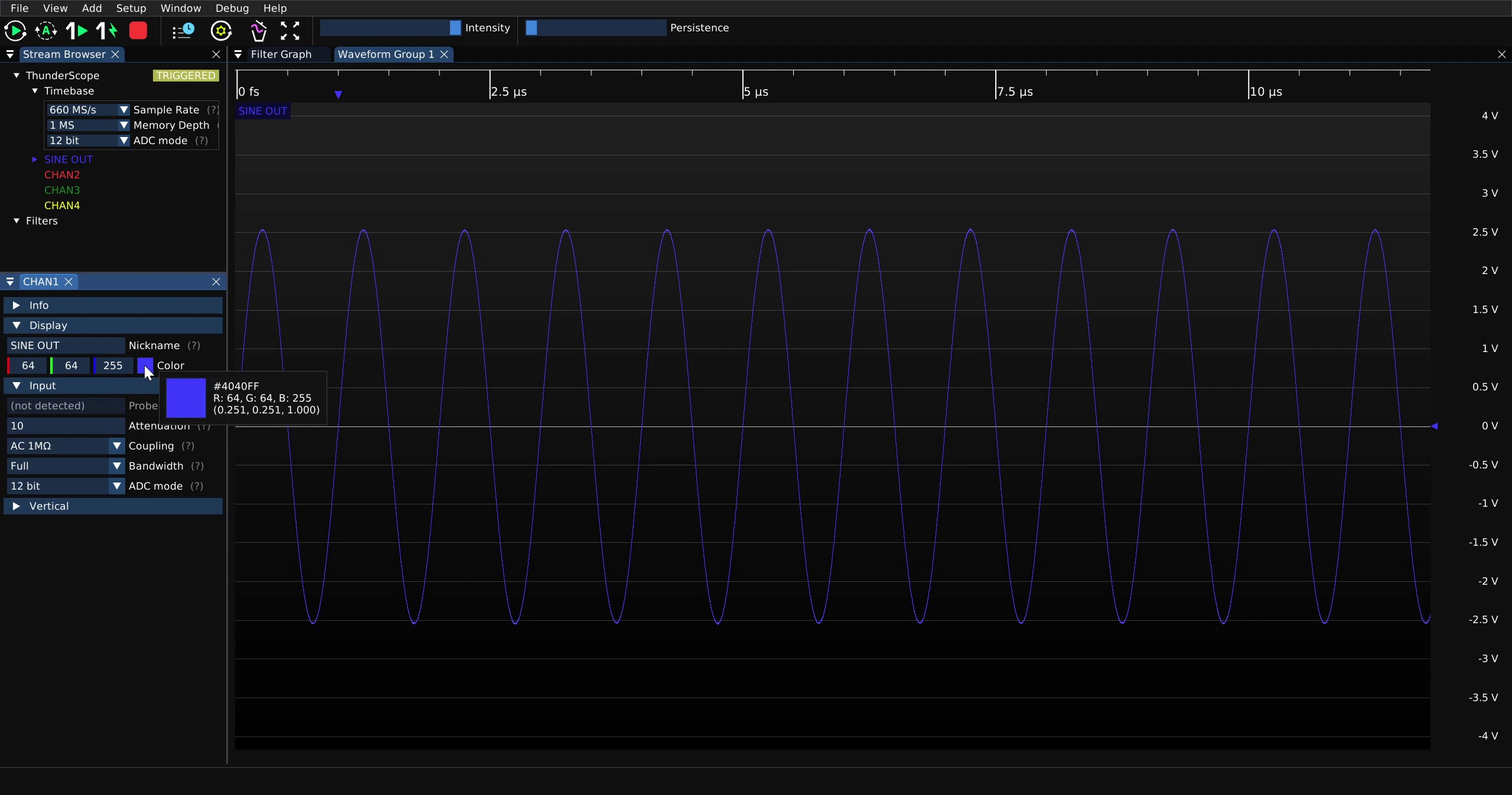
Mouse over the channel color in the channel property menu to show information on the existing color of the channel
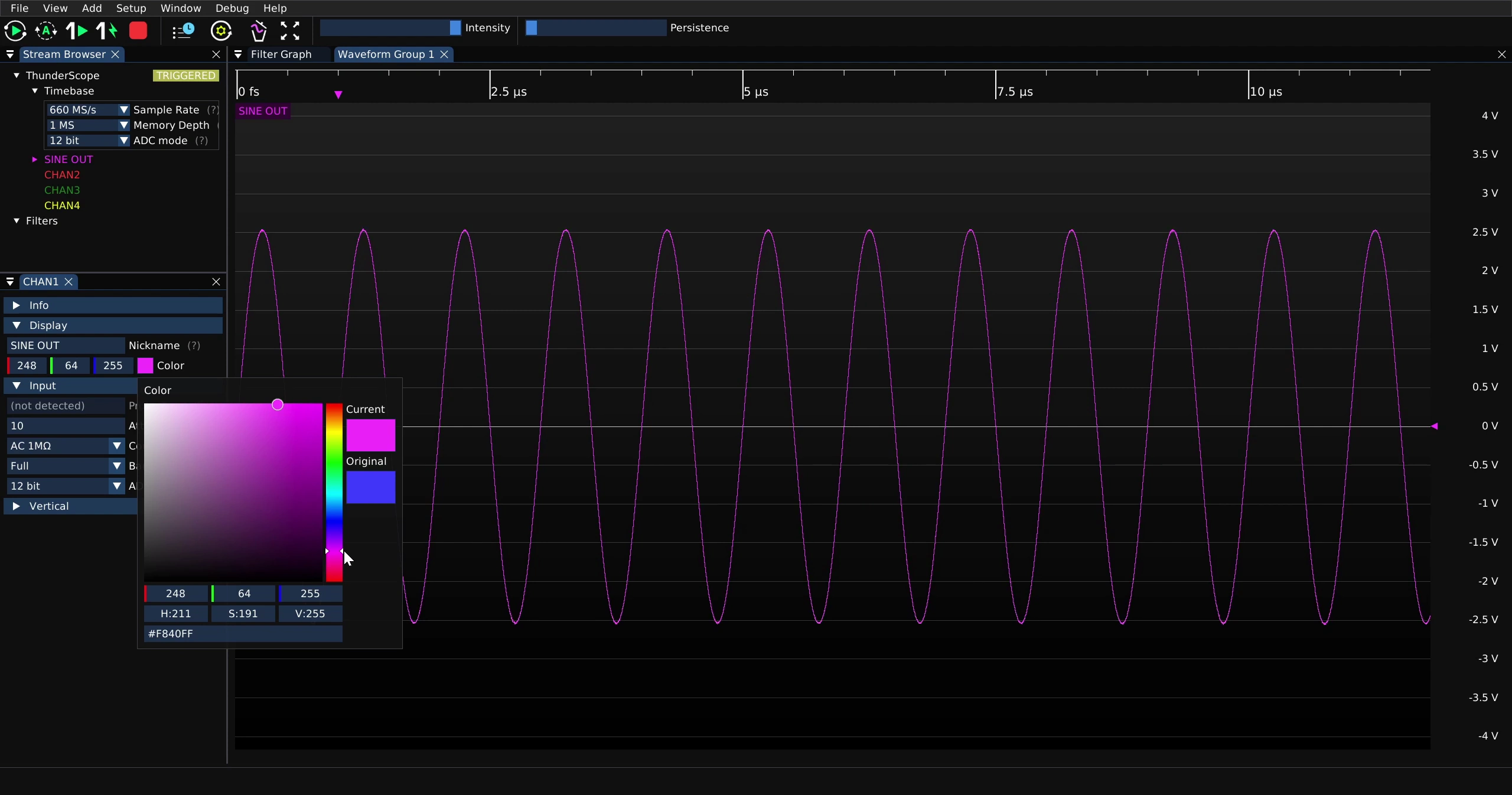
Click on the color to show the color picker
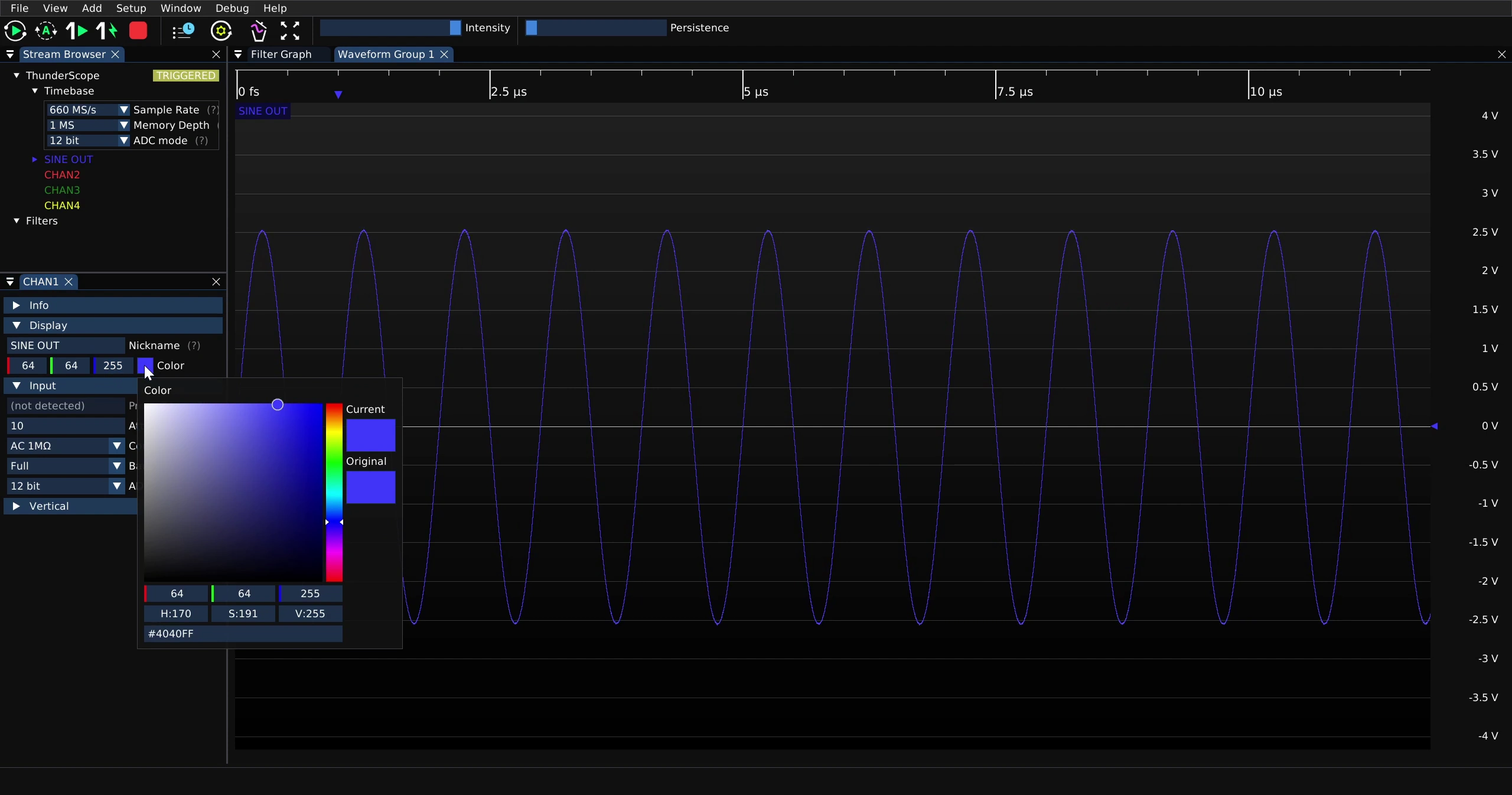
Now select the desired color for the channel