Trigger Controls#
This guide assumes you have installed the driver and software for ThunderScope. If you have not already done do, please follow the getting started guide.
Trigger Menu#
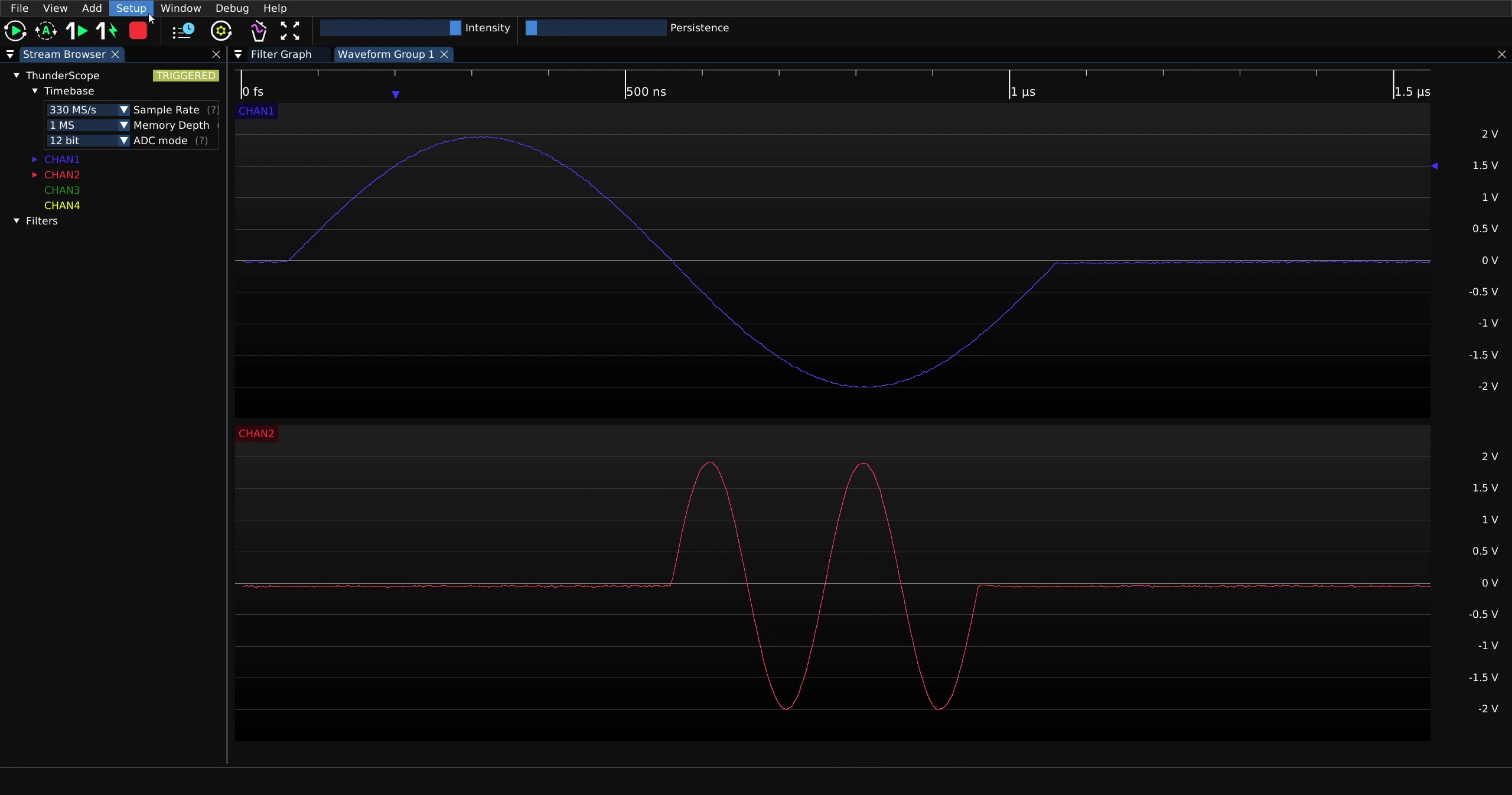
To open the trigger menu, click on “Setup” on the main menu at the top of the window
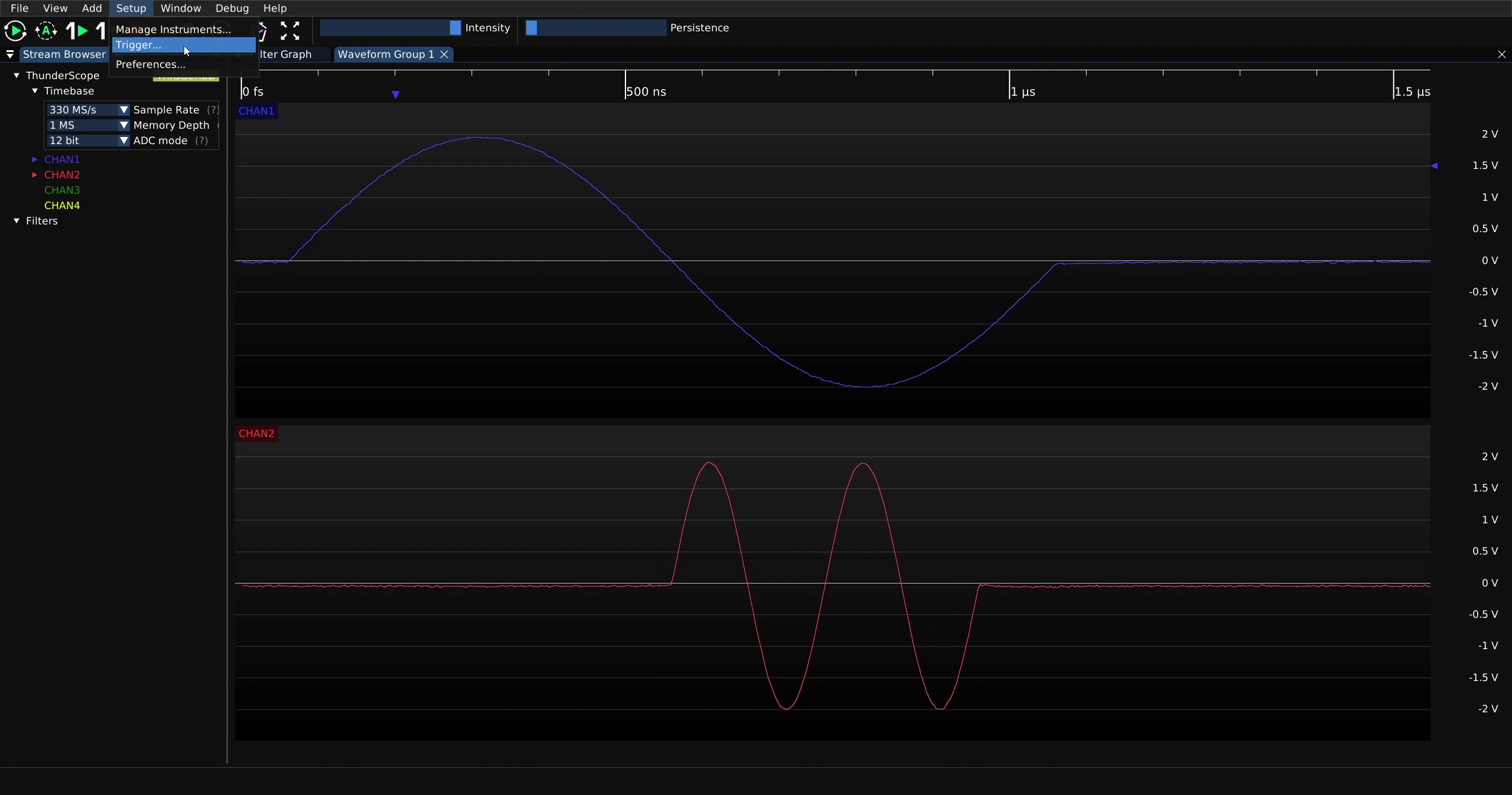
Then click on “Trigger”
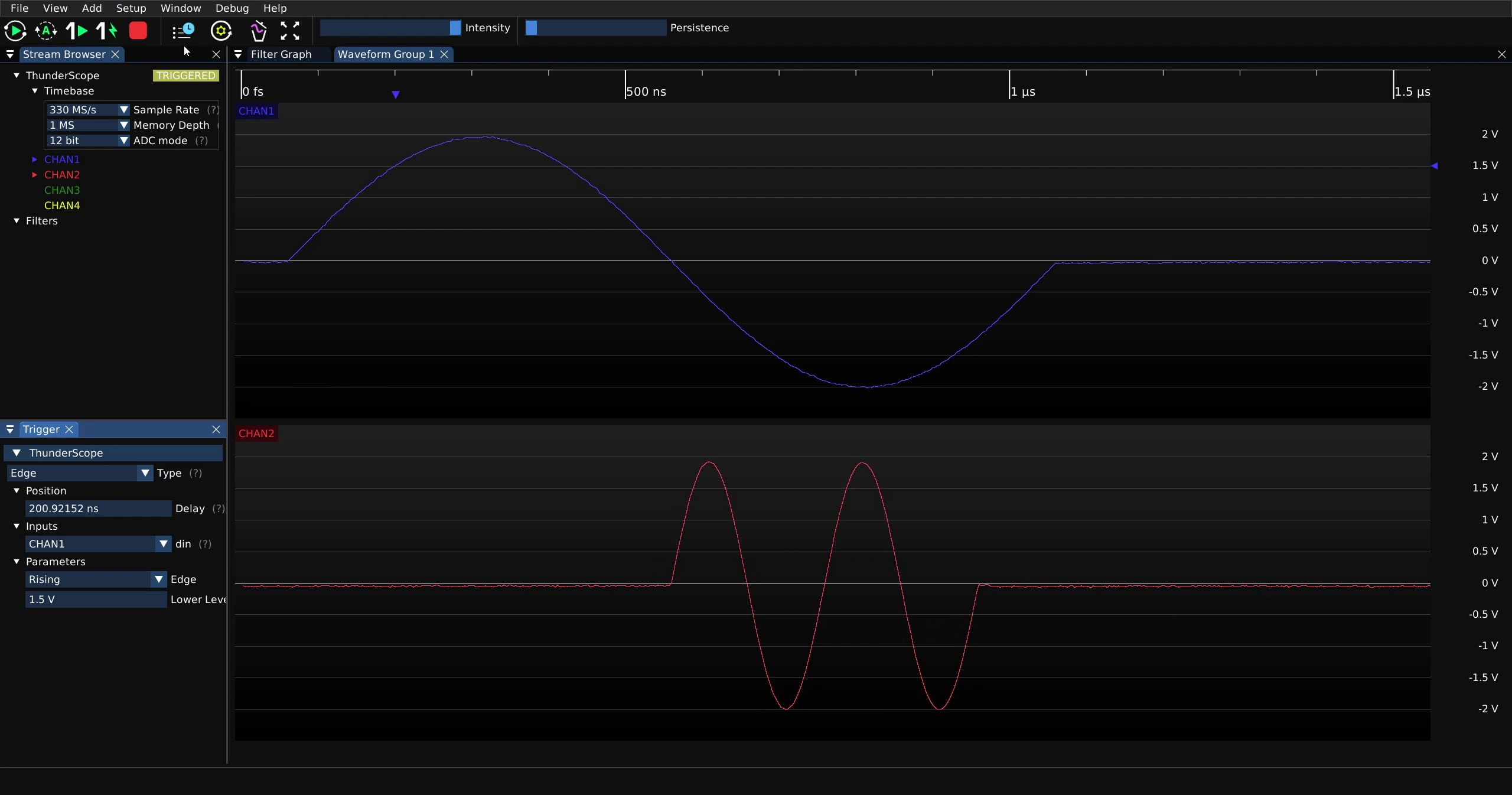
This will spawn a trigger menu element, which is shown docked to the sidebar below:
Trigger Type#
To change the trigger type, click on the down arrow next to “Type” on the trigger menu
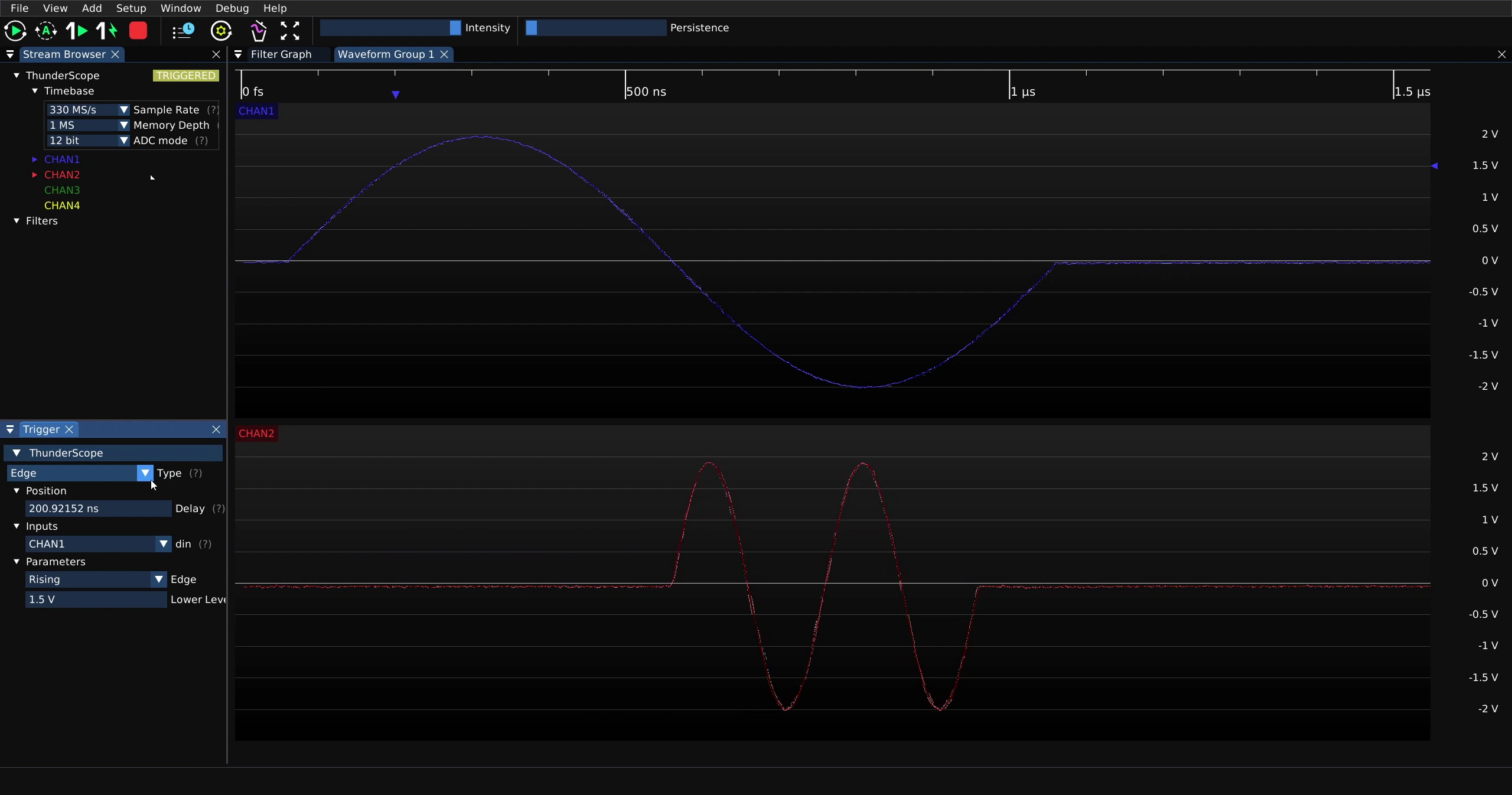
Then select the desired trigger type from the drop down menu
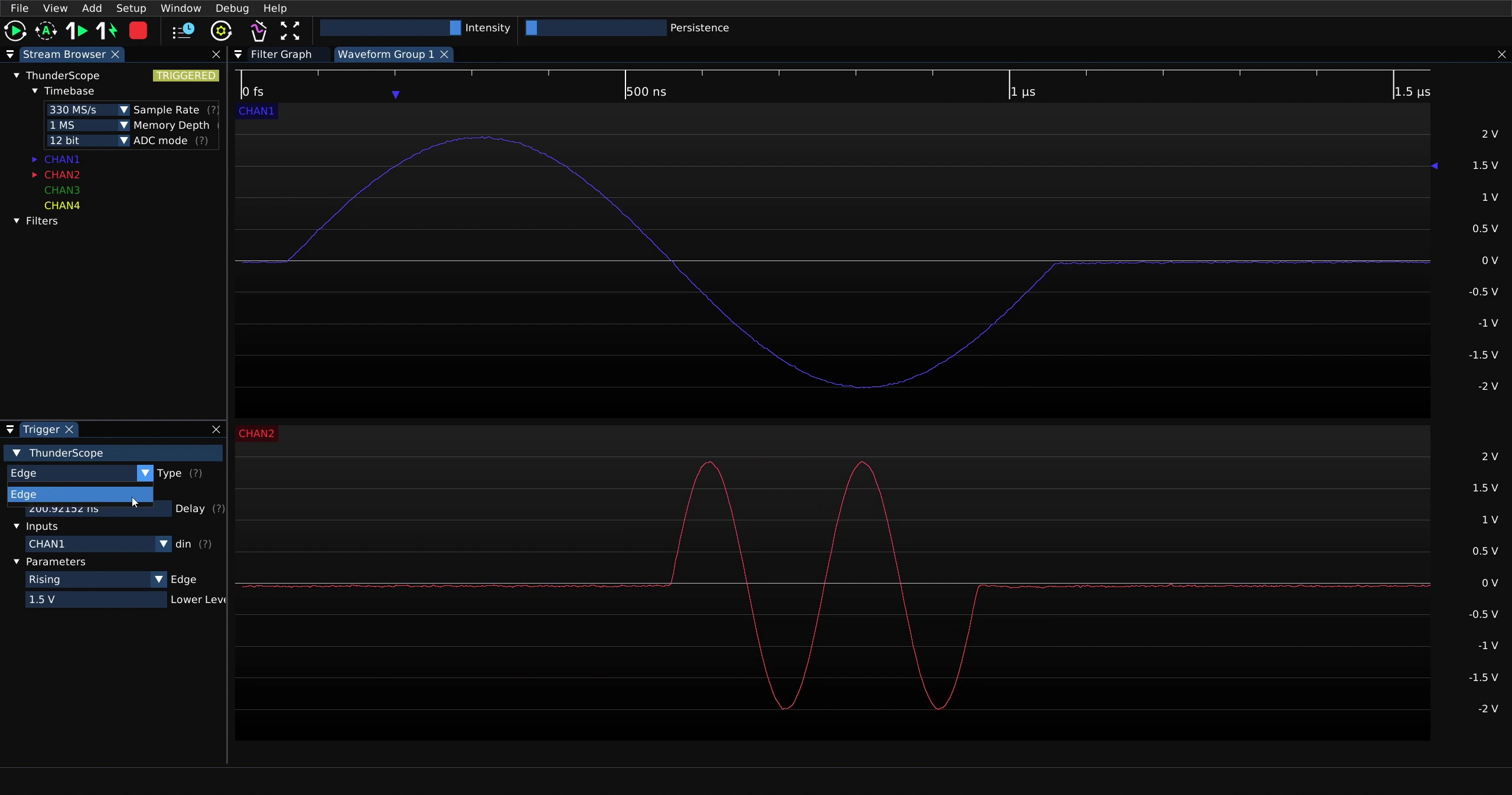
Note
At time of writing, only edge trigger is supported. We are working on adding new triggers, if you are interested in helping with new trigger development, check out the Development Guide.
Trigger Delay#
To delay the capture relative to the point that it was triggered, click on the arrow on any horizontal scale and drag it left or right.
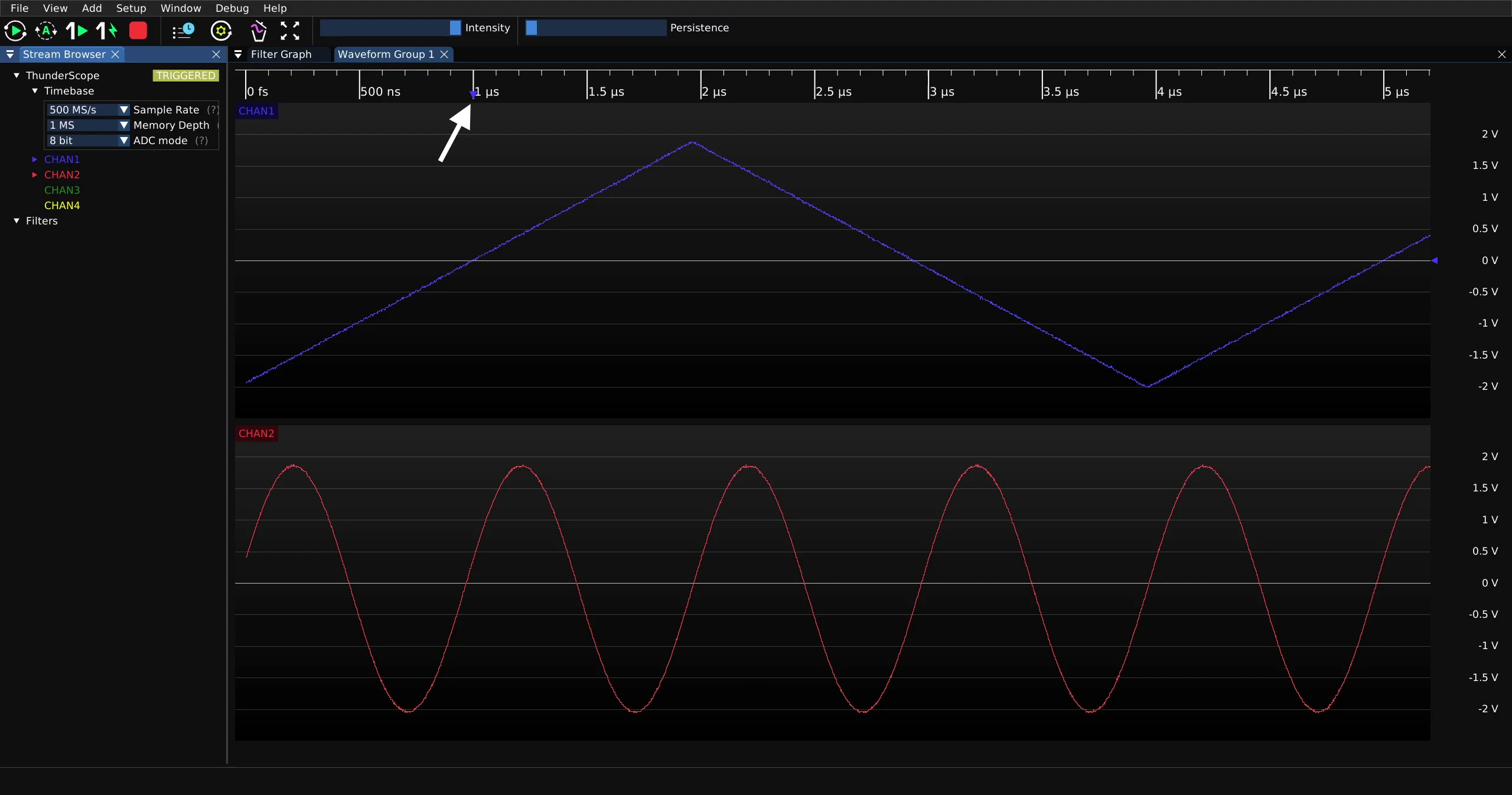
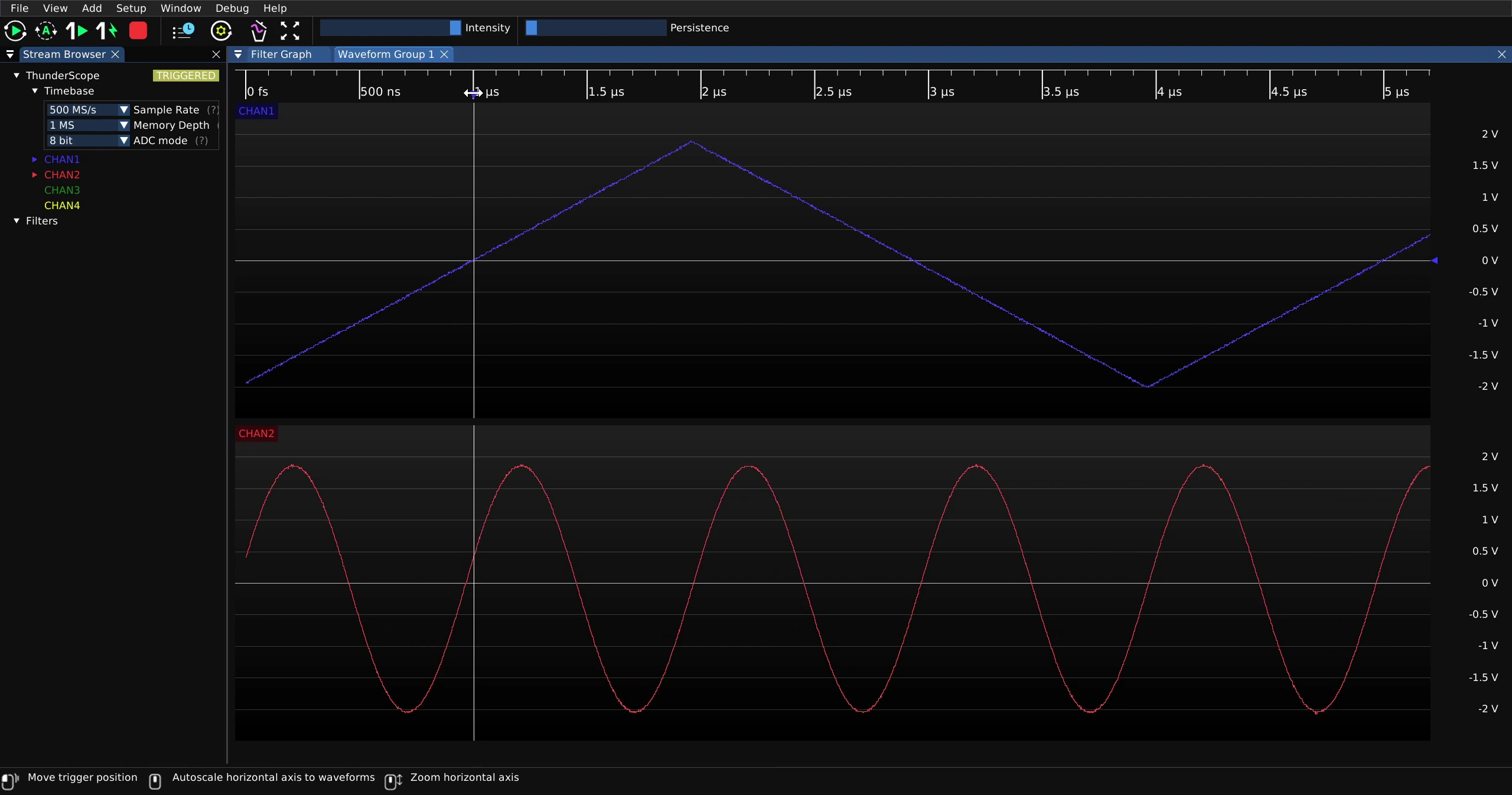
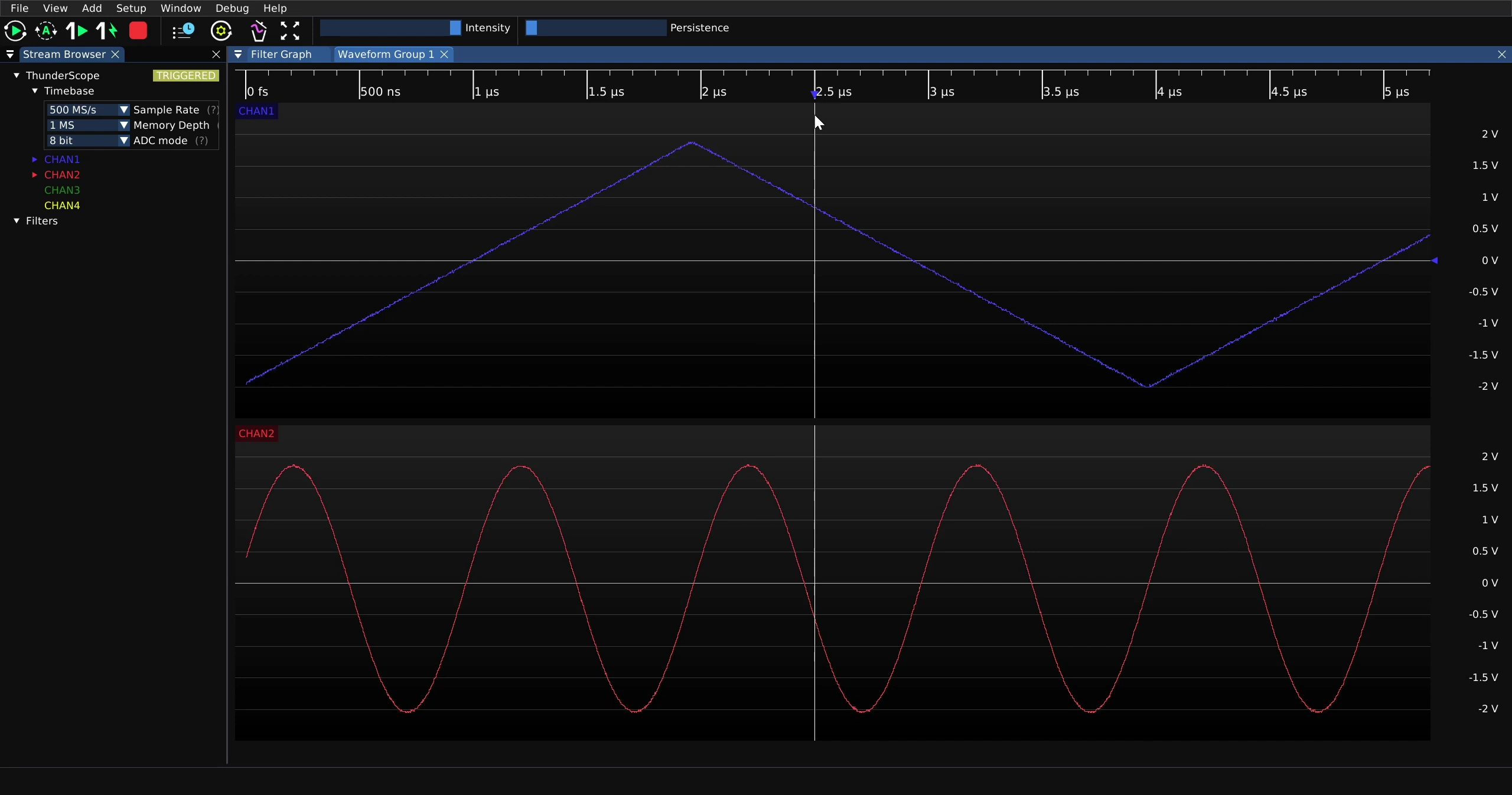
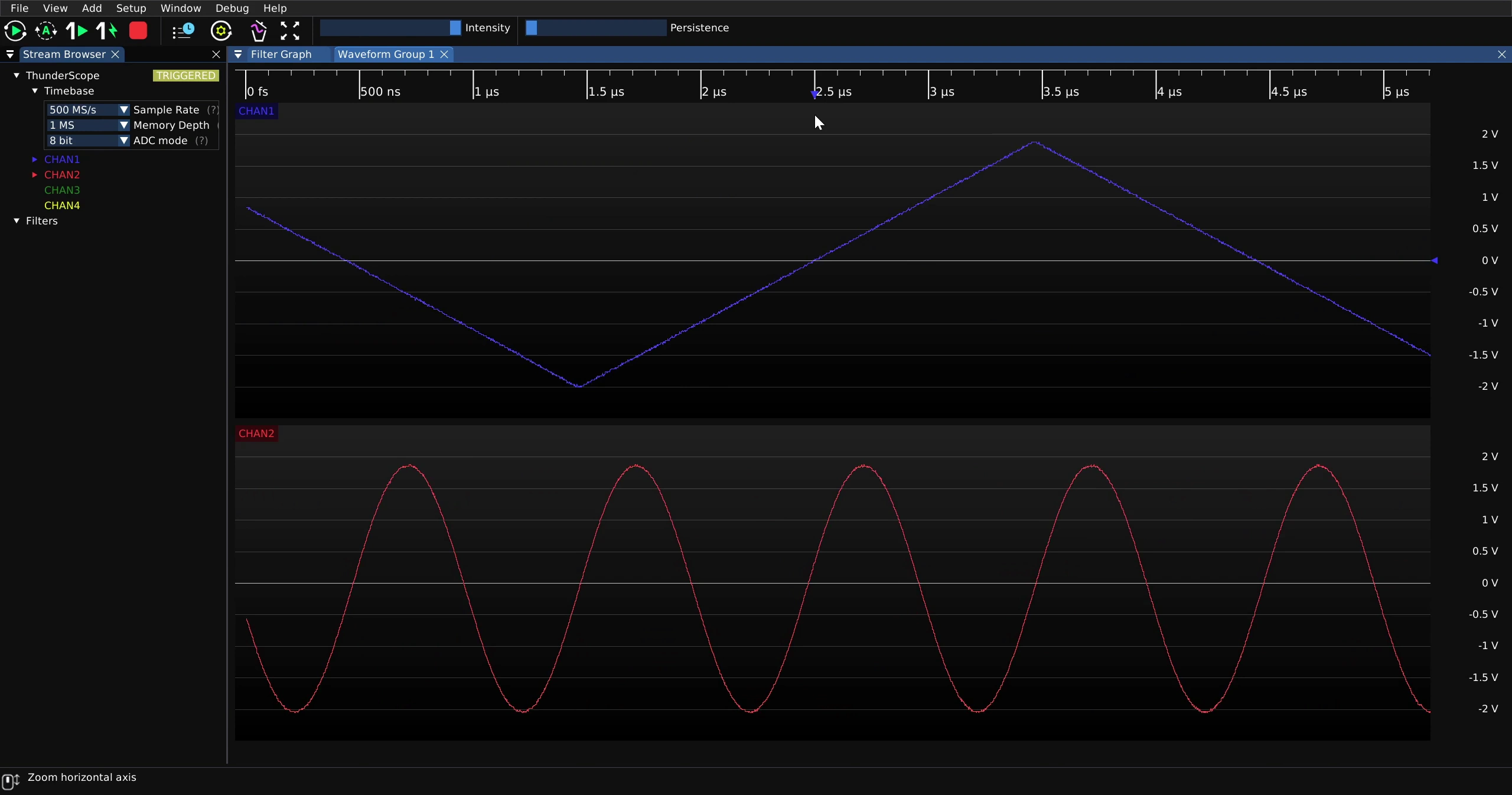
The delay can be adjusted on separate waveform groups, this will affect all waveform groups as there is only one trigger point that the delay is relative to.
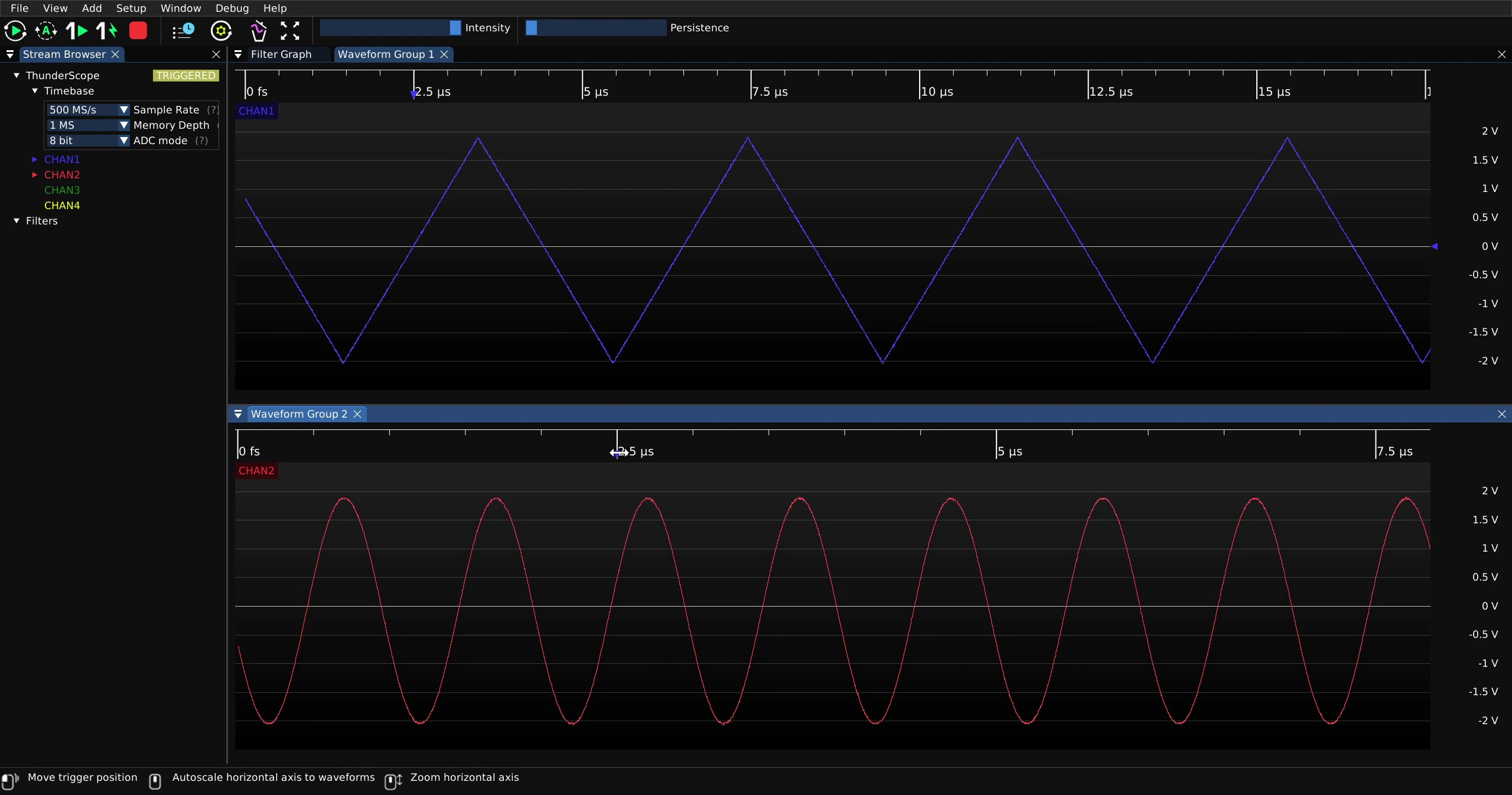
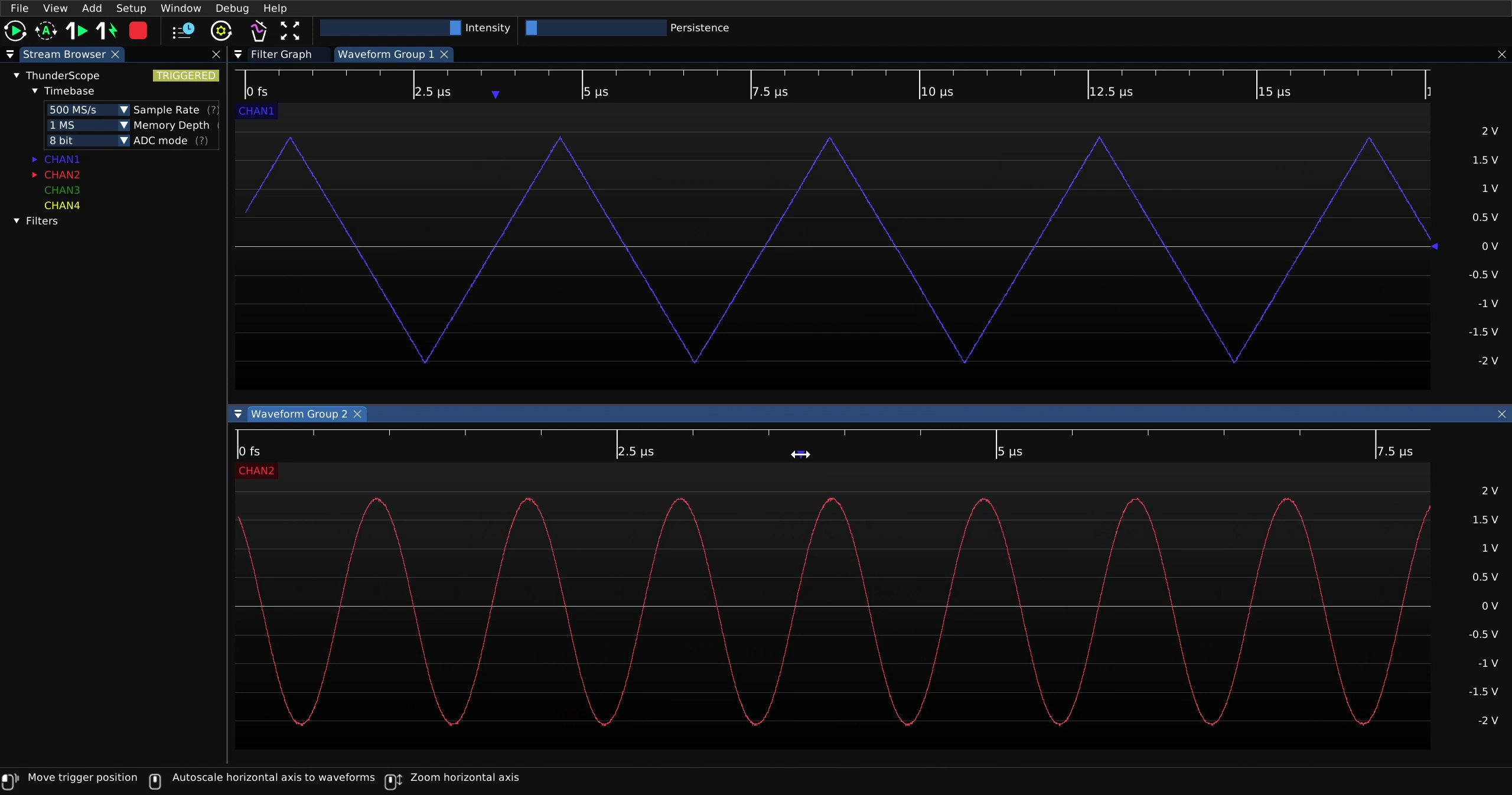
The delay can also be adjusted exactly in the trigger menu
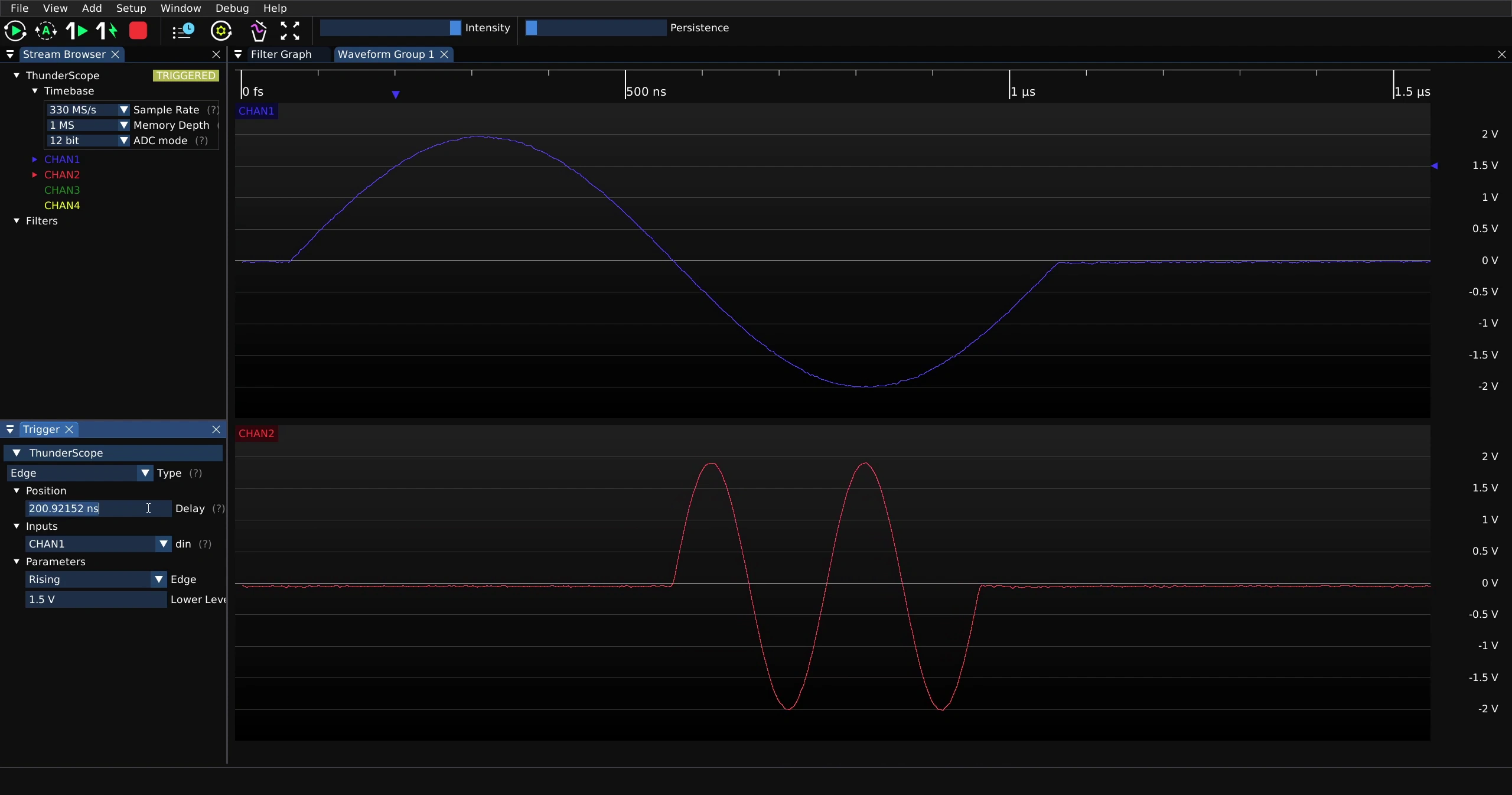
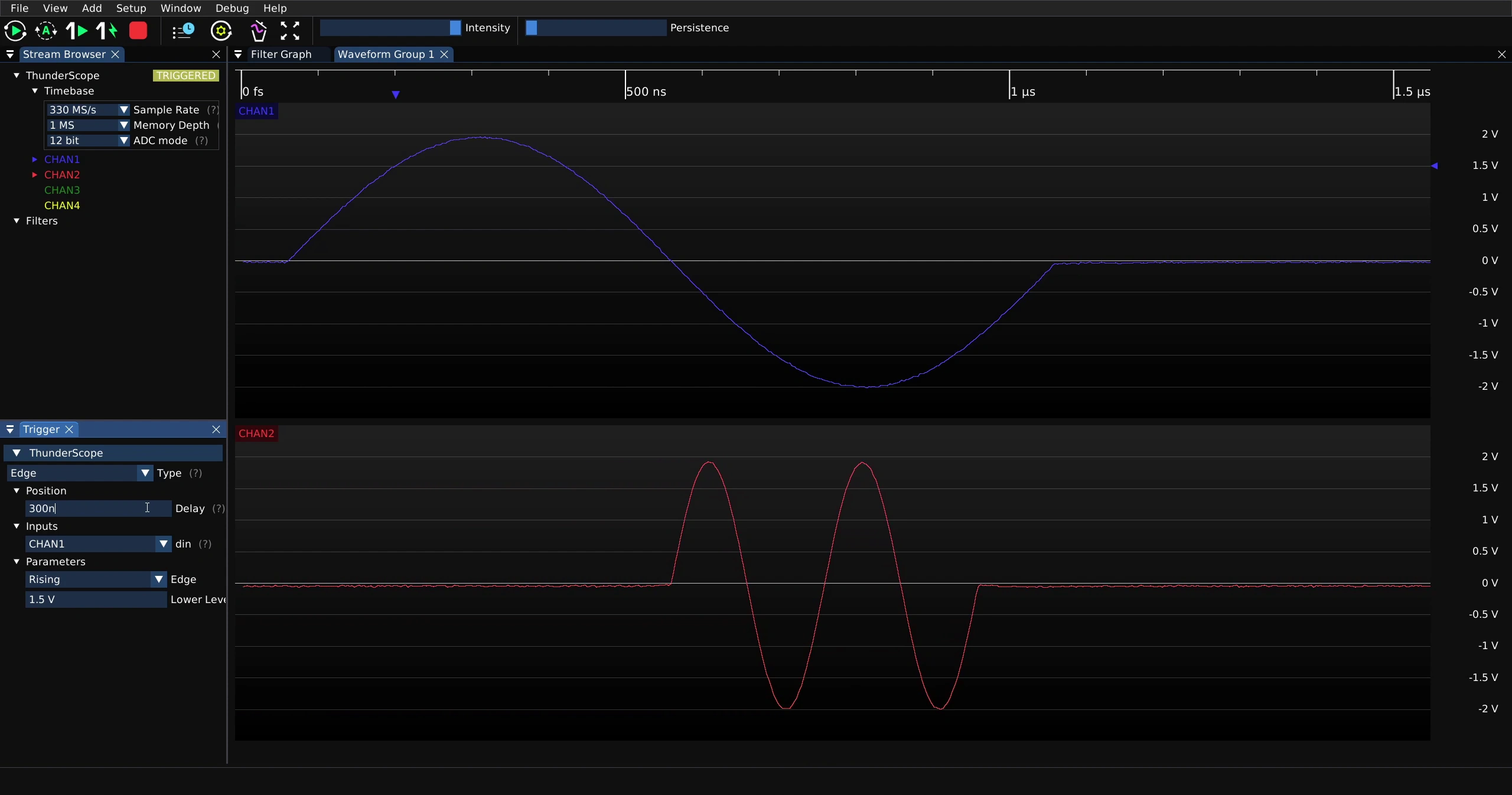
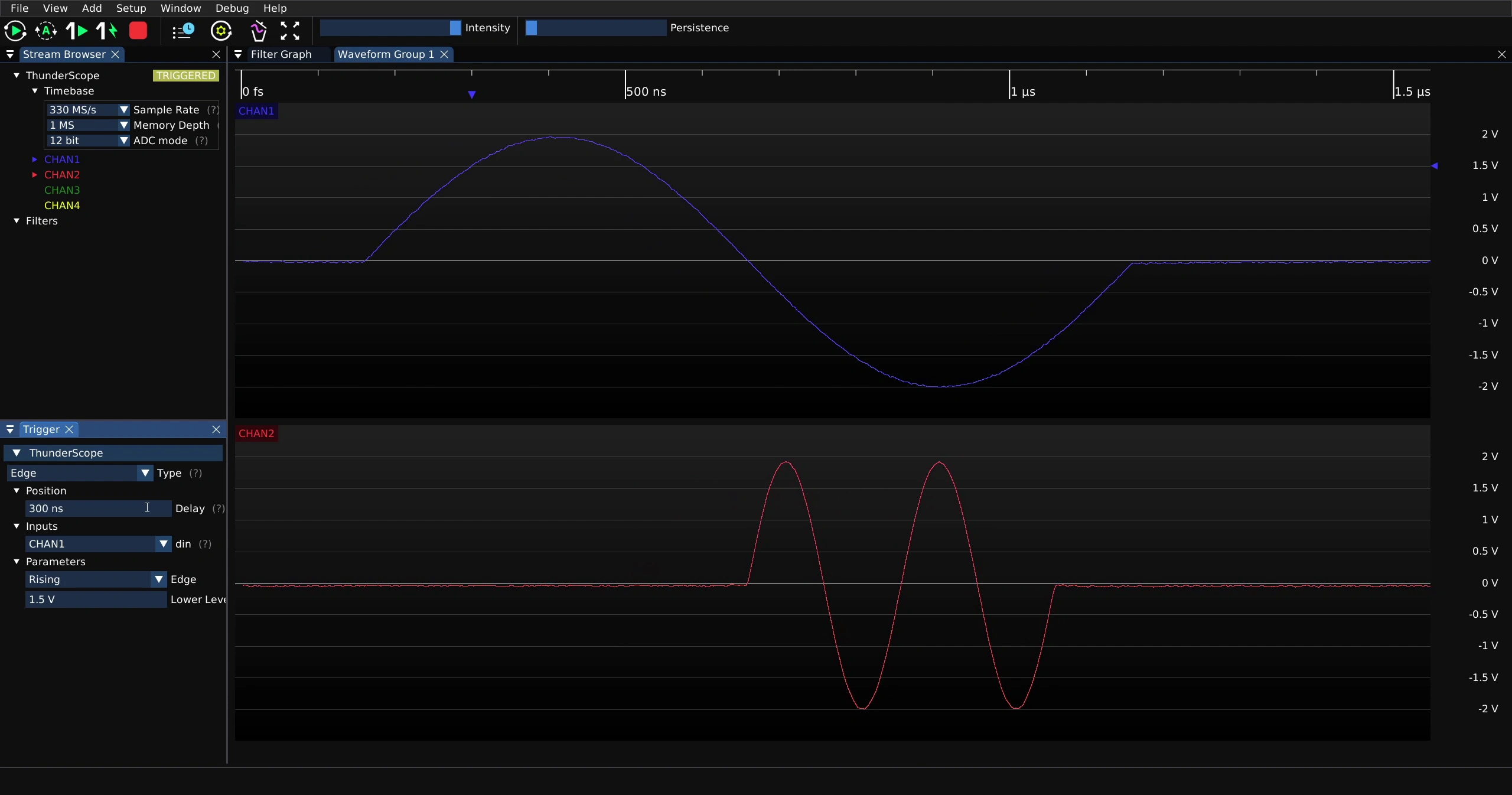
Trigger Channel#
To change the channel that is being triggered on, click on the down arrow next to “din” on the trigger menu
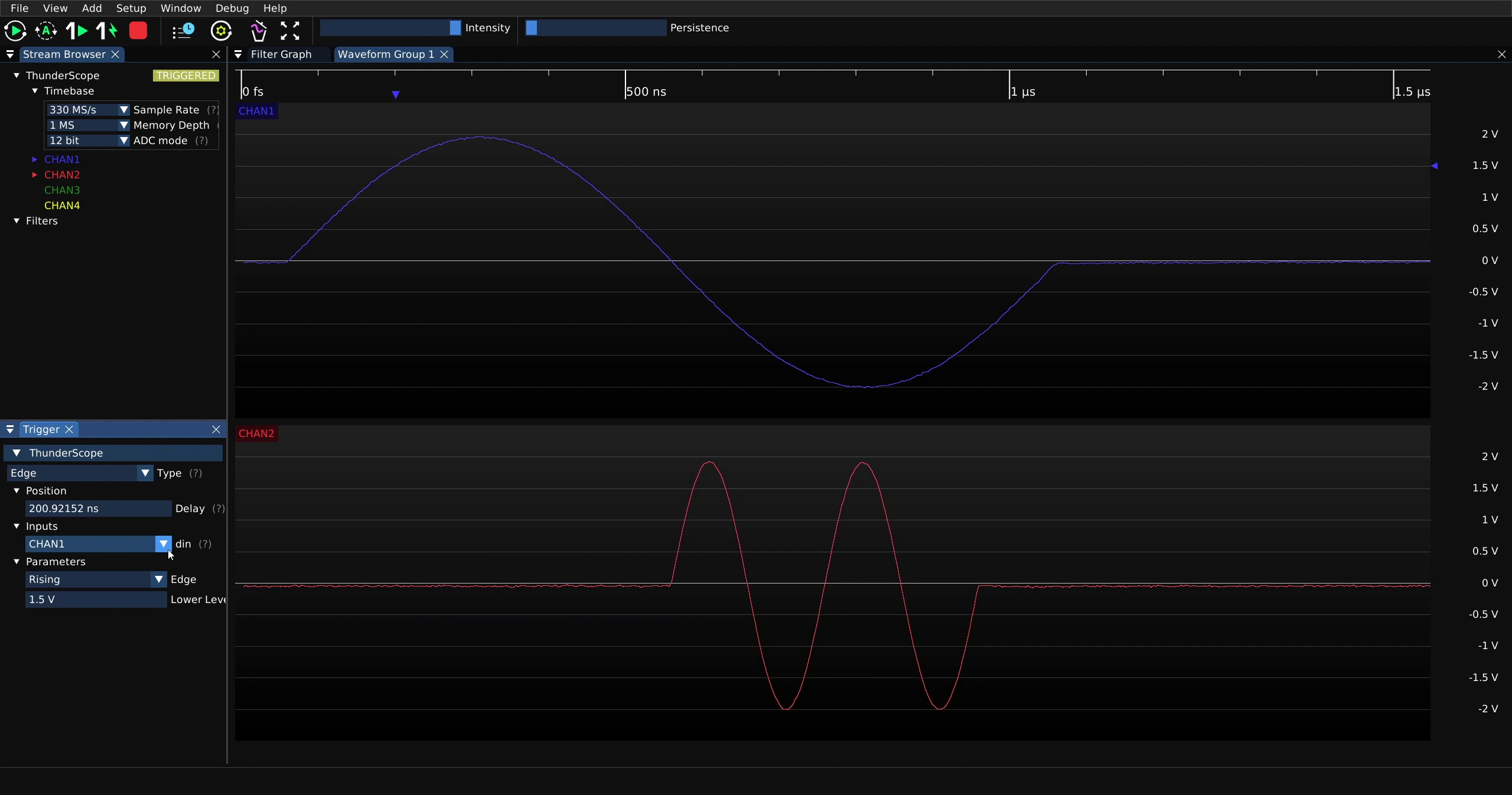
Then select the desired channel from the drop down menu
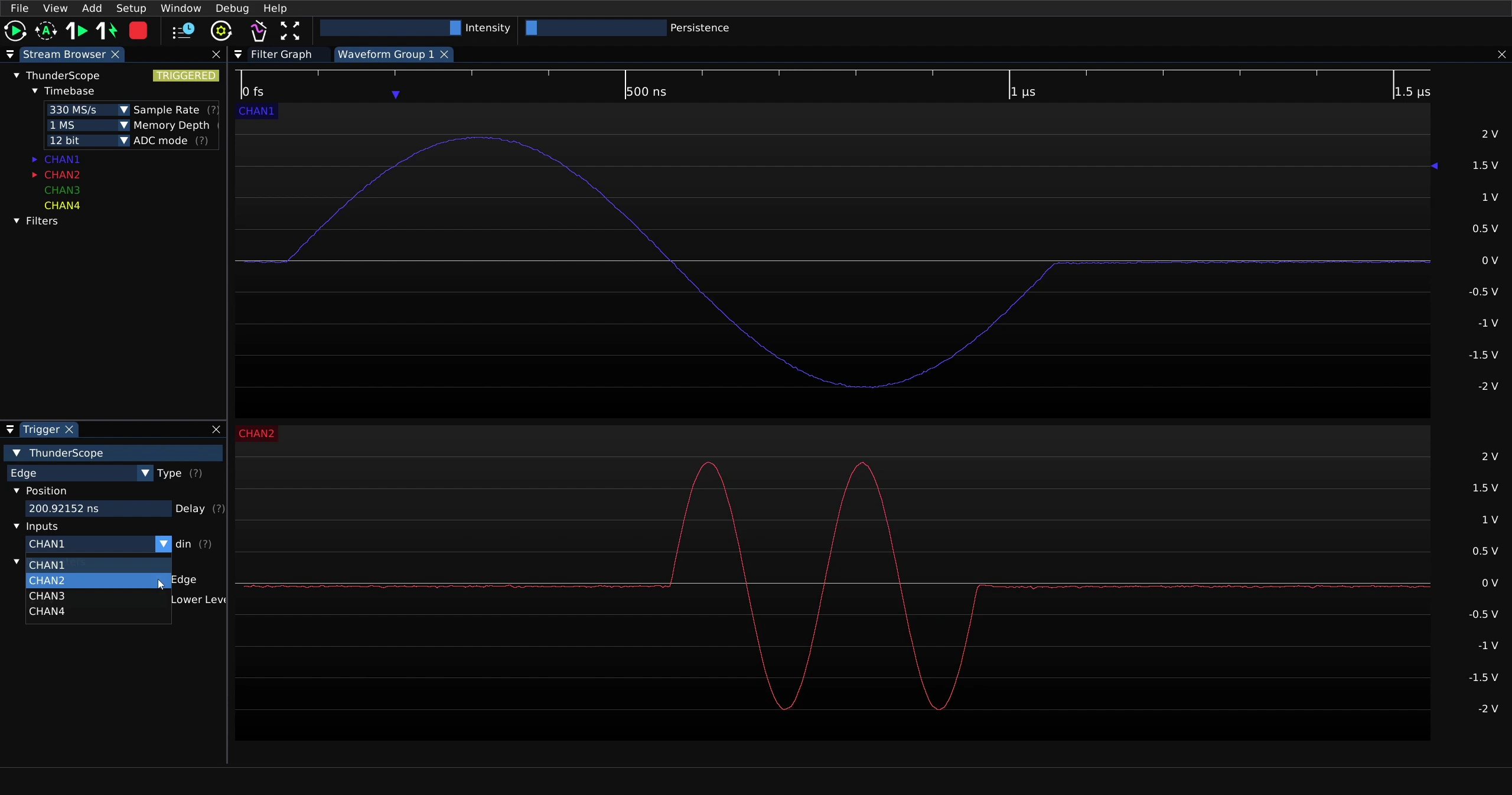
Note that the trigger delay and level arrows now match the color of the new triggered channel
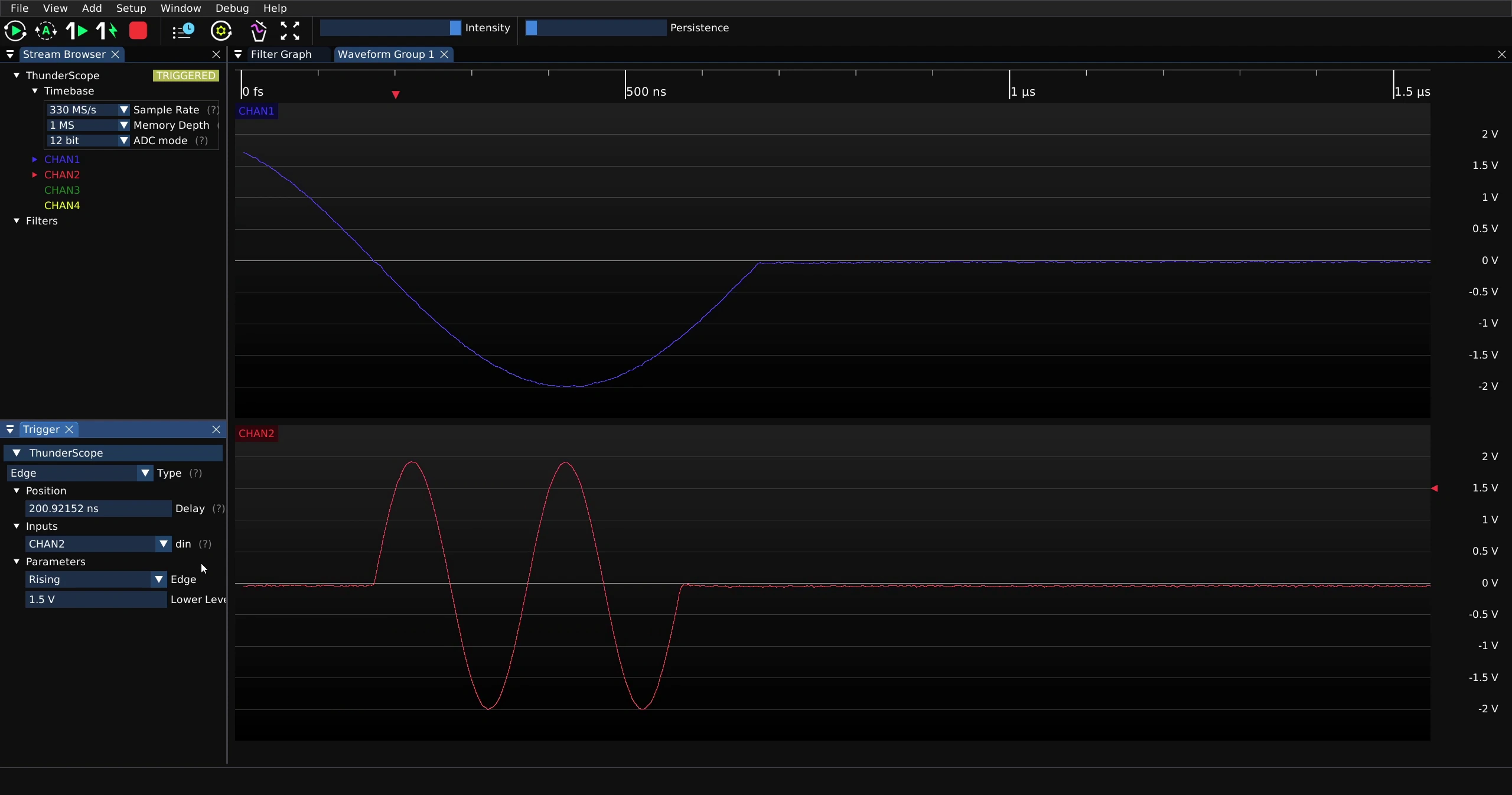
Trigger Edge#
To change the edge that is being triggered on, click on the down arrow next to “Edge” on the trigger menu
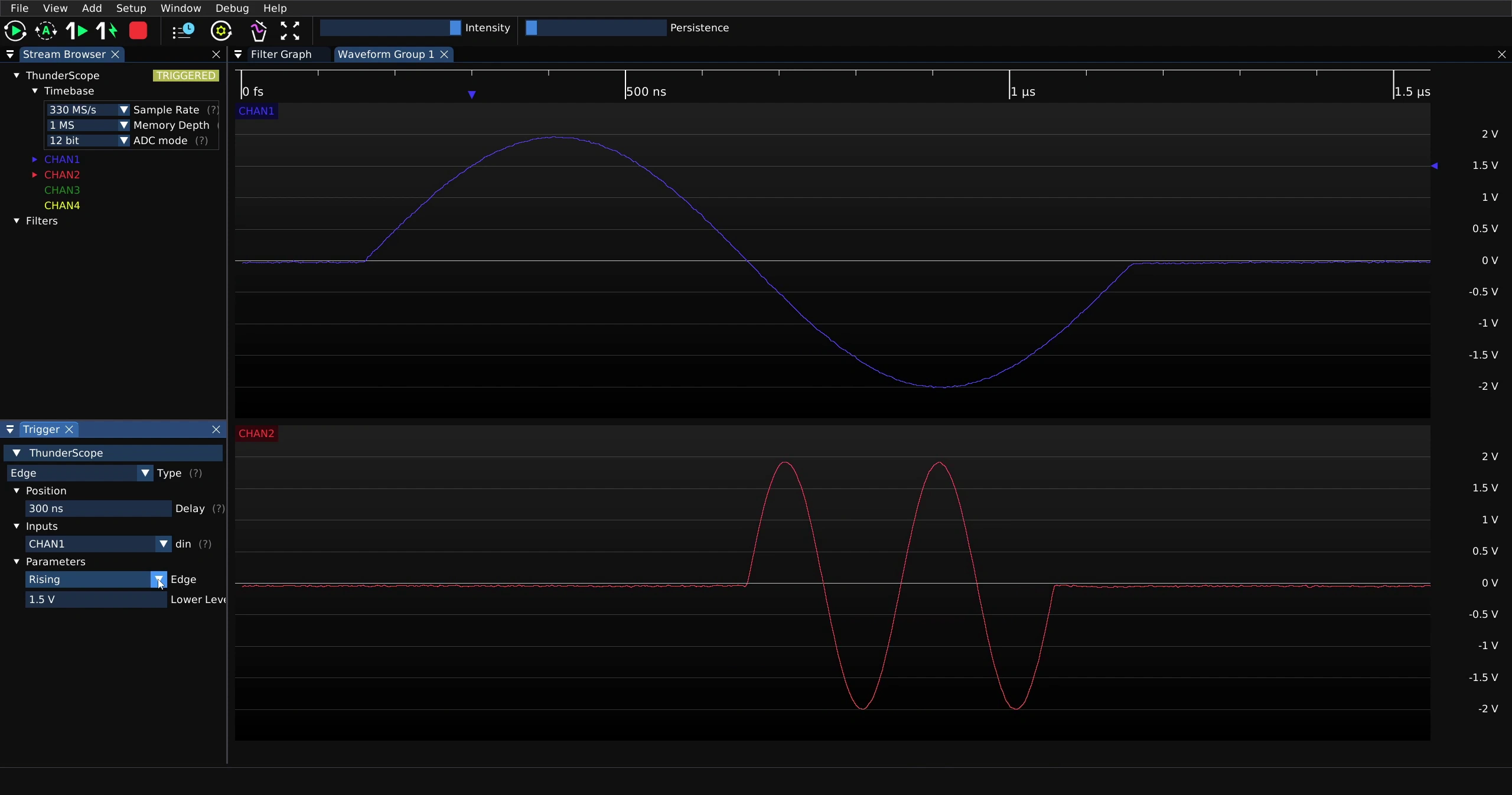
Then select the desired type of edge from the drop down menu
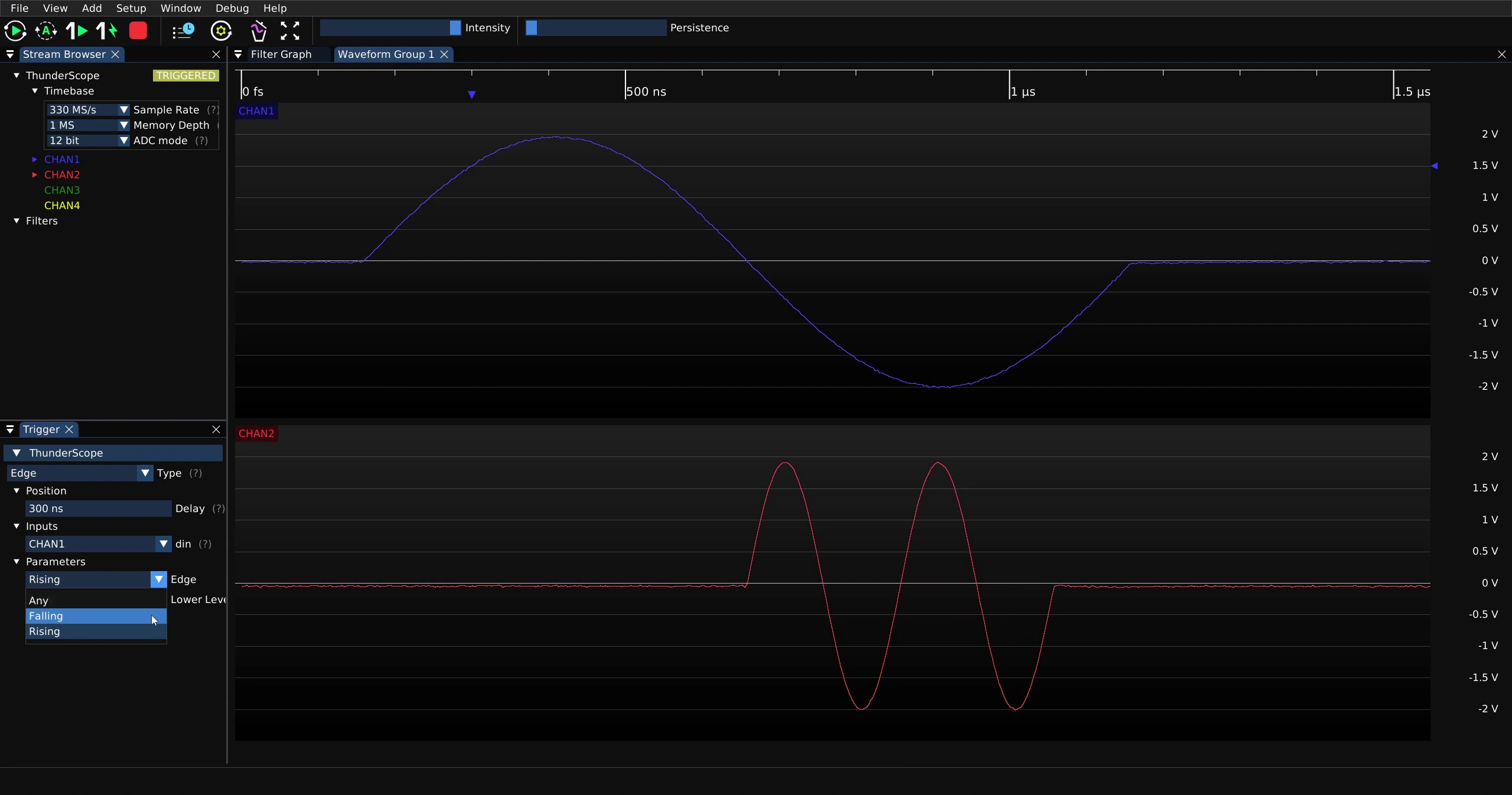
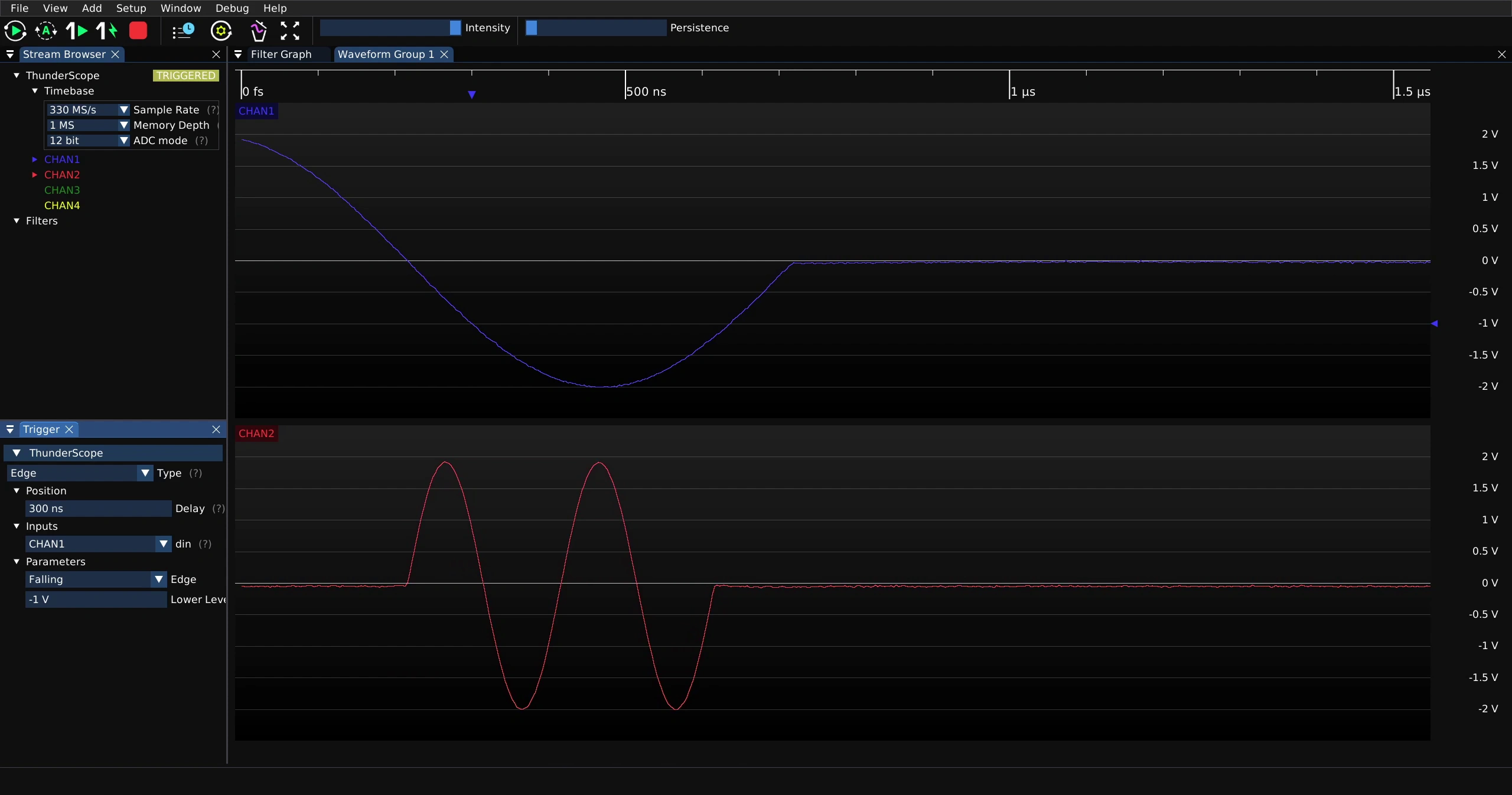
Note that the waveform below is now triggered on the falling edge
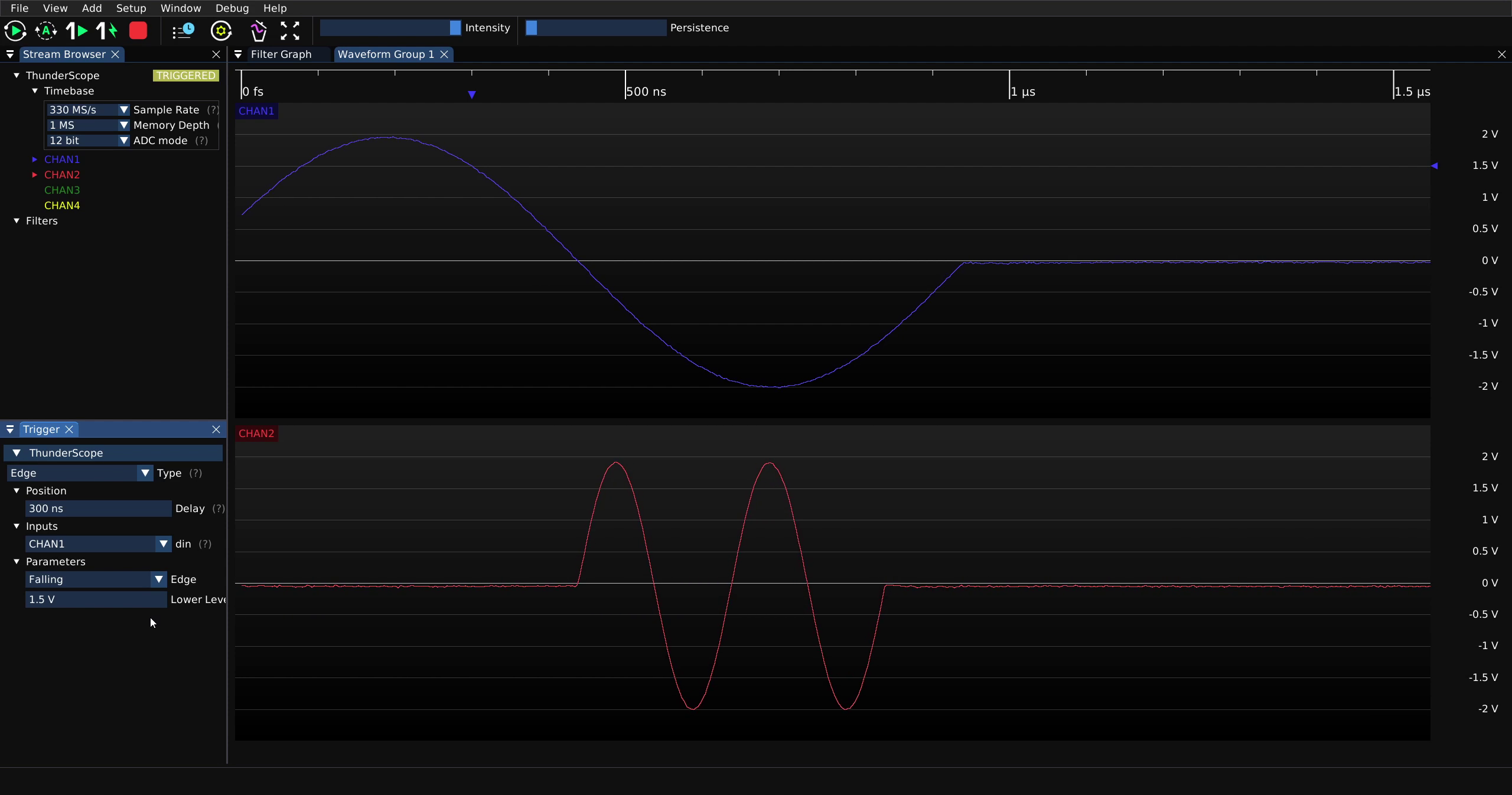
Trigger Level#
To change the trigger level, click on the arrow on the vertical scale of the triggered channel and drag it up or down.
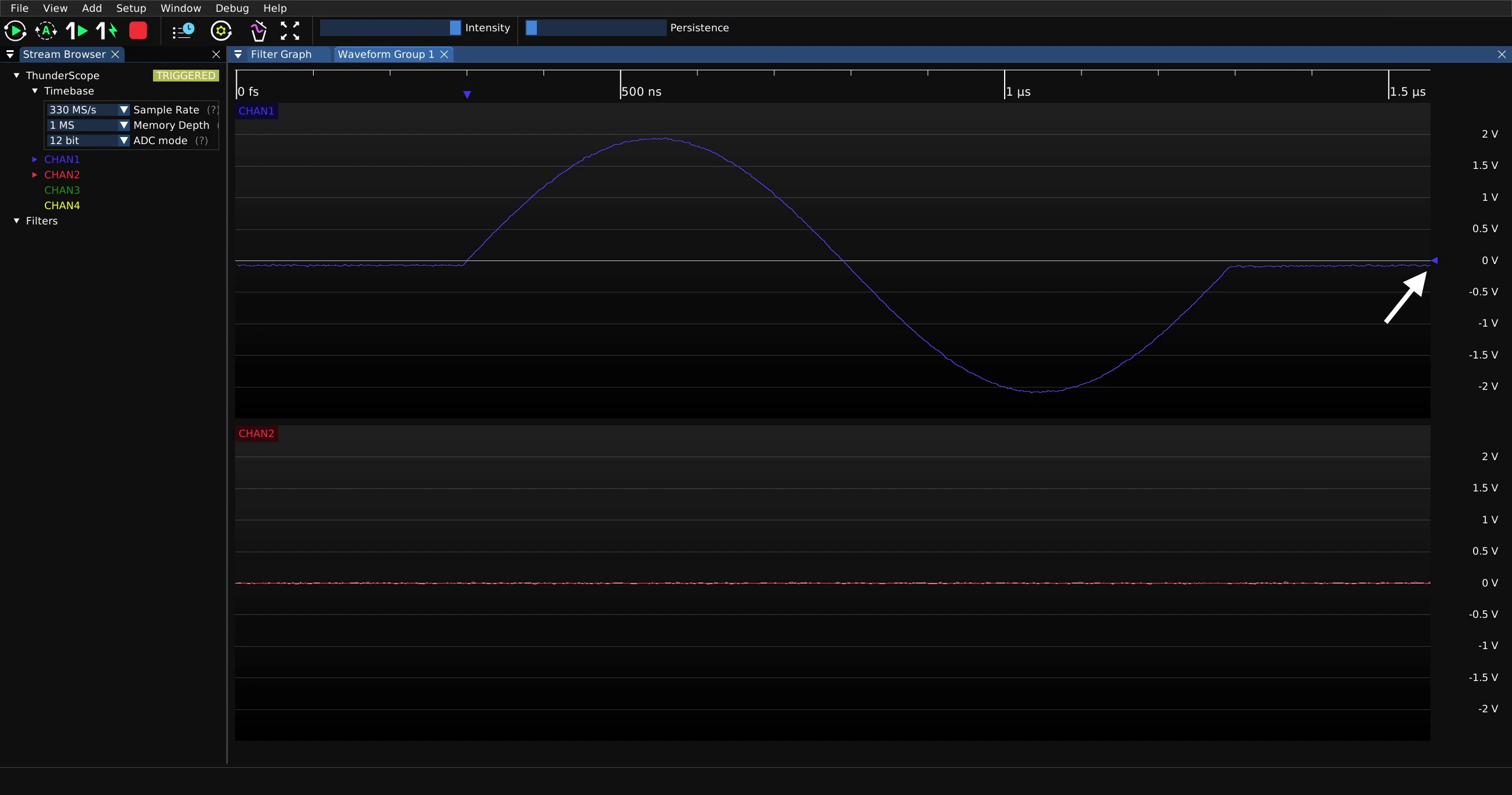
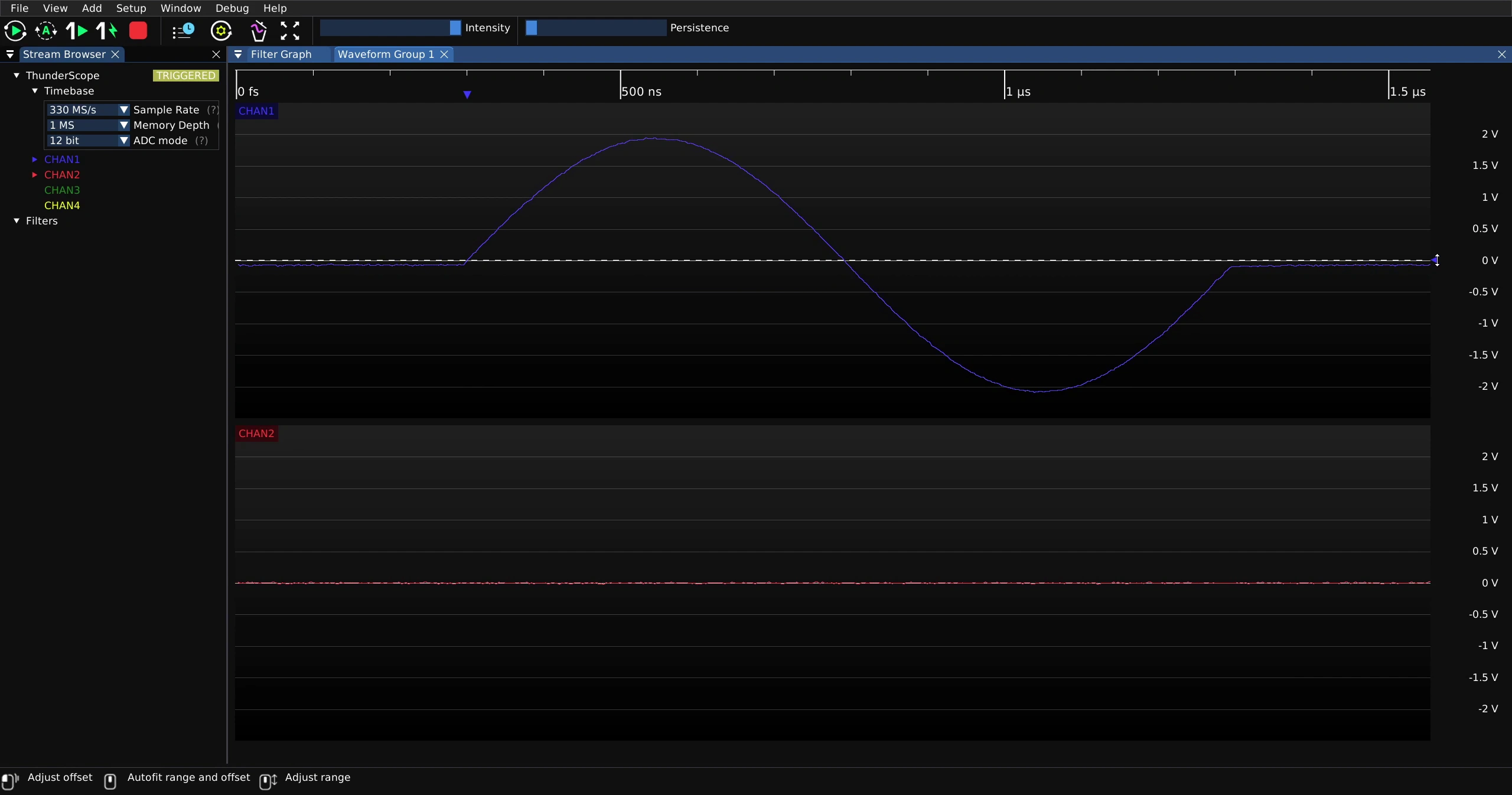
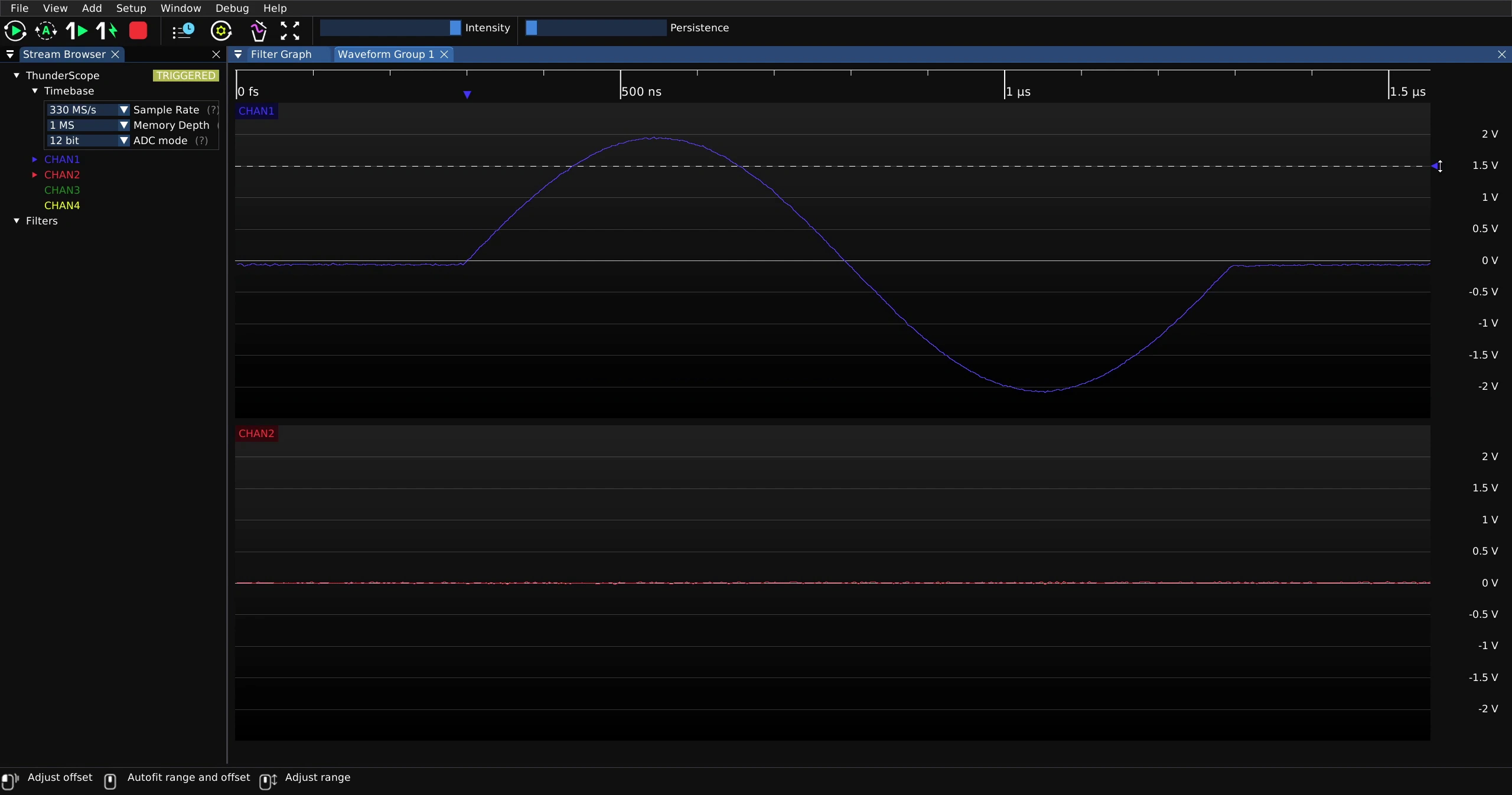
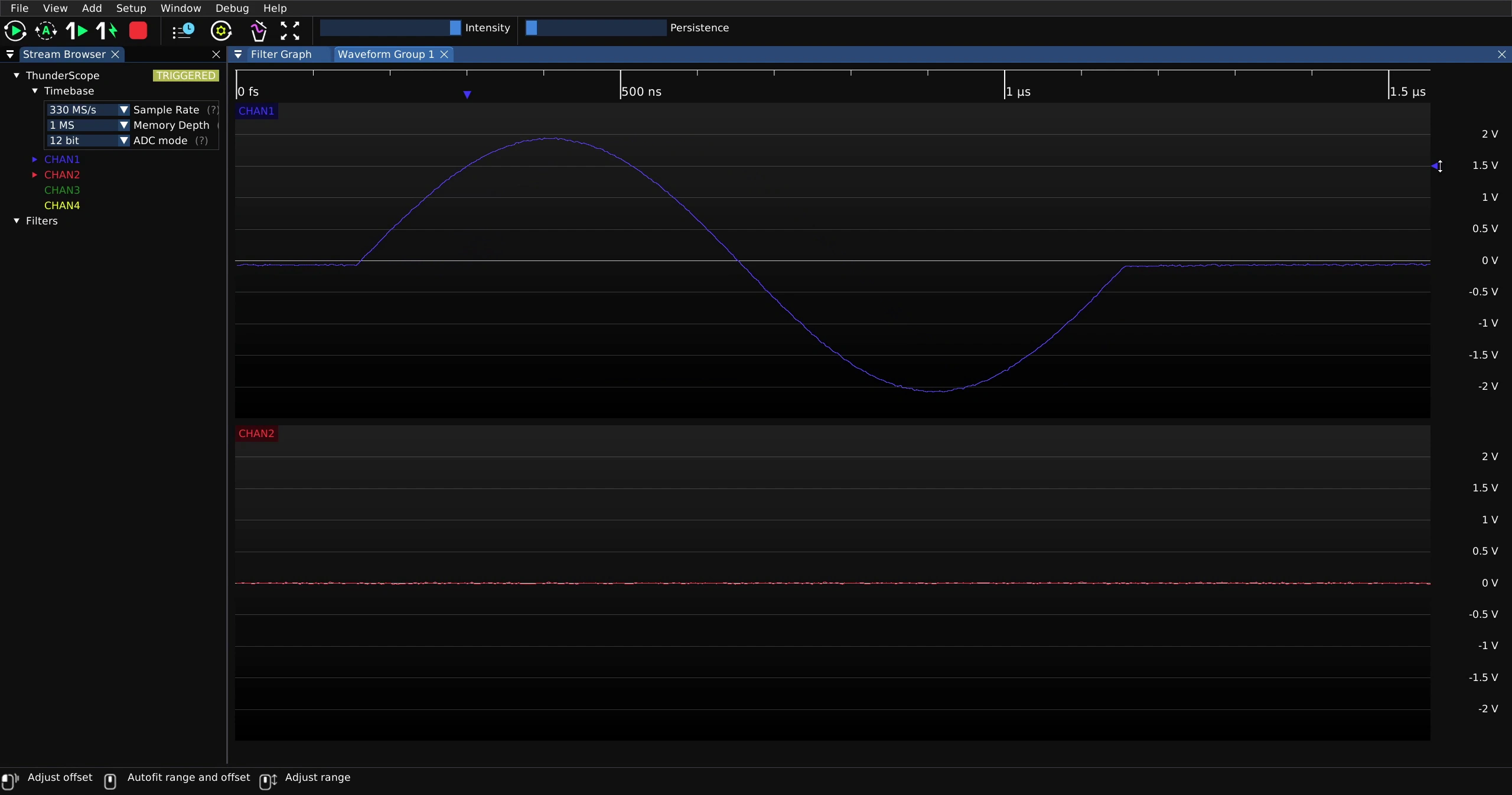
The trigger level can also be changed in the trigger menu. Selecting the value next to “Lower Level”
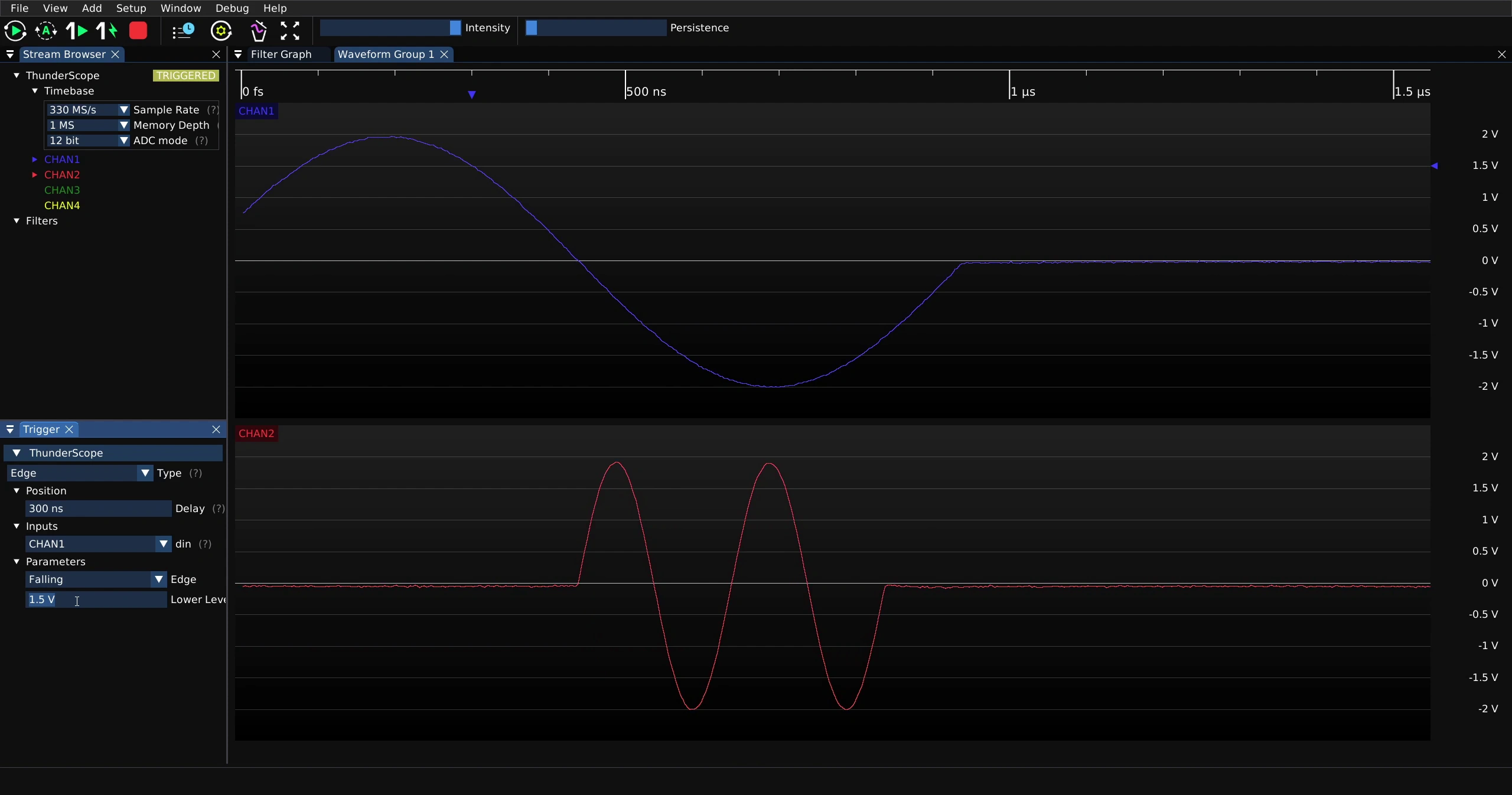
Then type in a new value
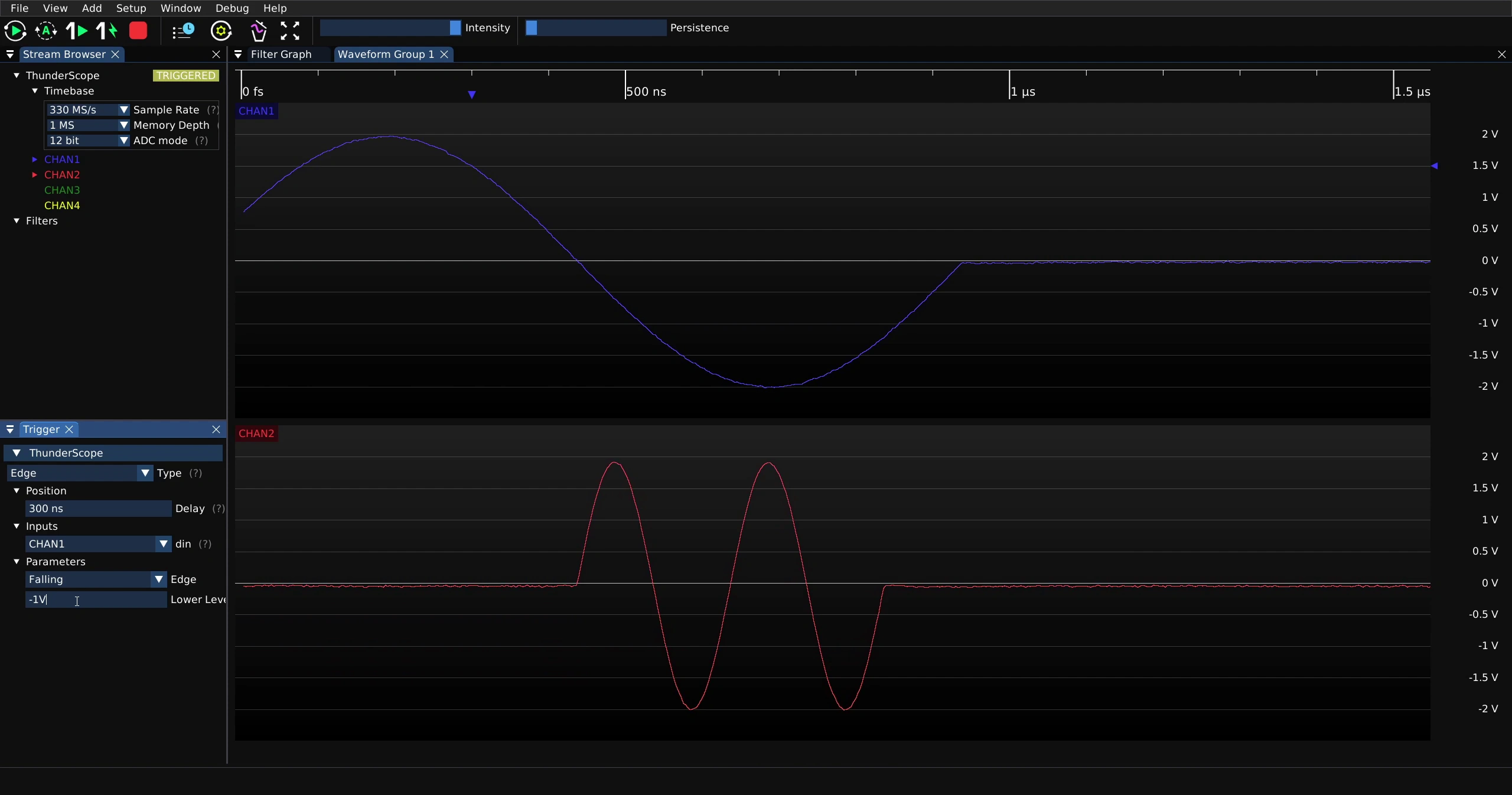
Hit the “Enter” key to apply the change, now shown on the waveform below