Filters 101#
This guide assumes you have installed the driver and software for ThunderScope. If you have not already done do, please follow the getting started guide.
What is a Filter?#
A filter is anything that is not a channel or a trigger. This includes measurements, math functions, protocol decodes, and reference waveforms. A filter may have scalar or waveform inputs and outputs, as well as parameters for configuring the filter.
Filter Graph#
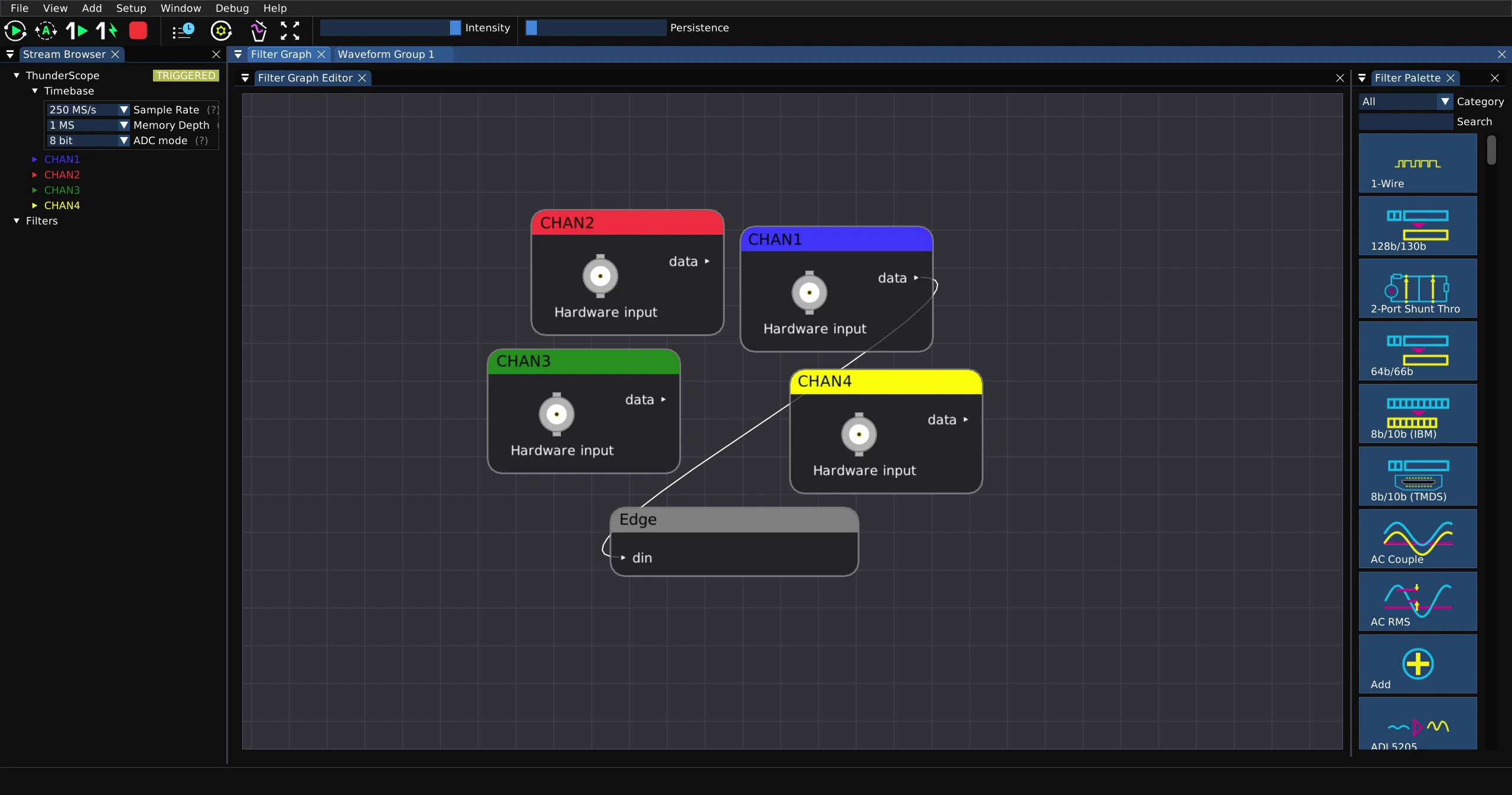
Filters show up as nodes alongside channels and the trigger in the filter graph, which represents the flow of data through its nodes.
To access the filter graph, click on the “Filter Graph” tab. This is located next to “Waveform Group 1” by default, but may be rearranged just like a Waveform Group.
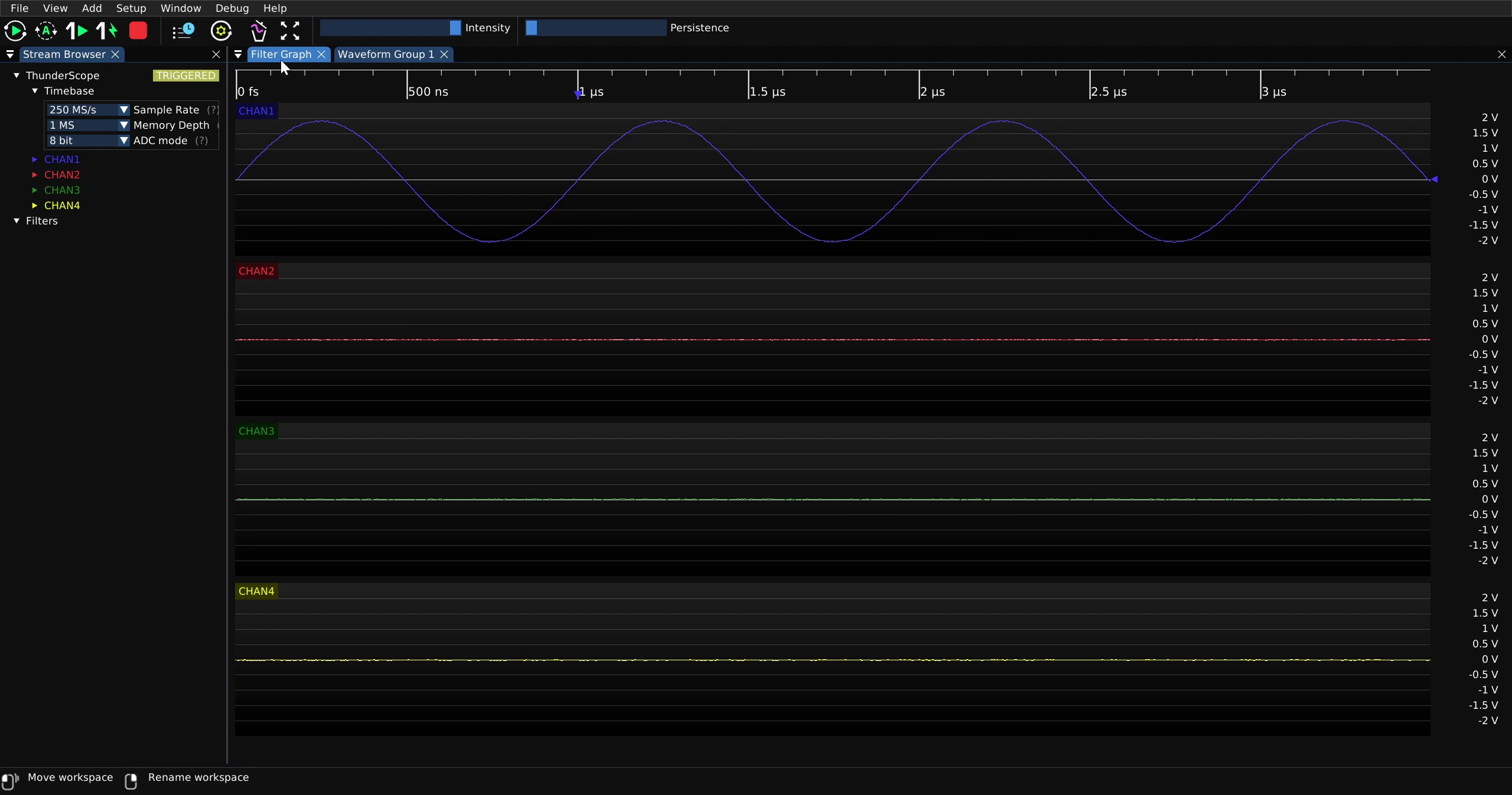
Shown below is the filter graph for four active channels and no active filters.
Making a Measurement#
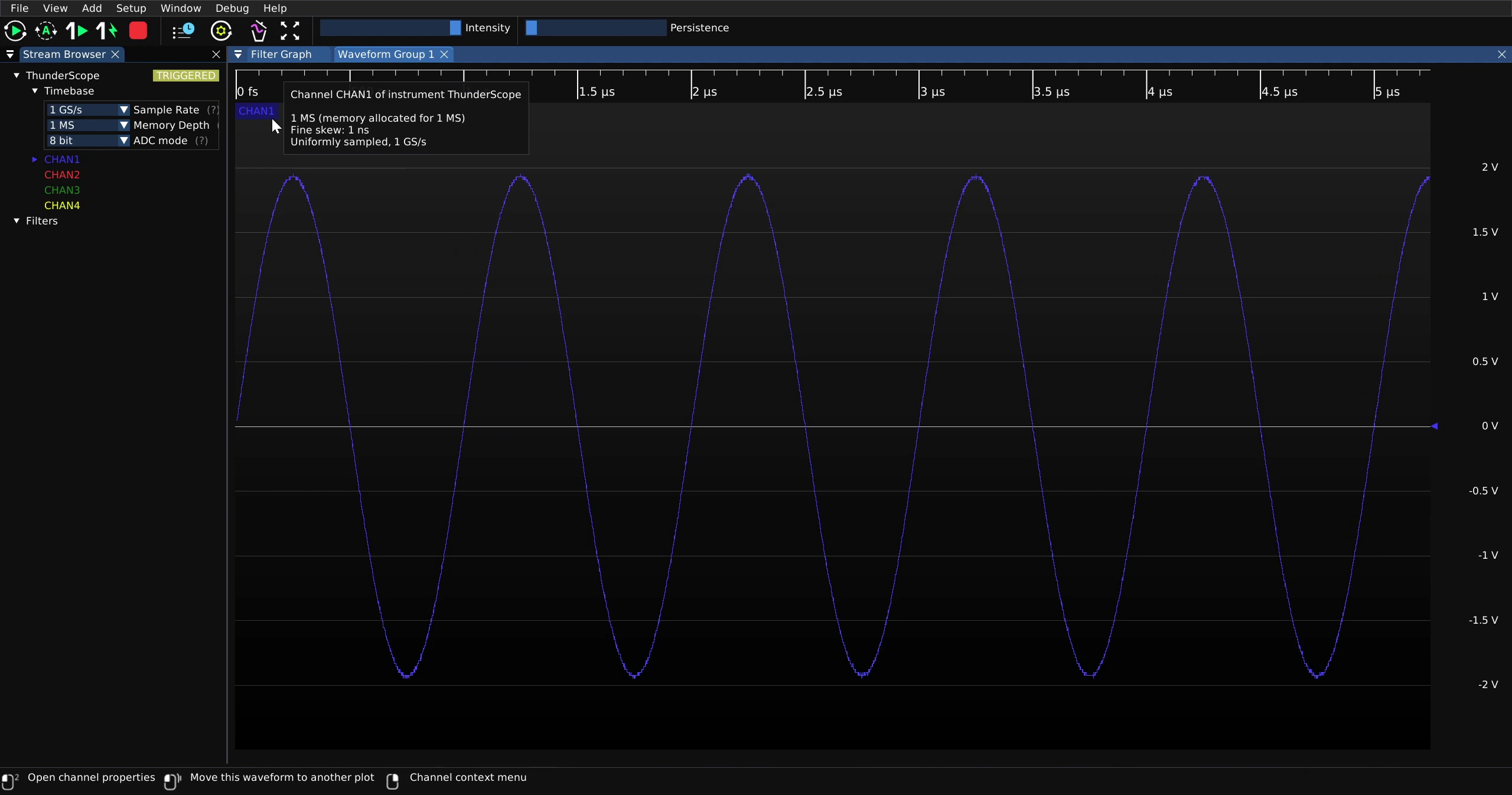
Many measurements are simply a filter with a waveform input and a scalar output, such as a peak to peak measurement. To add a measurement filter to the filter graph from the waveform view, right click on the label of the input channel.
Mouse over the “Measurement” option in the resulting menu
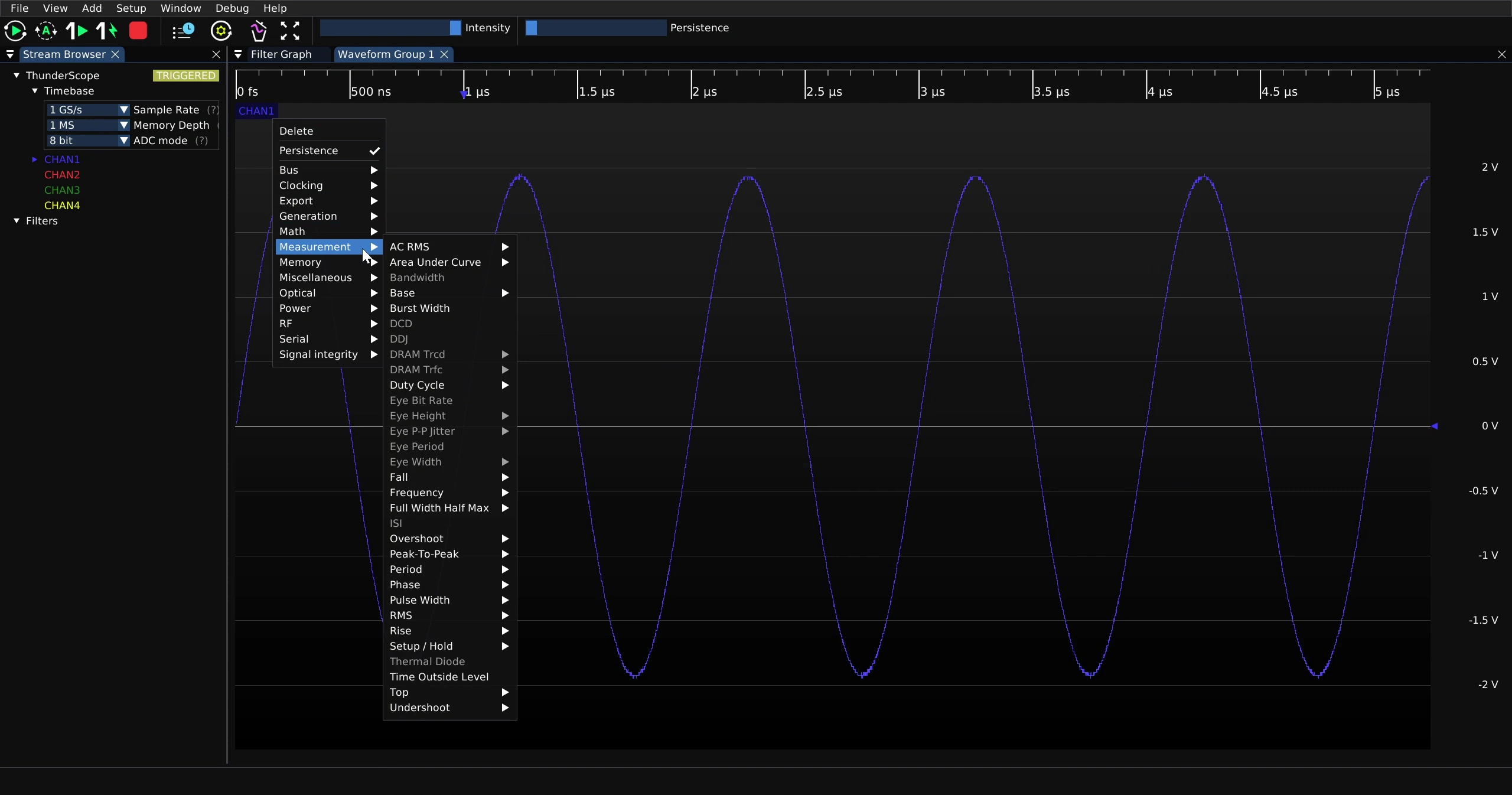
Mouse over the “Peak-To-Peak” option in the “Measurement” menu
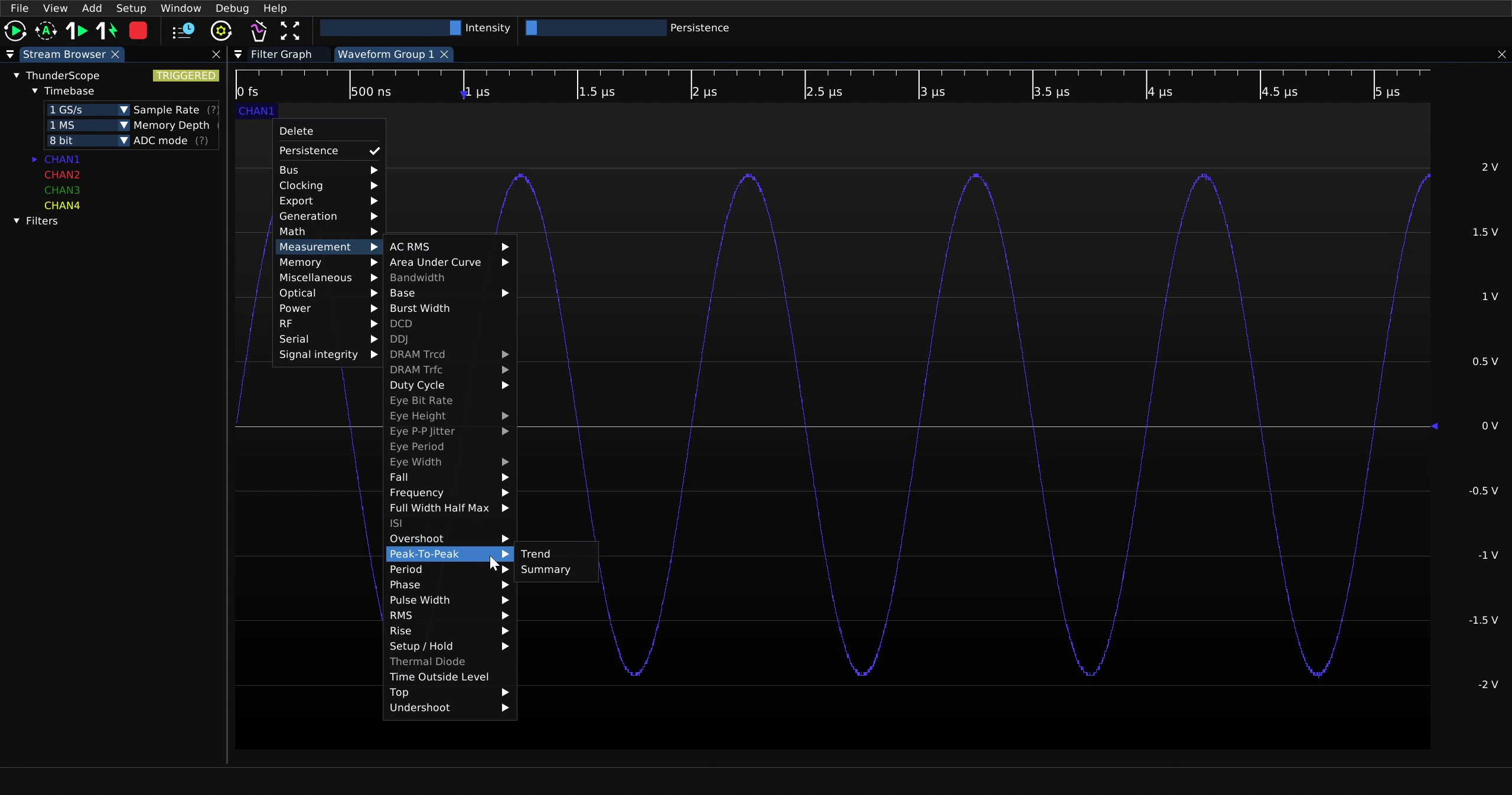
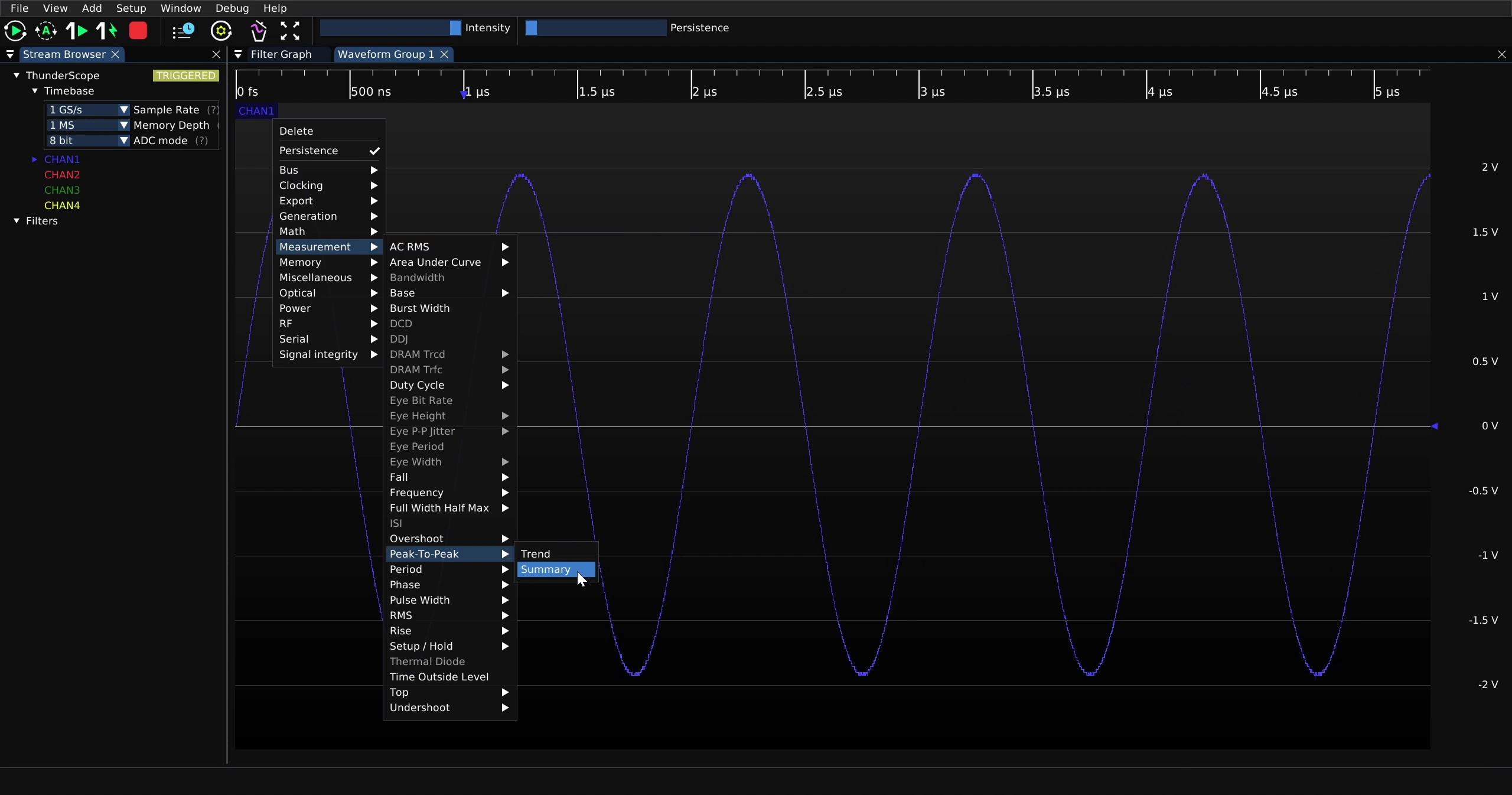
Select “Summary”. This is the scalar output of the filter and is of interest for this example, while “Trend” is the waveform output.
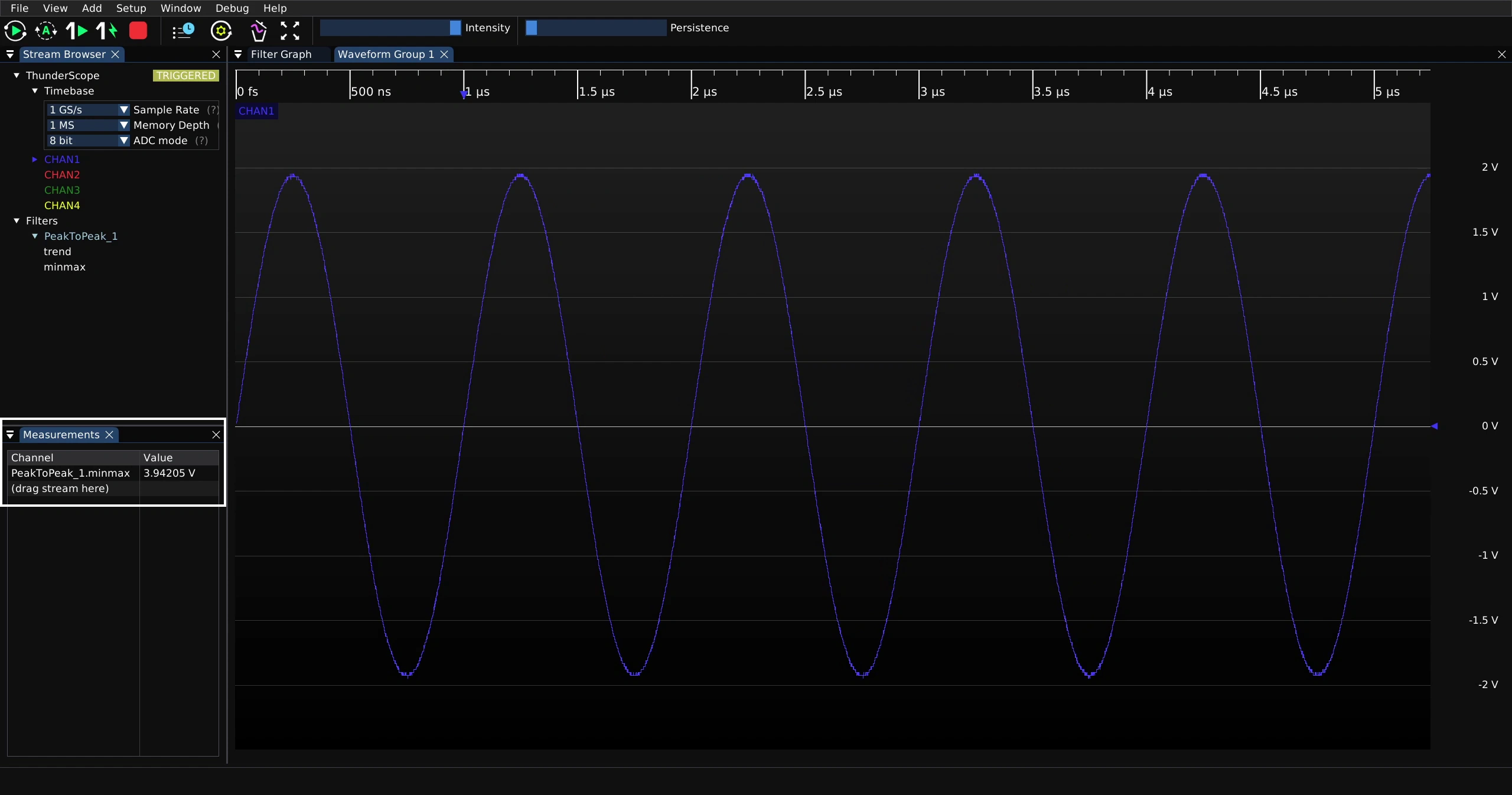
This will spawn the “Measurements” UI, which will show the current value of the measurement.
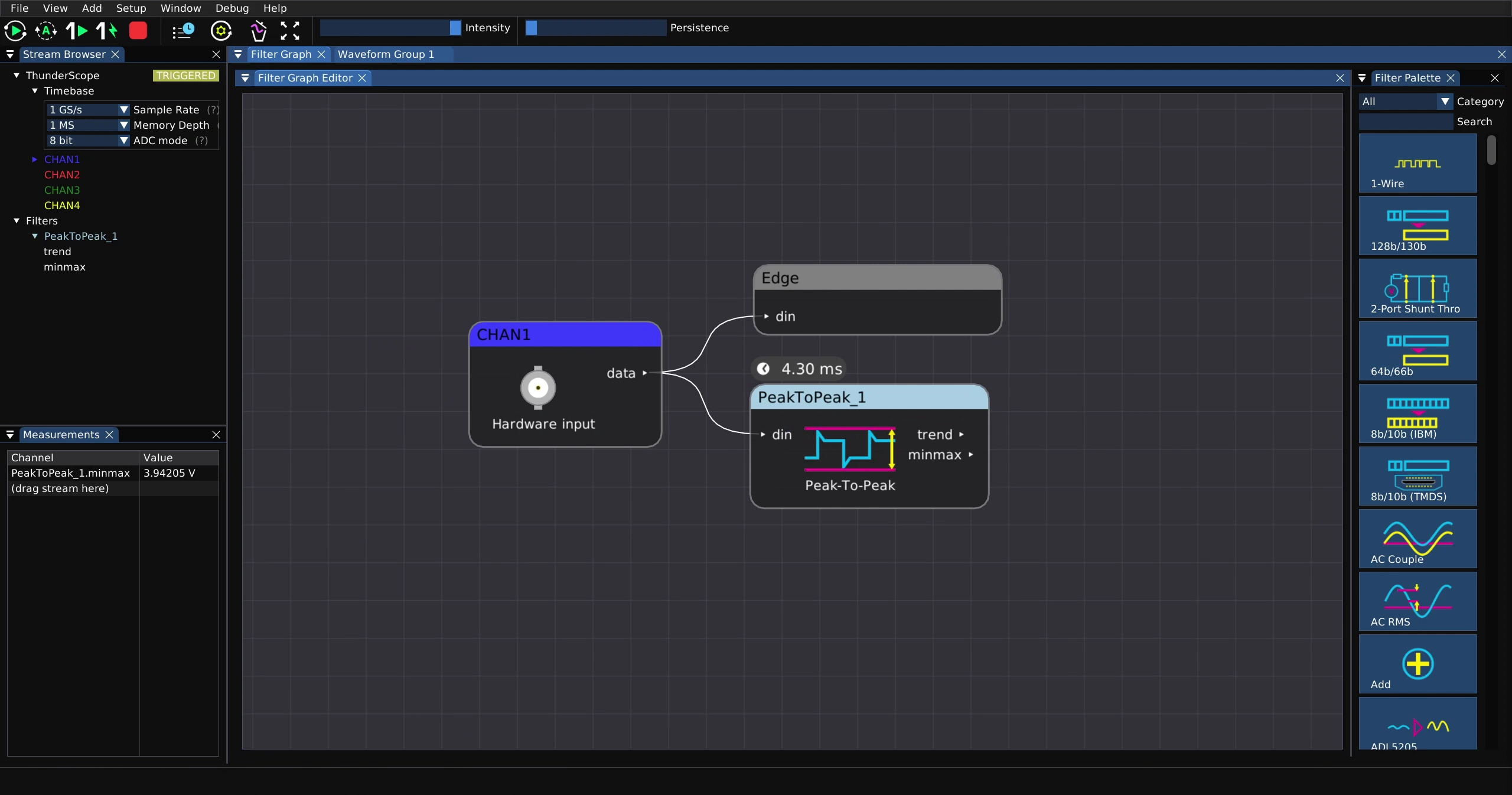
The resulting filter graph is shown below
Measurement Statistics#
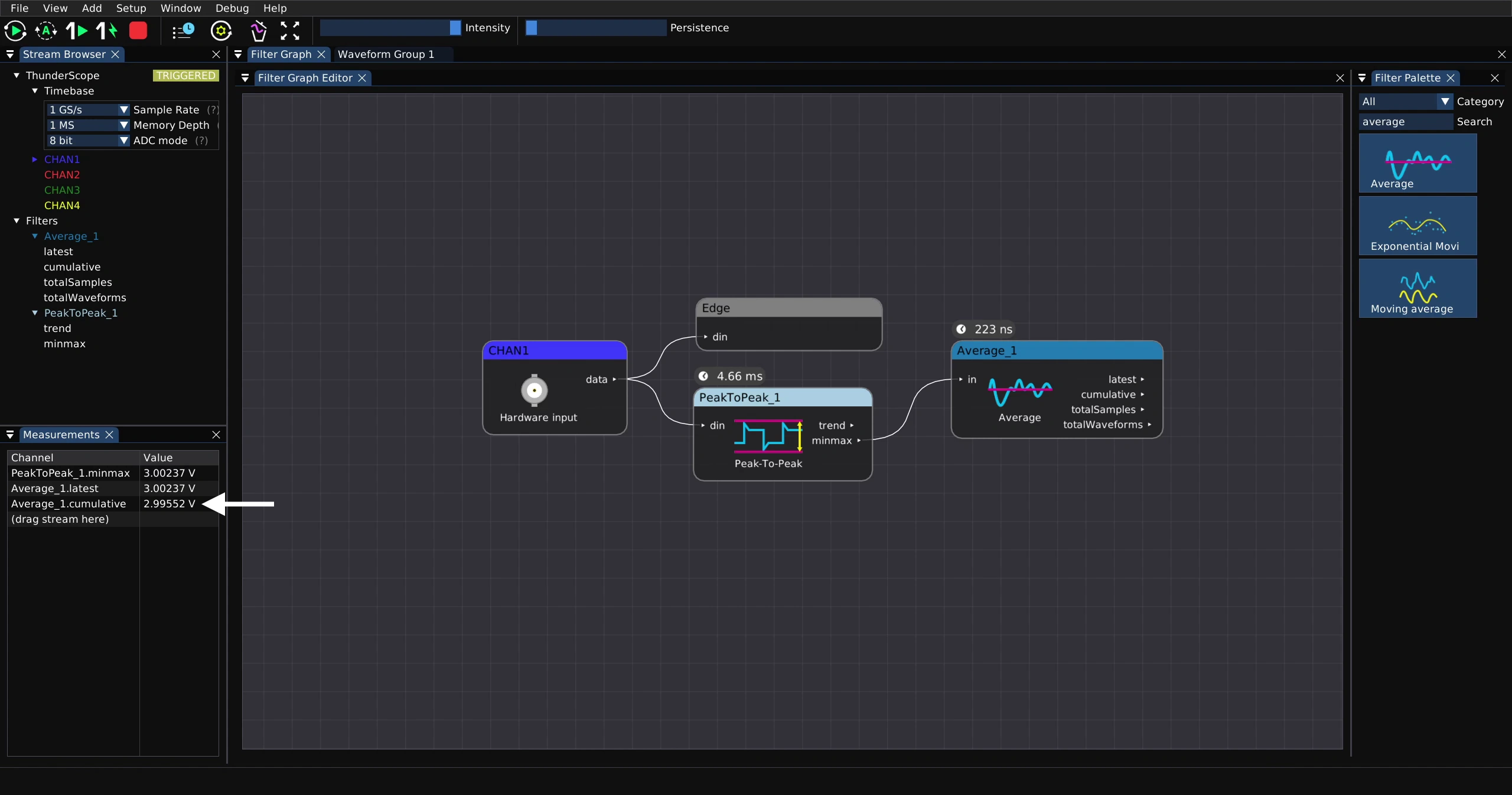
Statistics can be taken of a measurement by connecting the scalar output of the measurement filter to a math filter in the filter graph. For example, to take an average, search for the average filter in the filter palette.
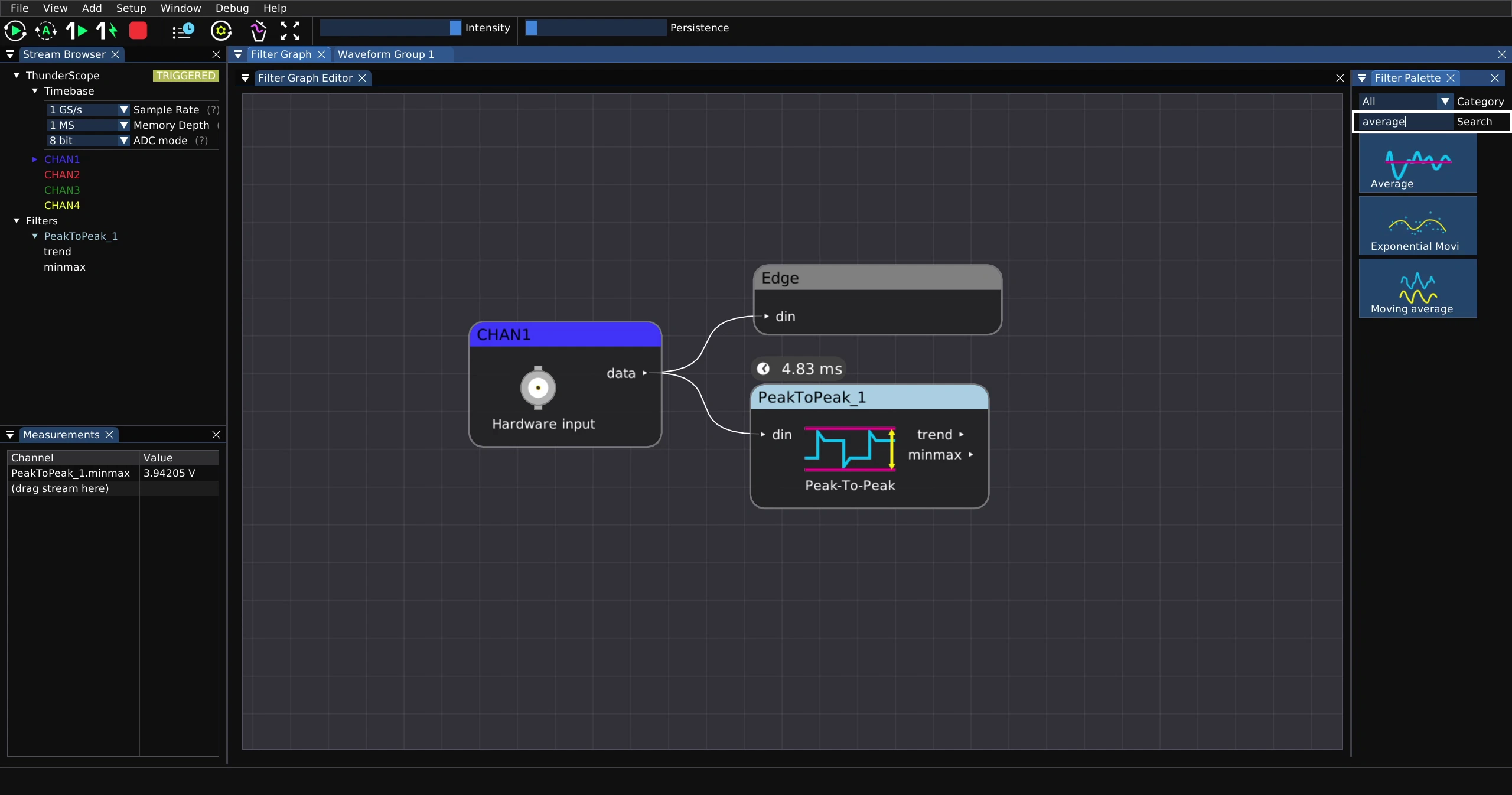
Click on the average filter and drag it into the filter graph
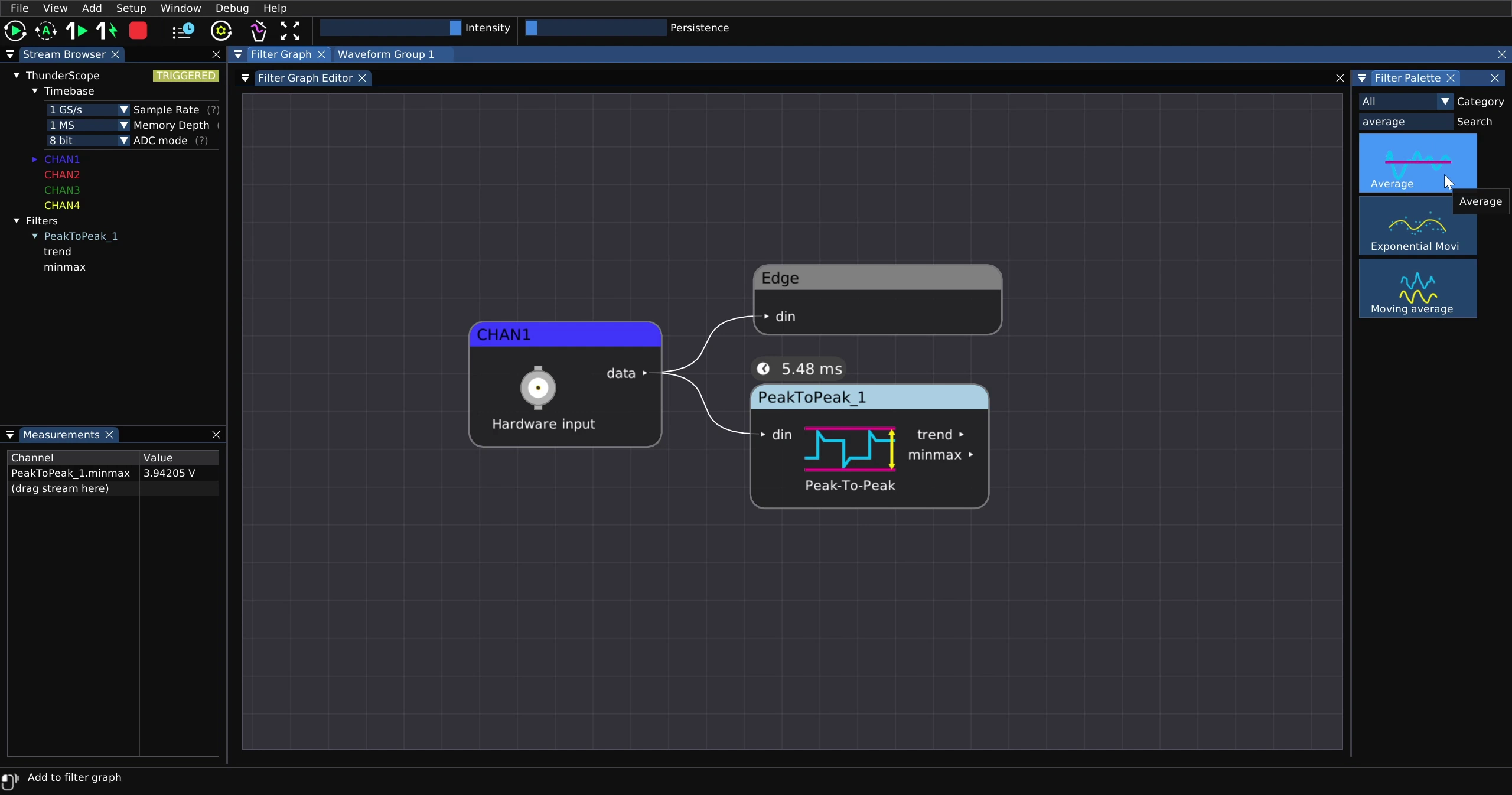
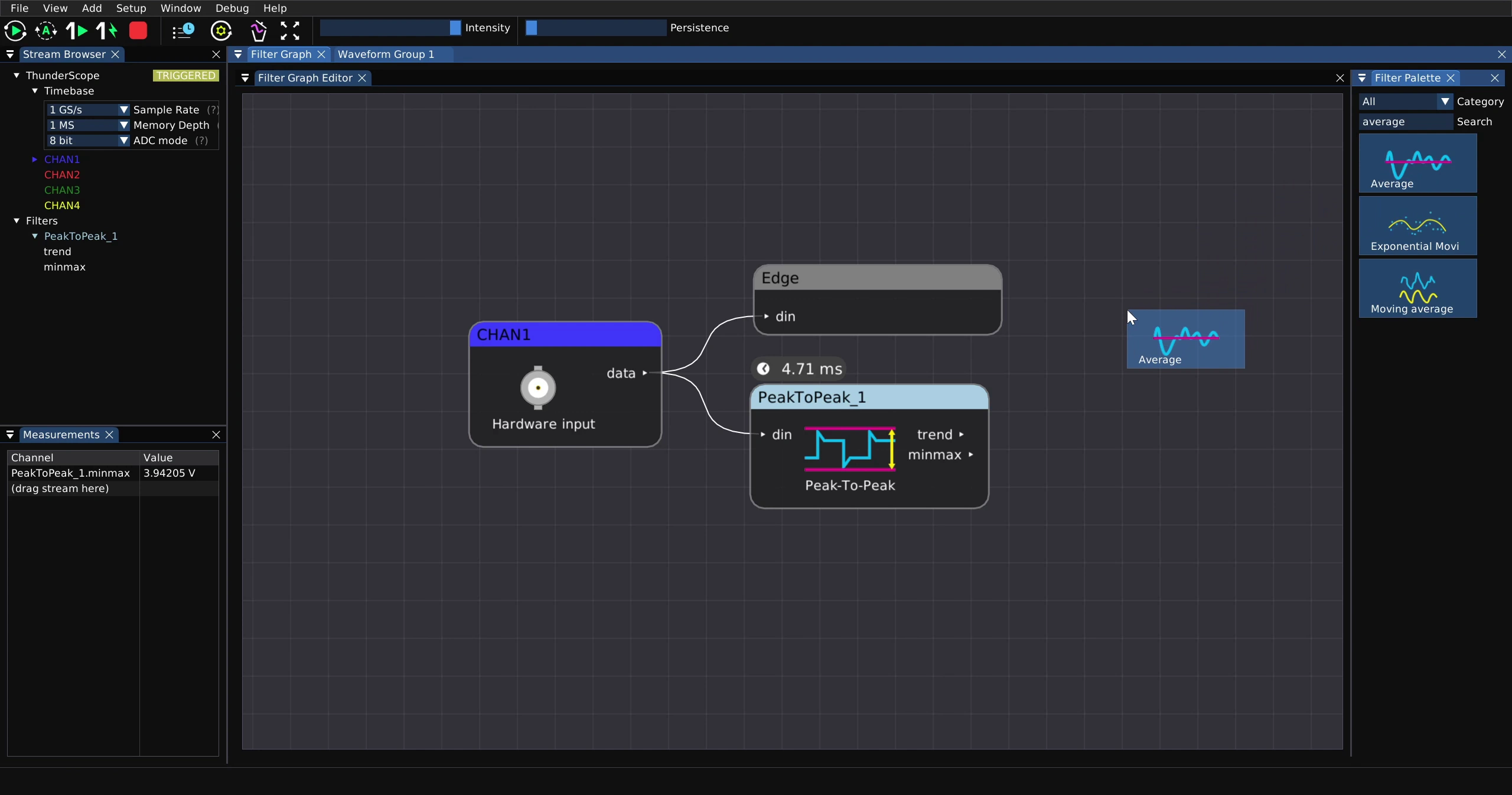
This will create the filter, an error will be shown as it has no input
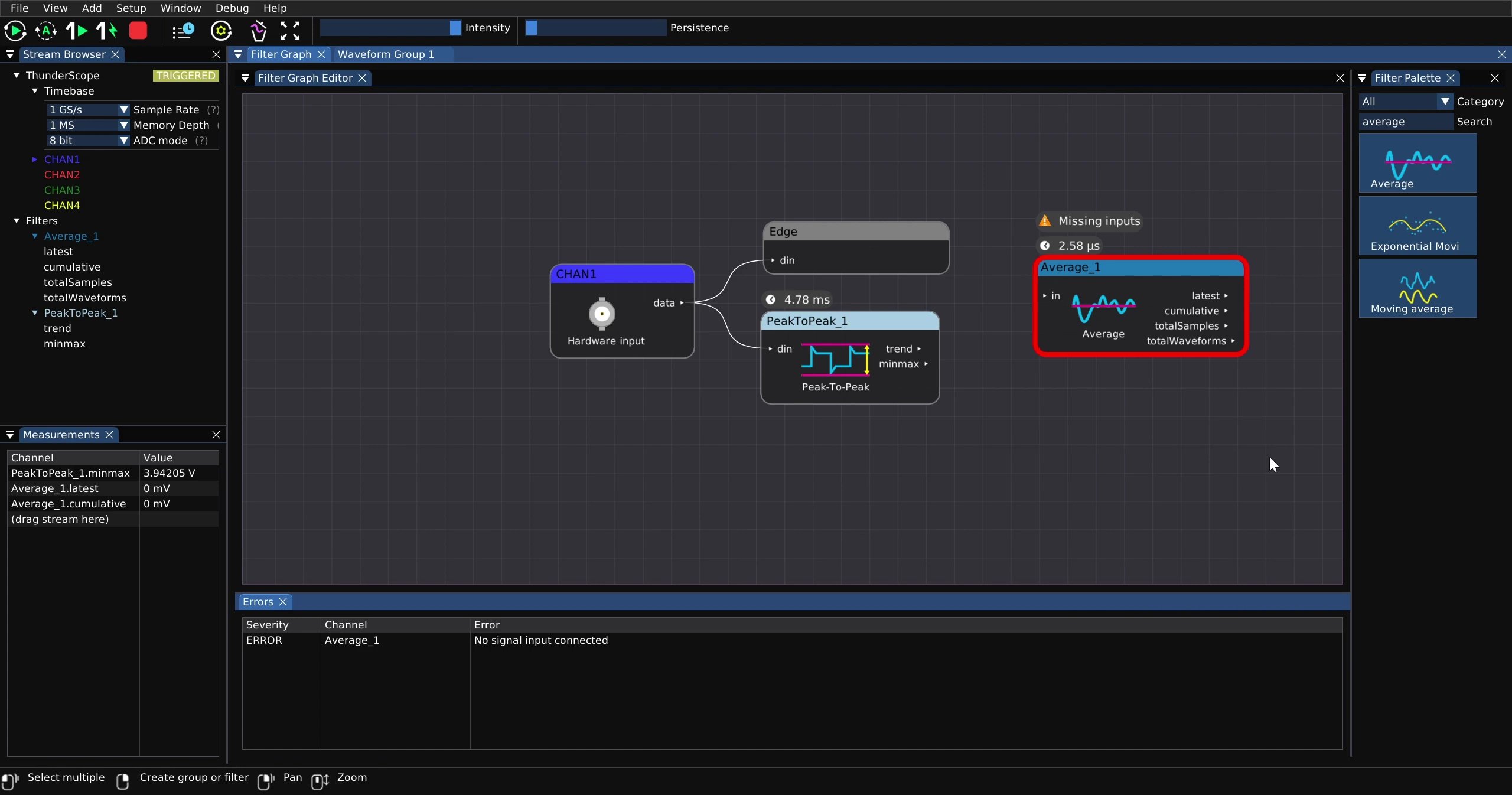
Click and drag the “minmax” output of the peak to peak filter to the “in” input of the average filter
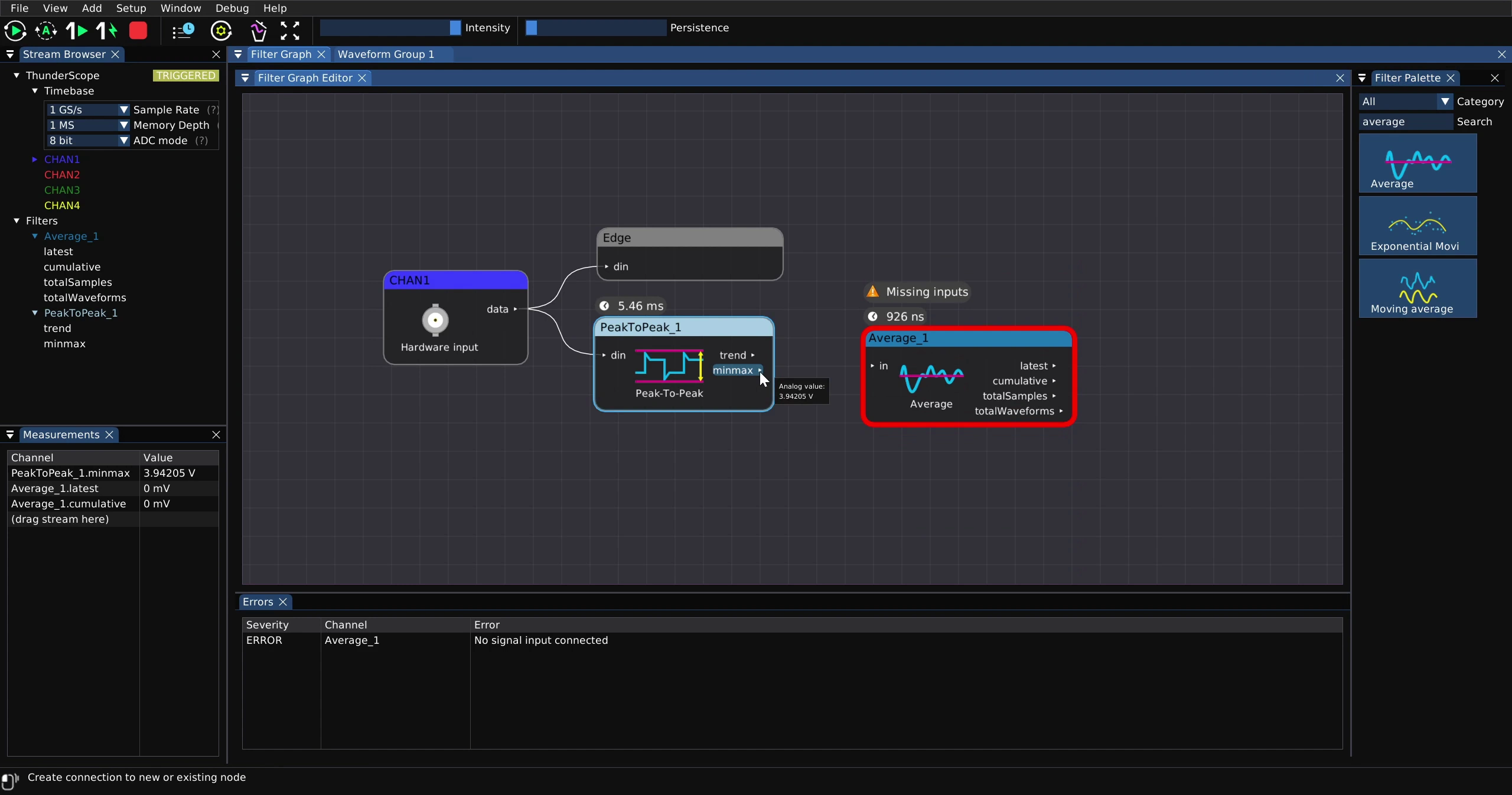
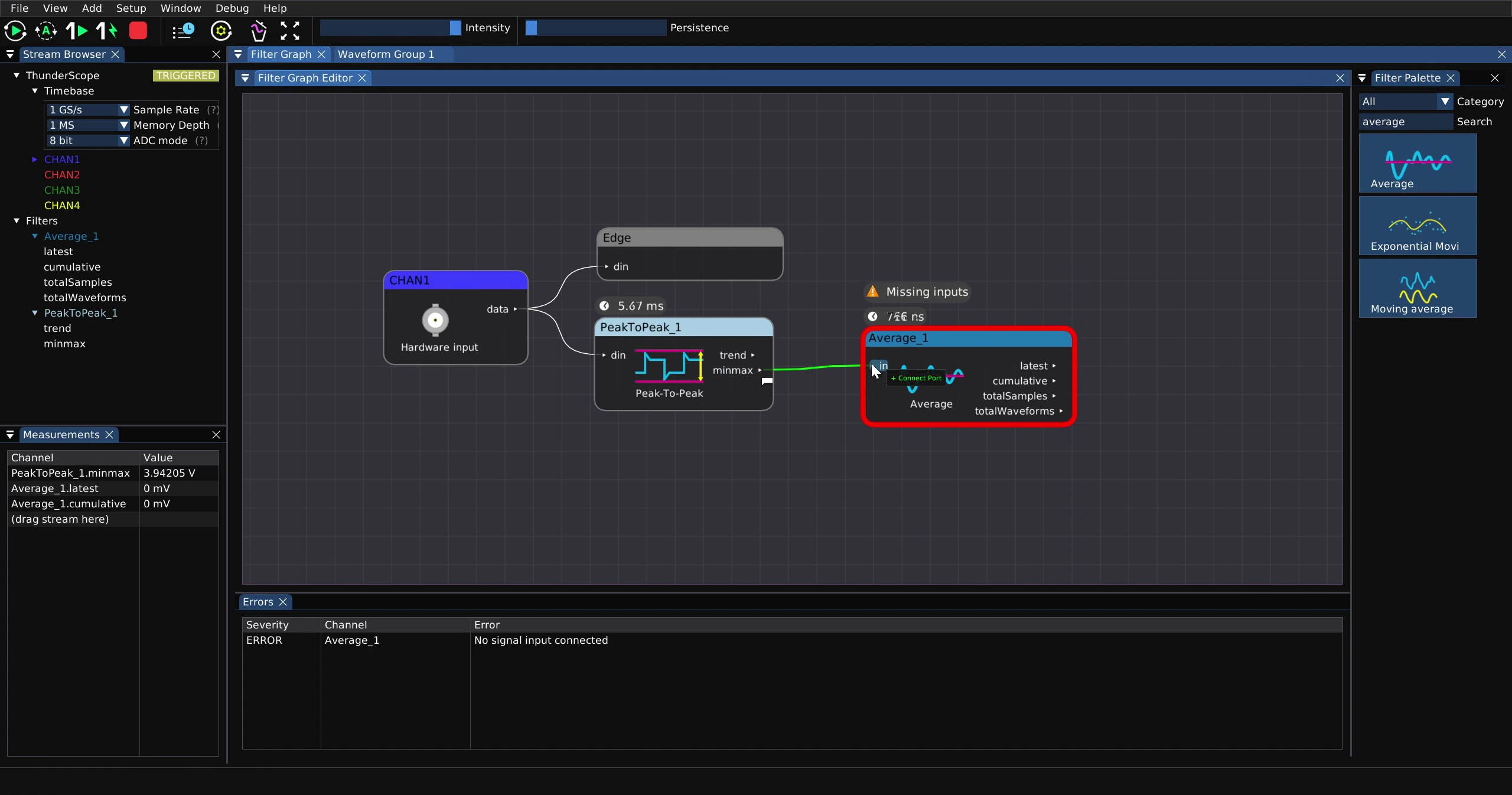
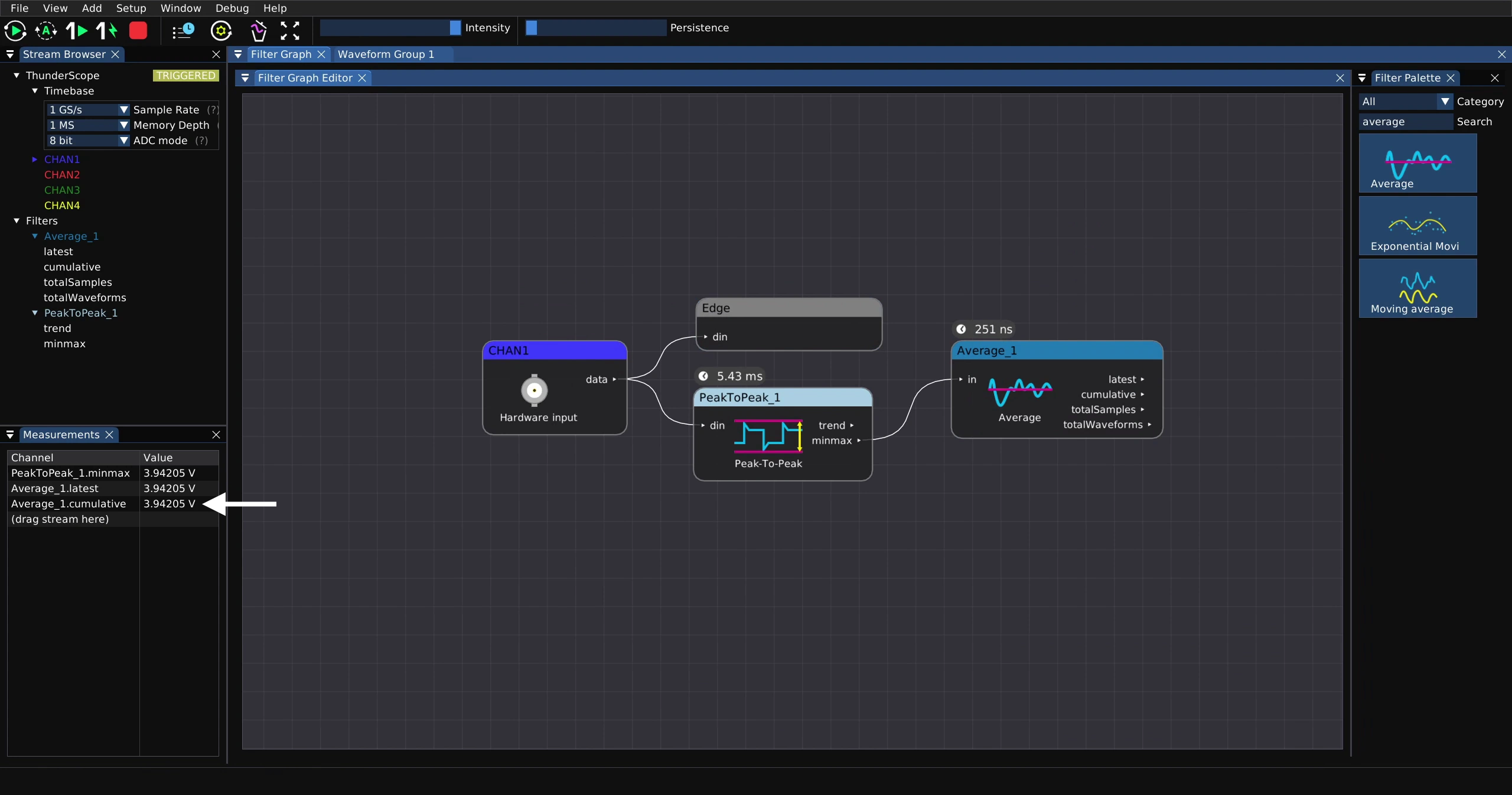
The “Average_1.cumulative” value in the “Measurements” UI will now start updating, this is the average peak to peak value of channel 1.
To clear the accumulated filter block state and start taking a fresh average, click on the clear button on the main toolbar.
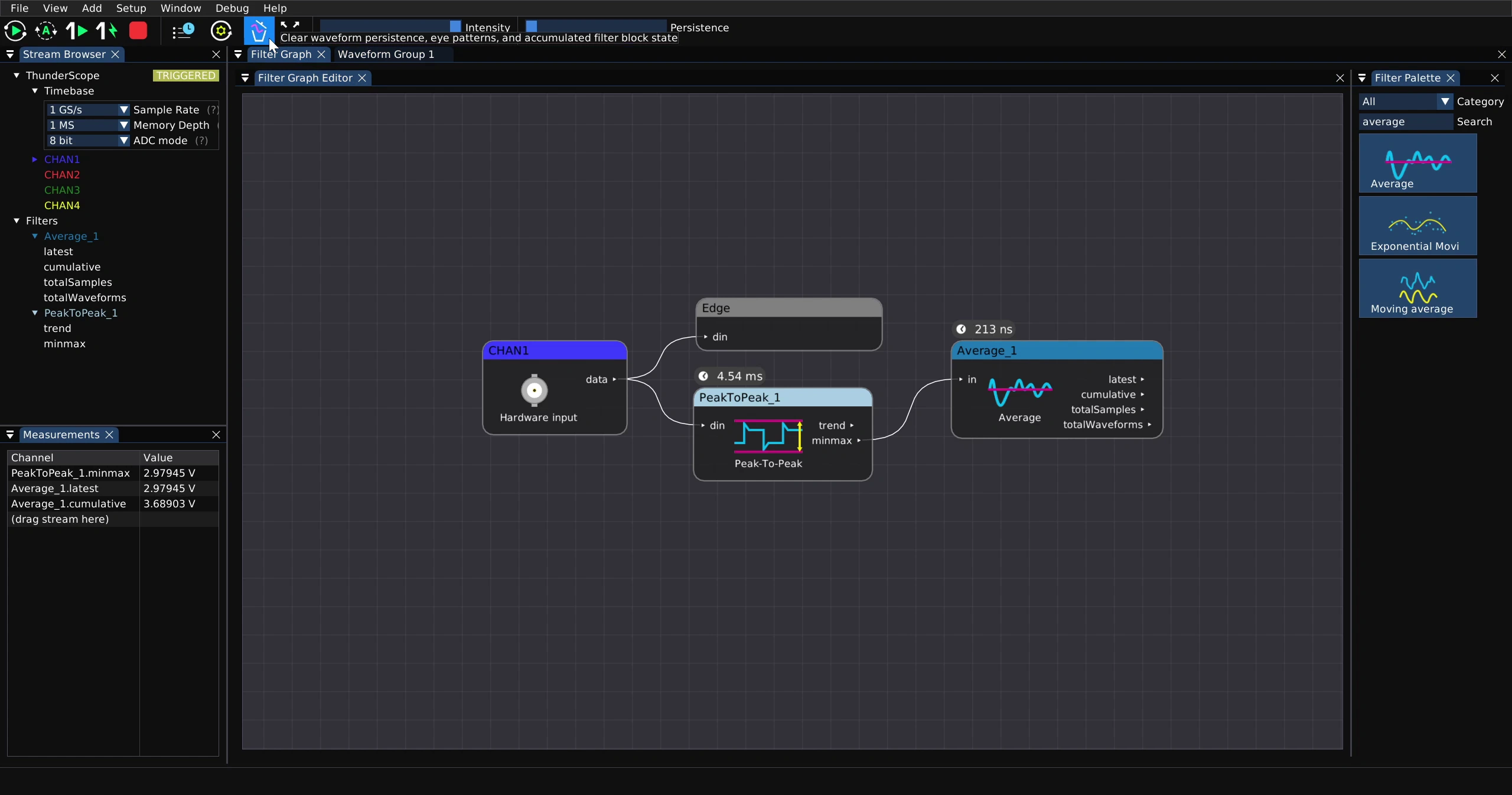
Observe that the “Average_1.cumulative” value has now changed
Filters with Waveform Inputs and Outputs#
Some filters have waveform outputs that are displayed the same way channels are. For example, the upsample filter.
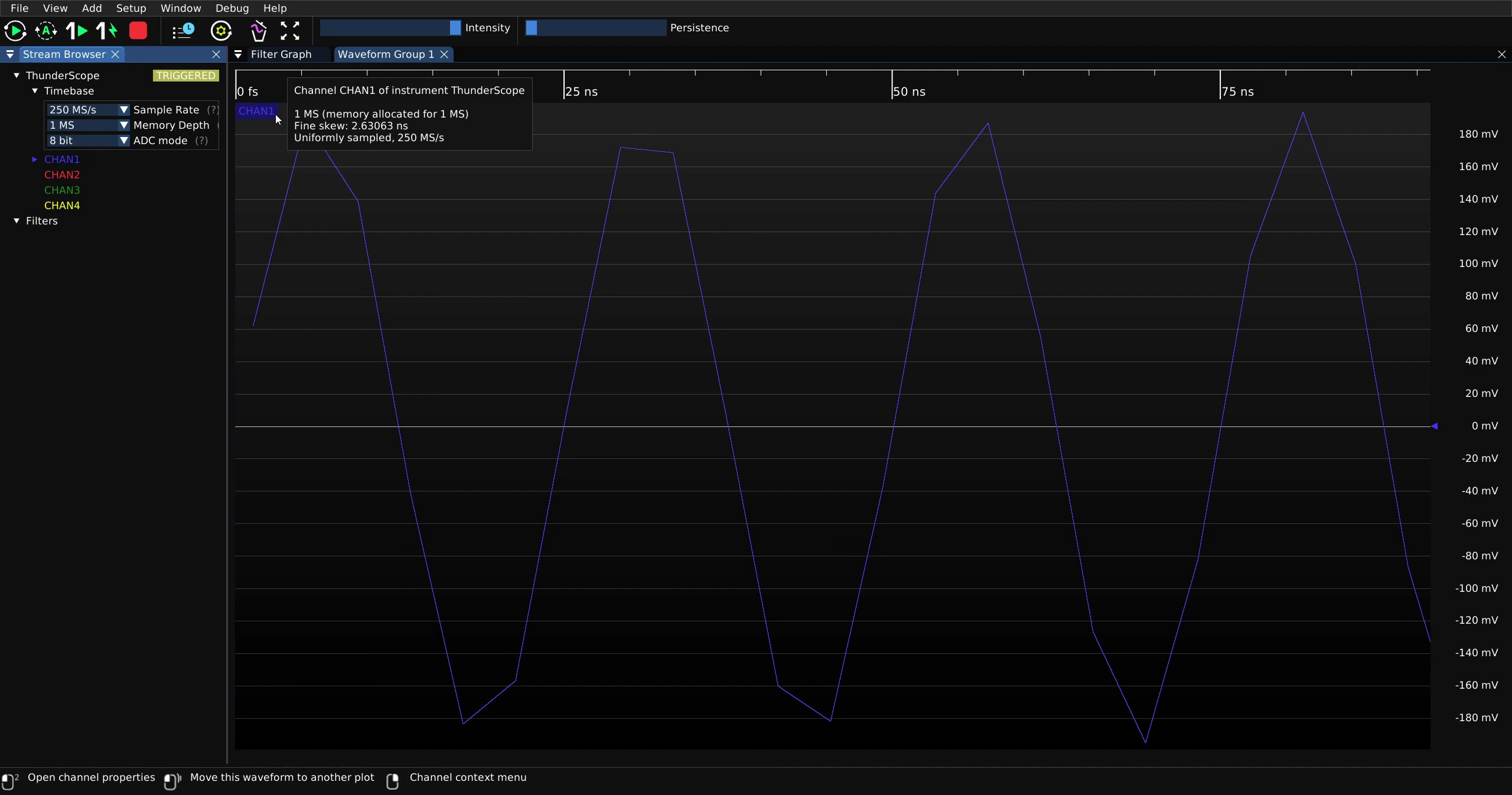
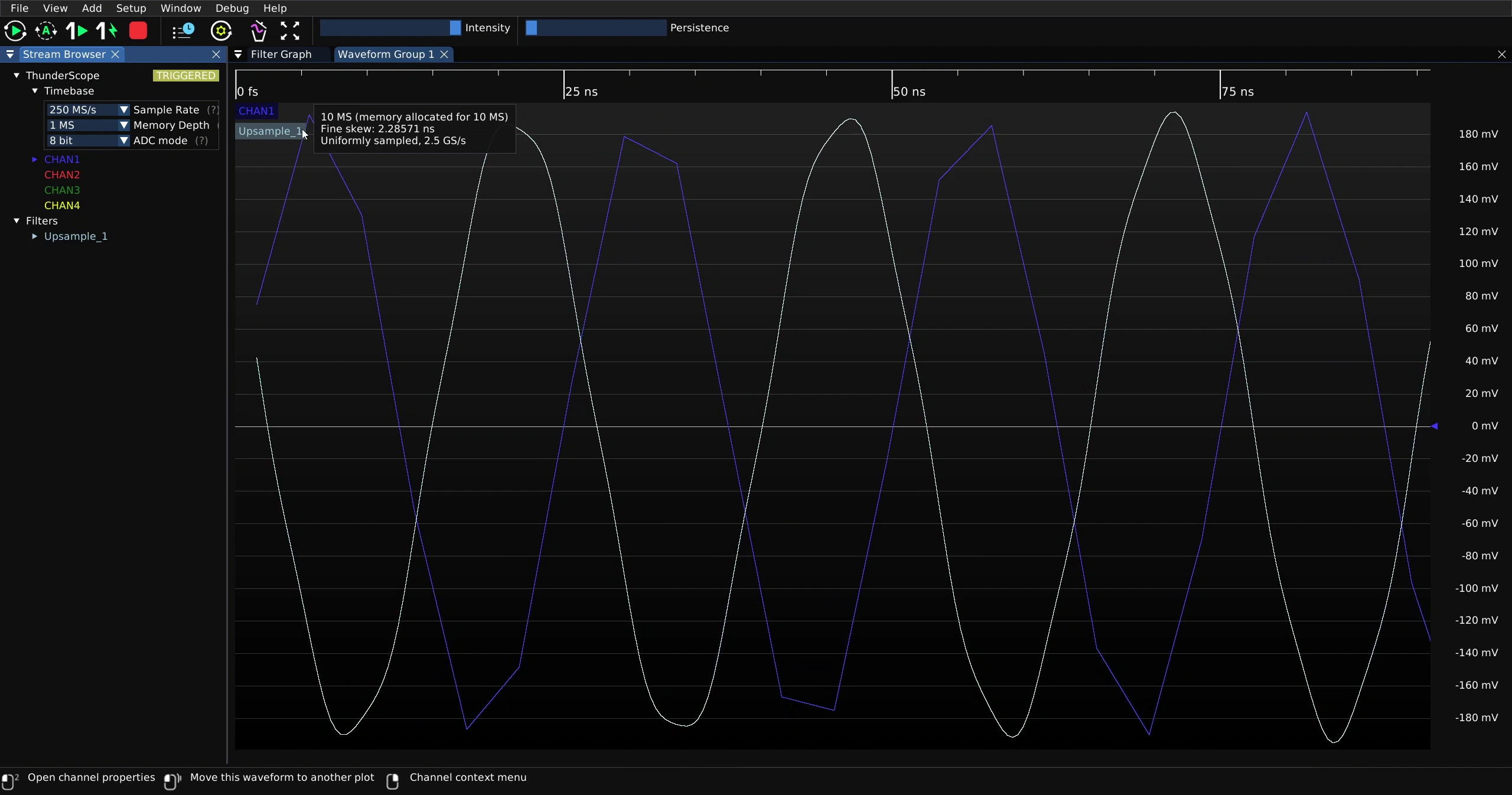
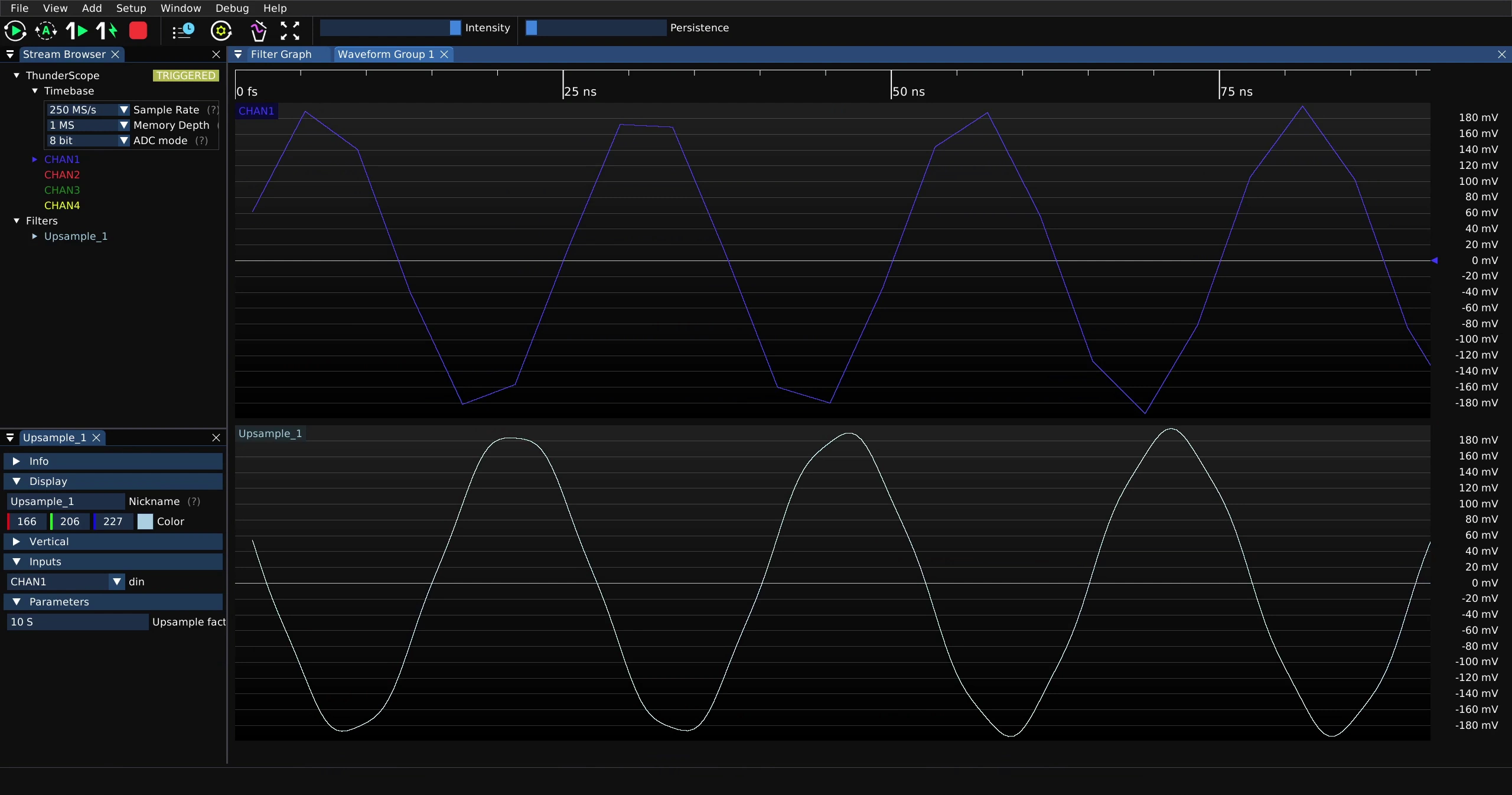
Shown below is a 40 MHz sine wave sampled at 250 MS/s, it looks jagged due to the straight line interpolation used by default. To see the waveform with sin(x)/x interpolation, which most benchtop scopes use by default, use the upsample filter. This is particularly useful at high frequencies or low sample rates.
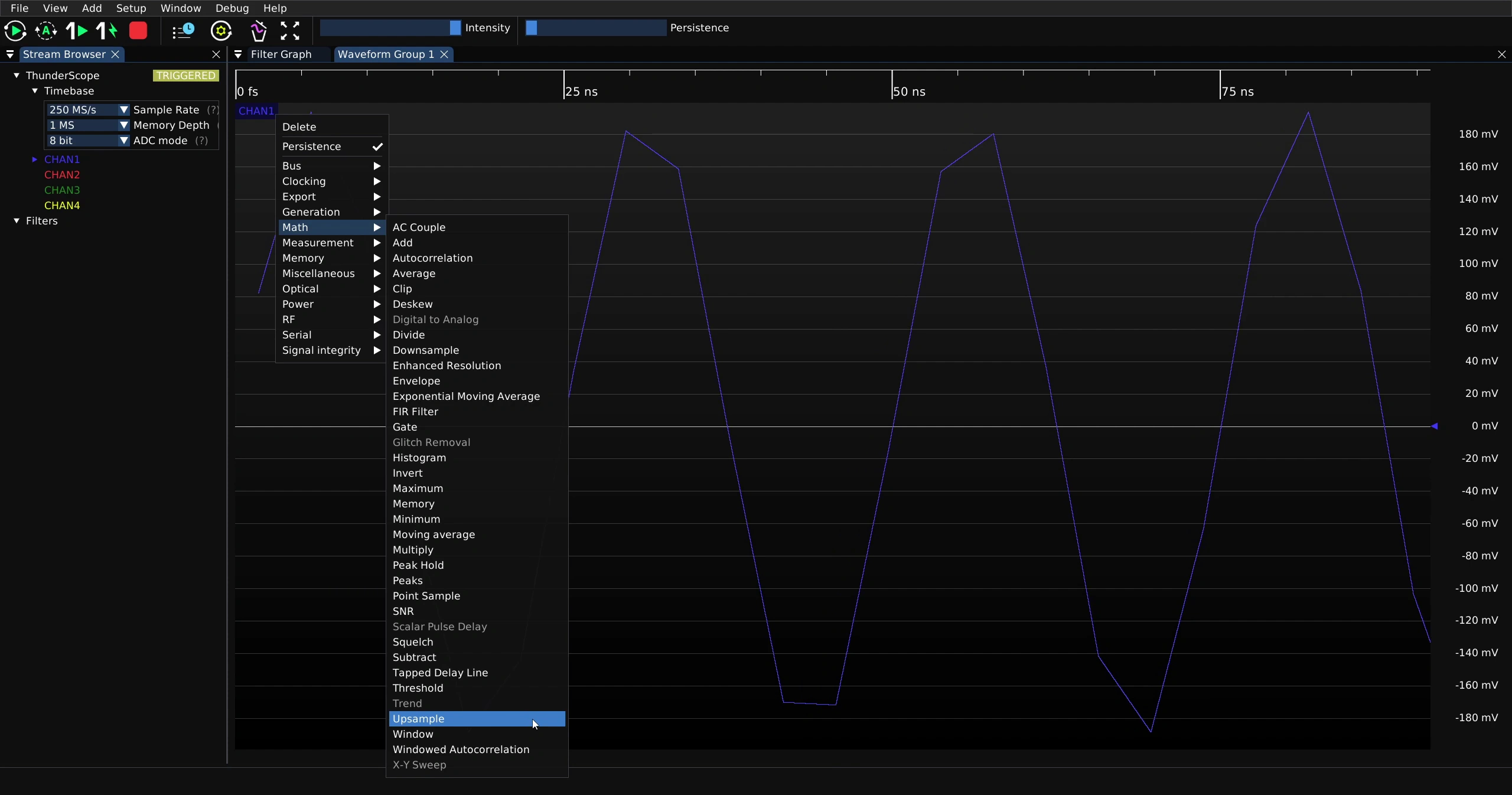
Right click the channel label and select the “Upsample” filter under the “Math” category.
This will generate a new waveform with a sample rate 10x higher than the input waveform.
The upsampling factor can be changed in the filter’s properties, which are accessed just like channel properties by double clicking the filter’s label.
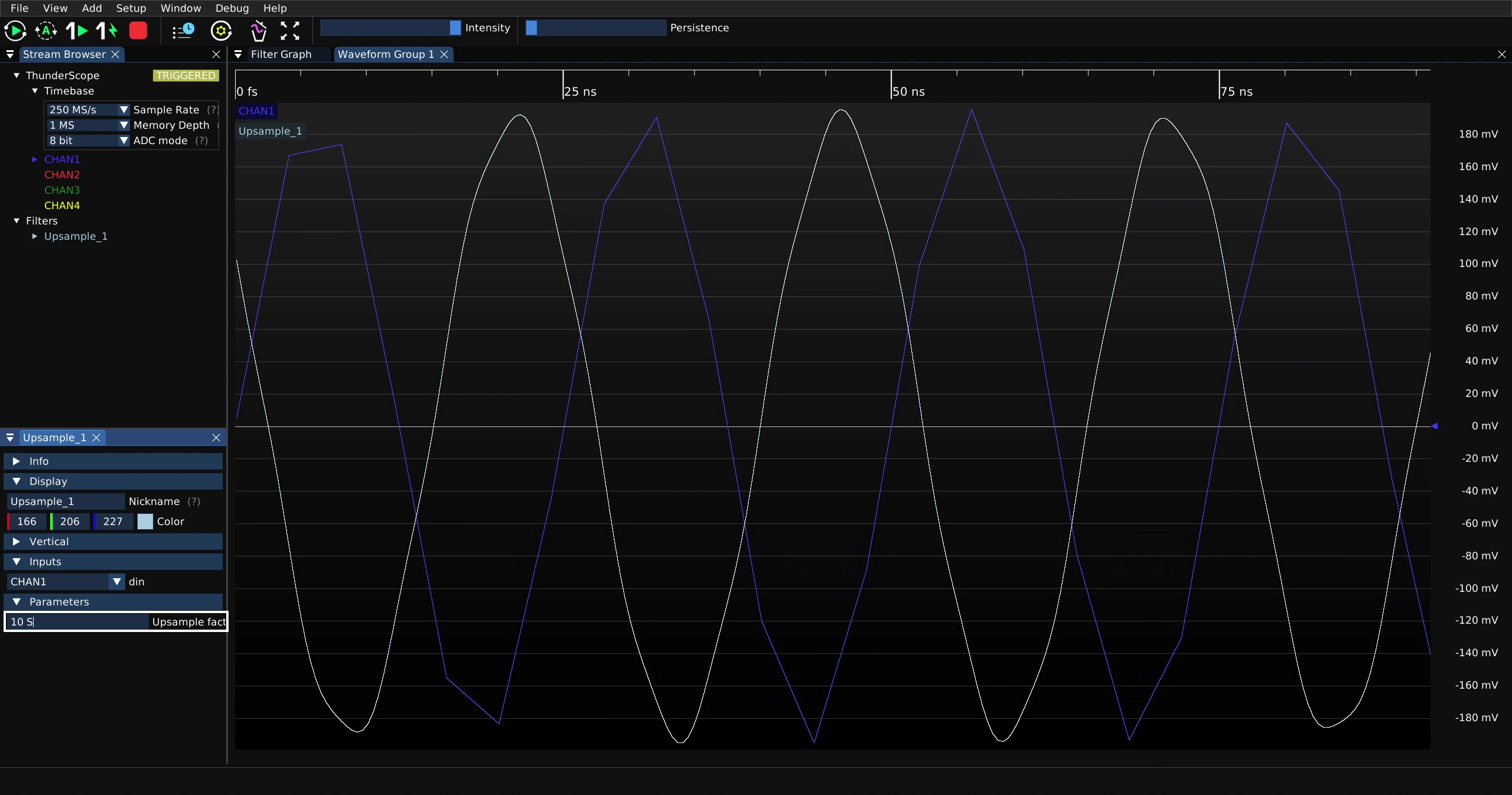
The filter waveform can also be moved to other waveform views or waveform groups just like a channel.
Waveform Export#
Filters can be used to export waveform data as well. Take the “CSV Export” Filter as an example, it has just a single waveform input and some user parameters to control the export.
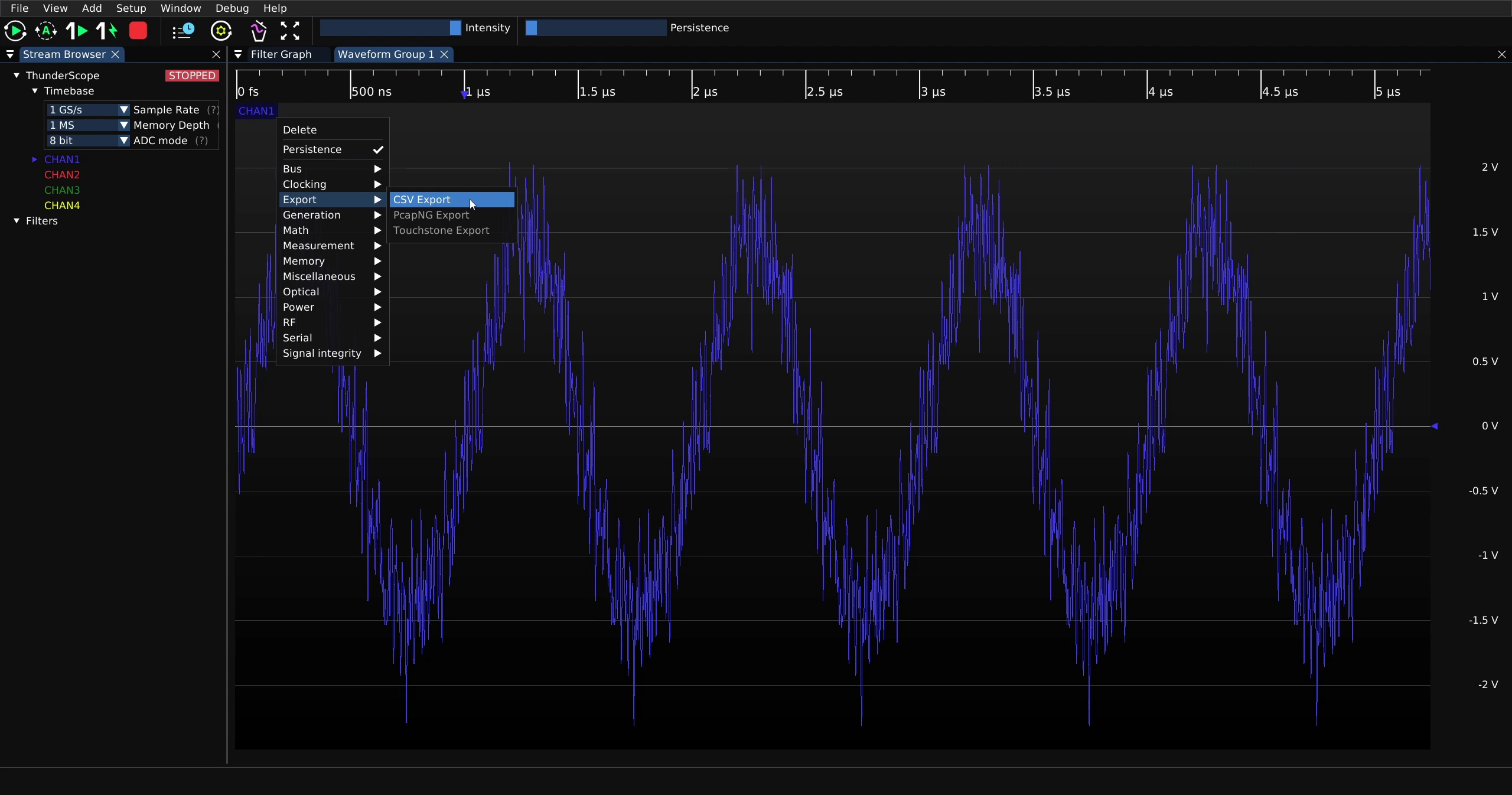
Right click the channel label and select the “CSV Export” filter under the “Export” category.
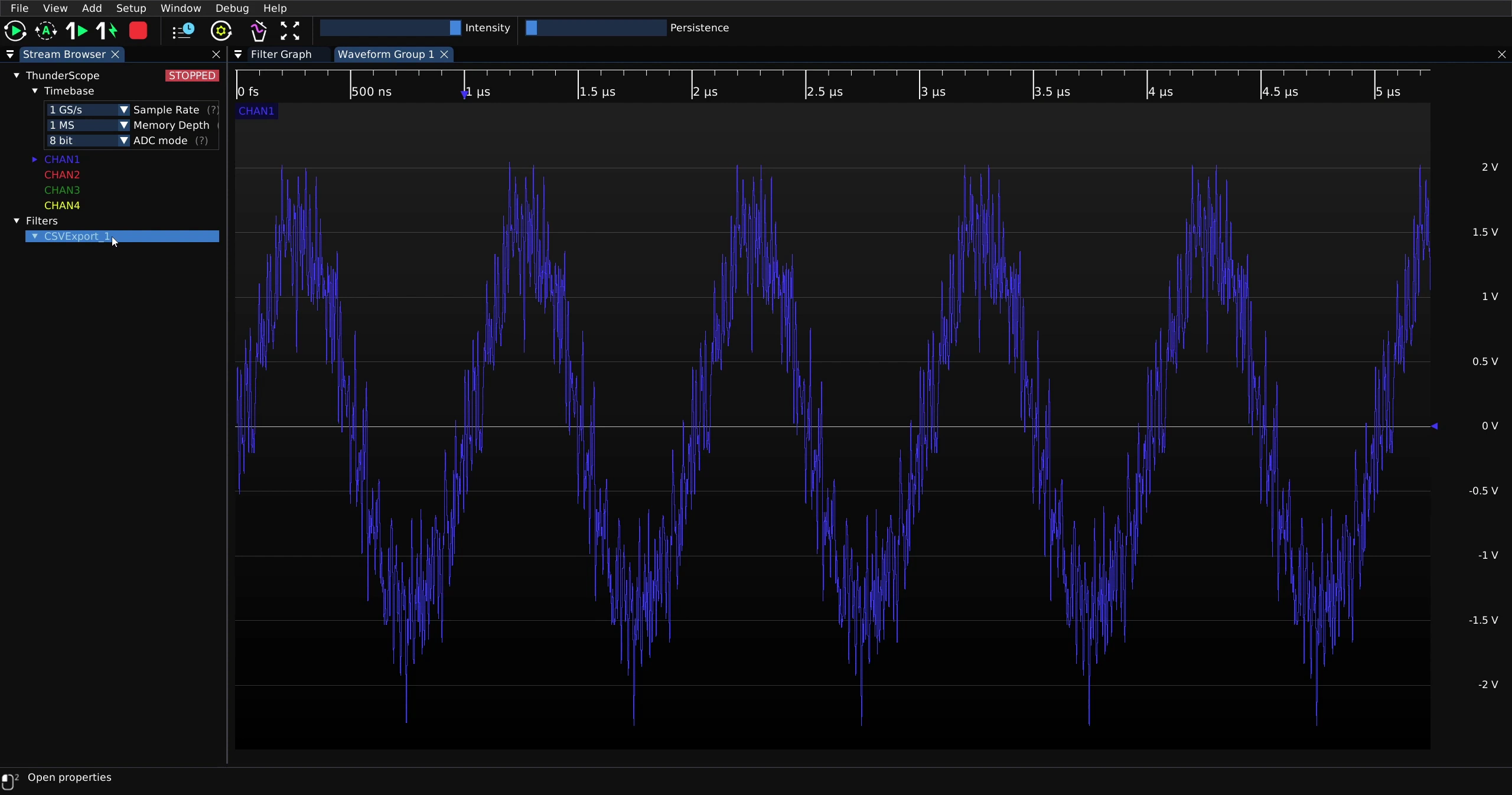
The filter’s properties can be accessed by double clicking its label in the stream browser. All active filters will be shown here regardless of displayed output.
In the filter properties menu, click on the button with three dots to launch your system’s file save dialog.
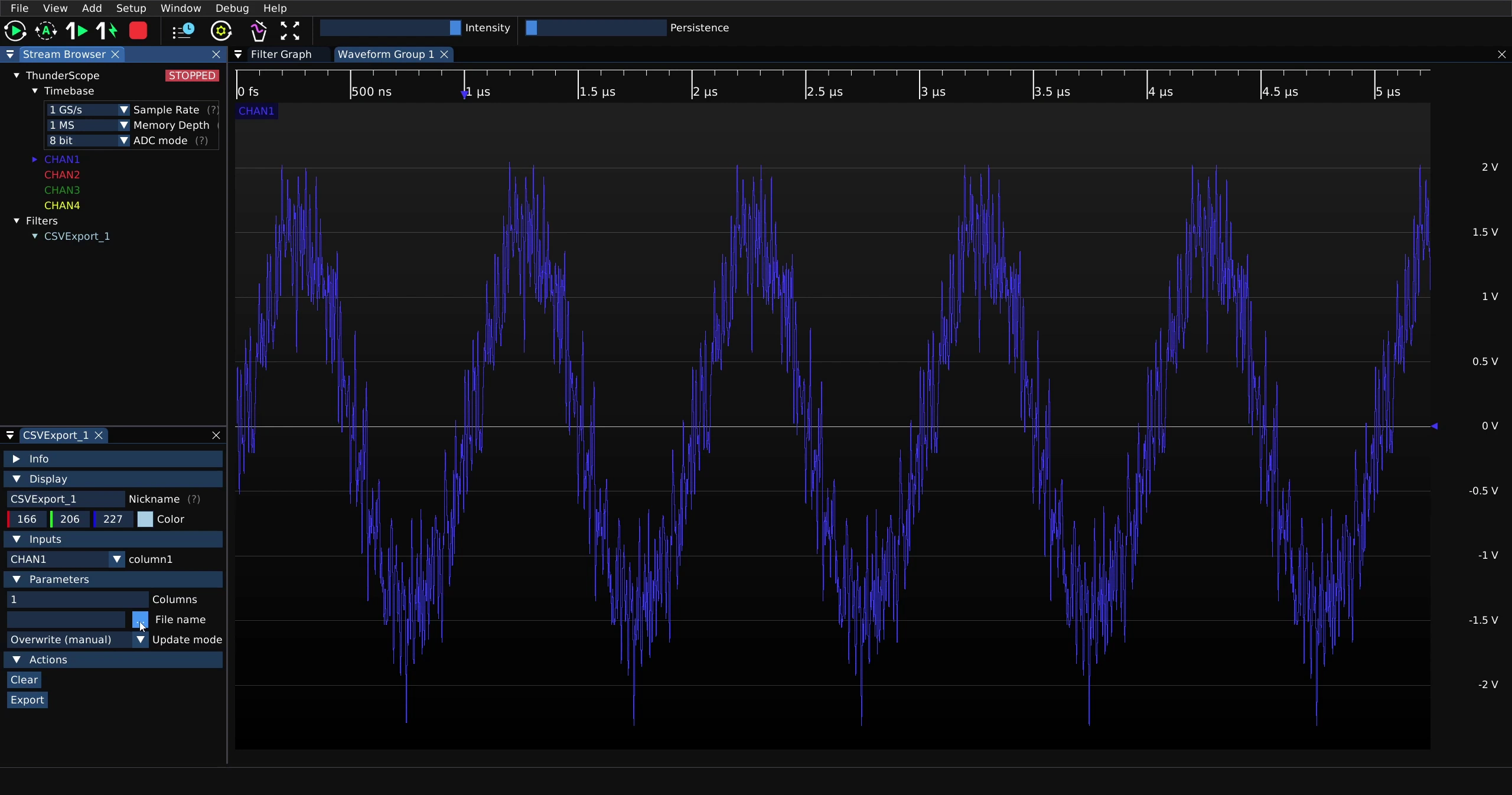
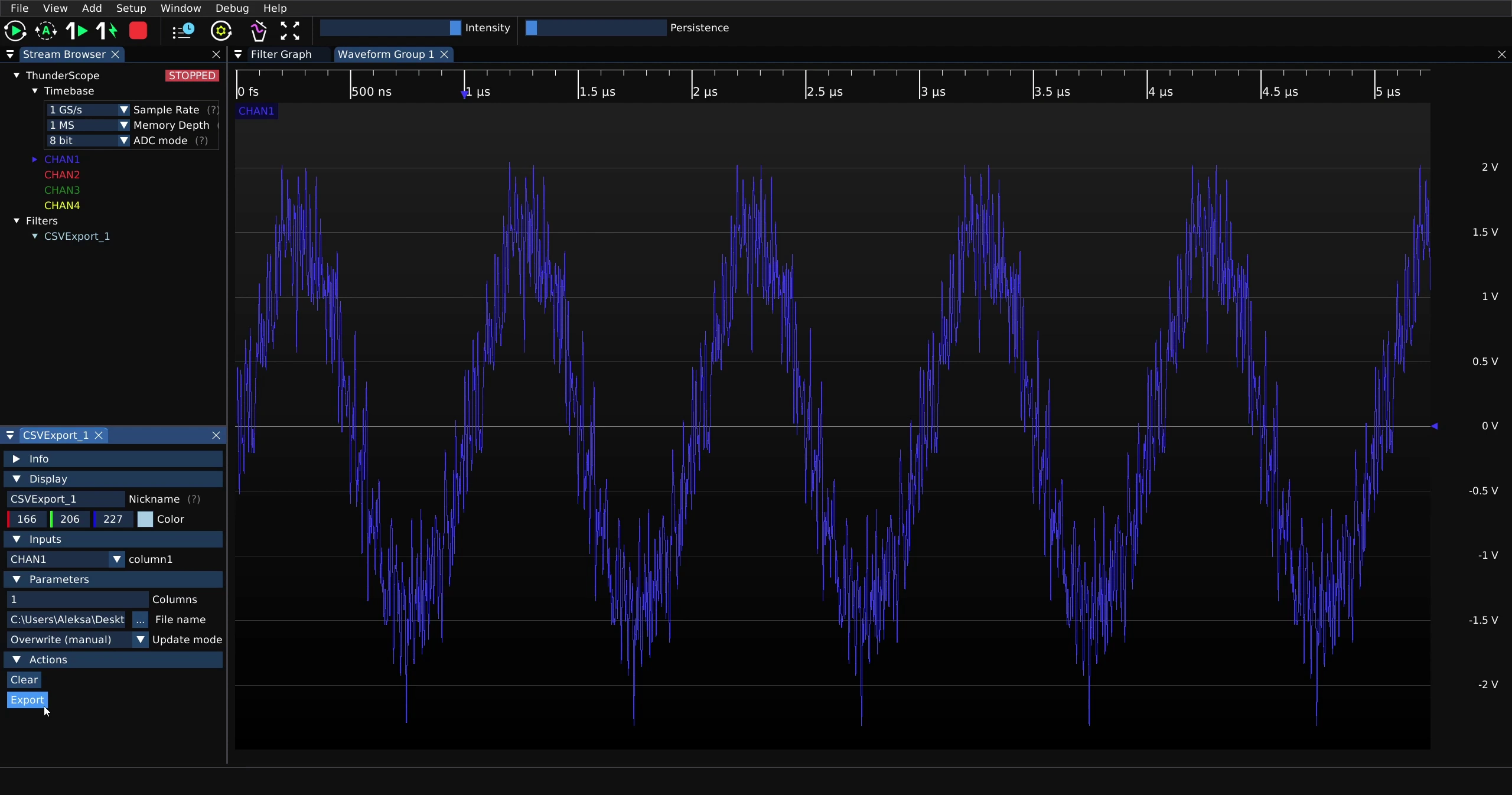
When you have selected a location to save the CSV export, click the “Export” button in the filter properties menu. There are many options to handle updating the exported CSV file. In this case the capture is stopped and the filter is in “Overwrite (manual)” mode, so only the current capture will be written to the file, overwriting any previous contents.
Reference Waveforms#
Reference waveforms are generated by a filter with no inputs and a waveform output. These can be constants, built-in waveforms, or waveforms imported by the user.
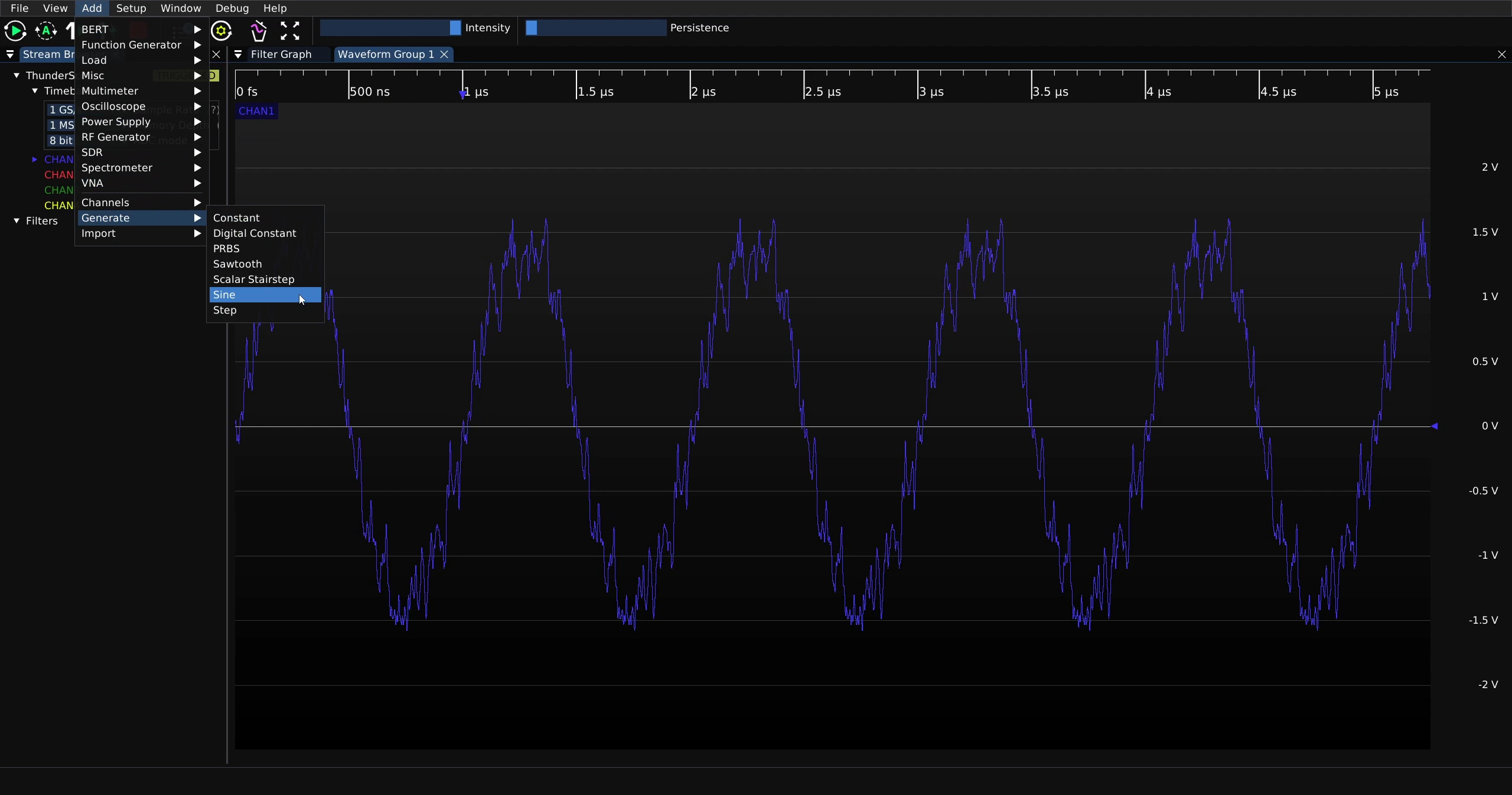
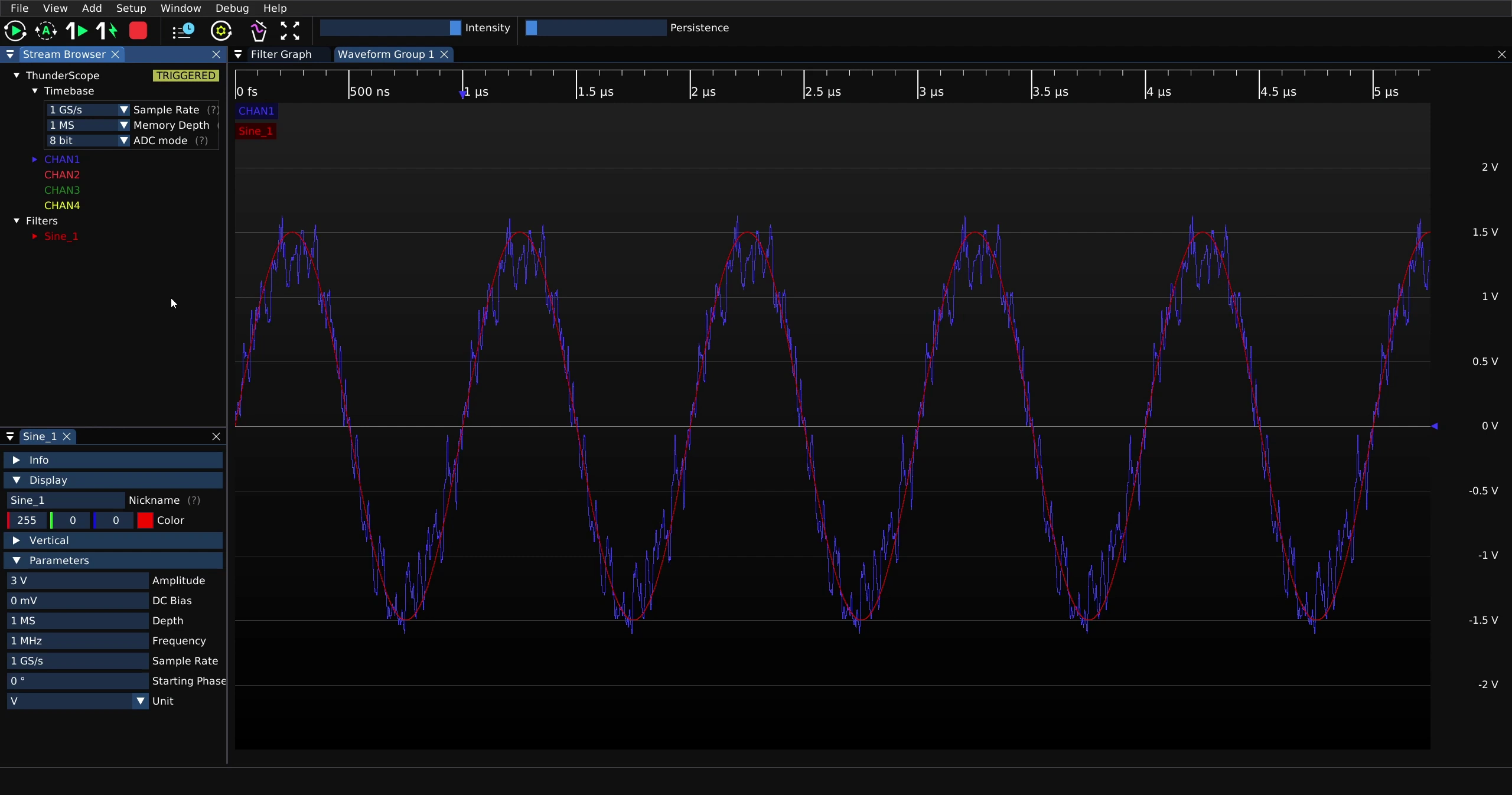
Shown below is a noisy 1 MHz sine signal captured with the 20 MHz bandwidth setting on channel 1. A built in sine reference waveform can be generated to provide a noise free comparison. To generate a sine waveform, click on “Add” on the main menu at the top of the window, mouse over “Generate” and then click on “Sine”.
This will generate a sine wave with default parameters and display it. It will also spawn a filter property menu, which is shown docked at the lower left corner below.
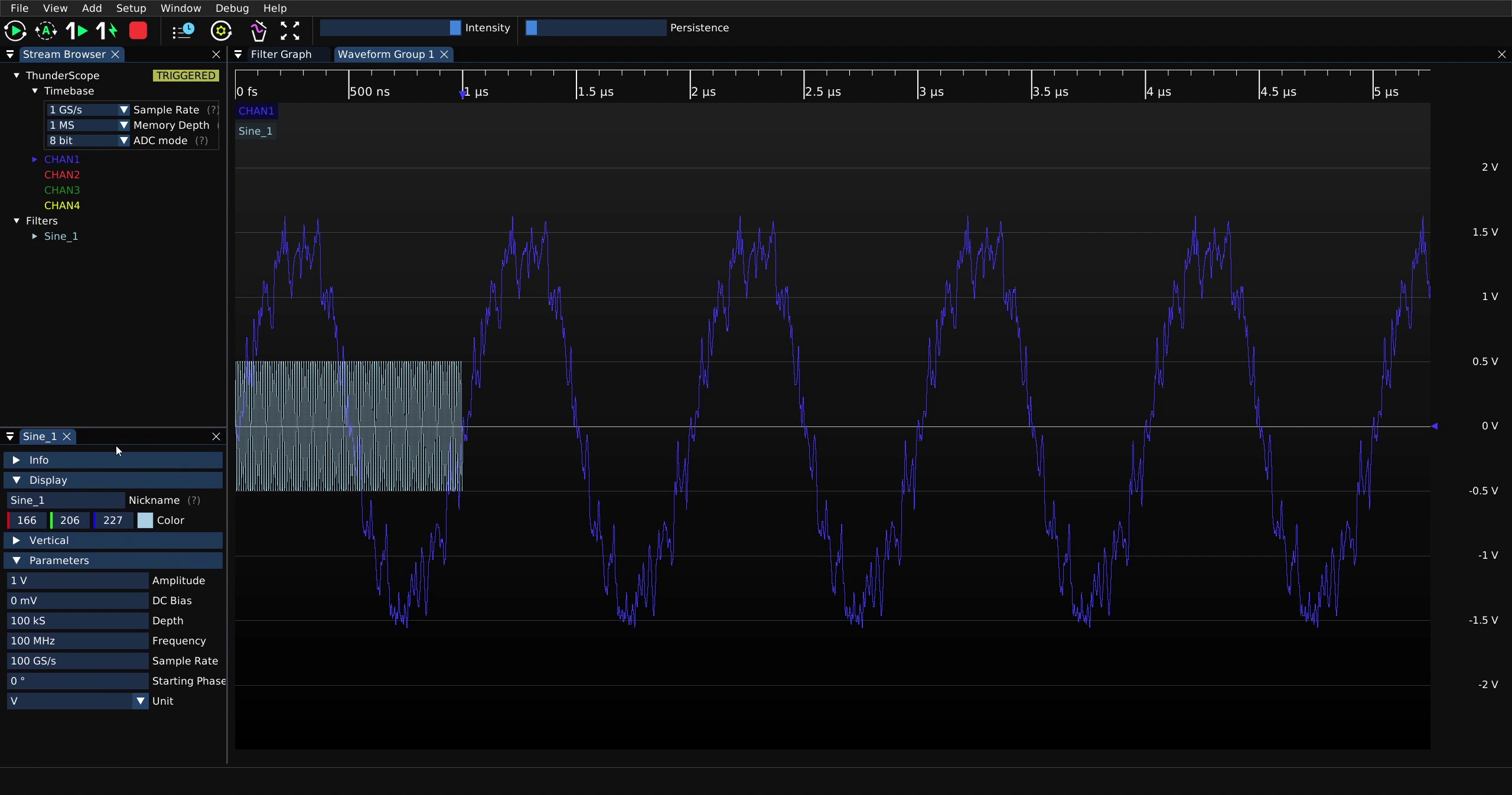
The parameters can then be changed to match the signal, the filter waveform color can also be changed just like channel color.
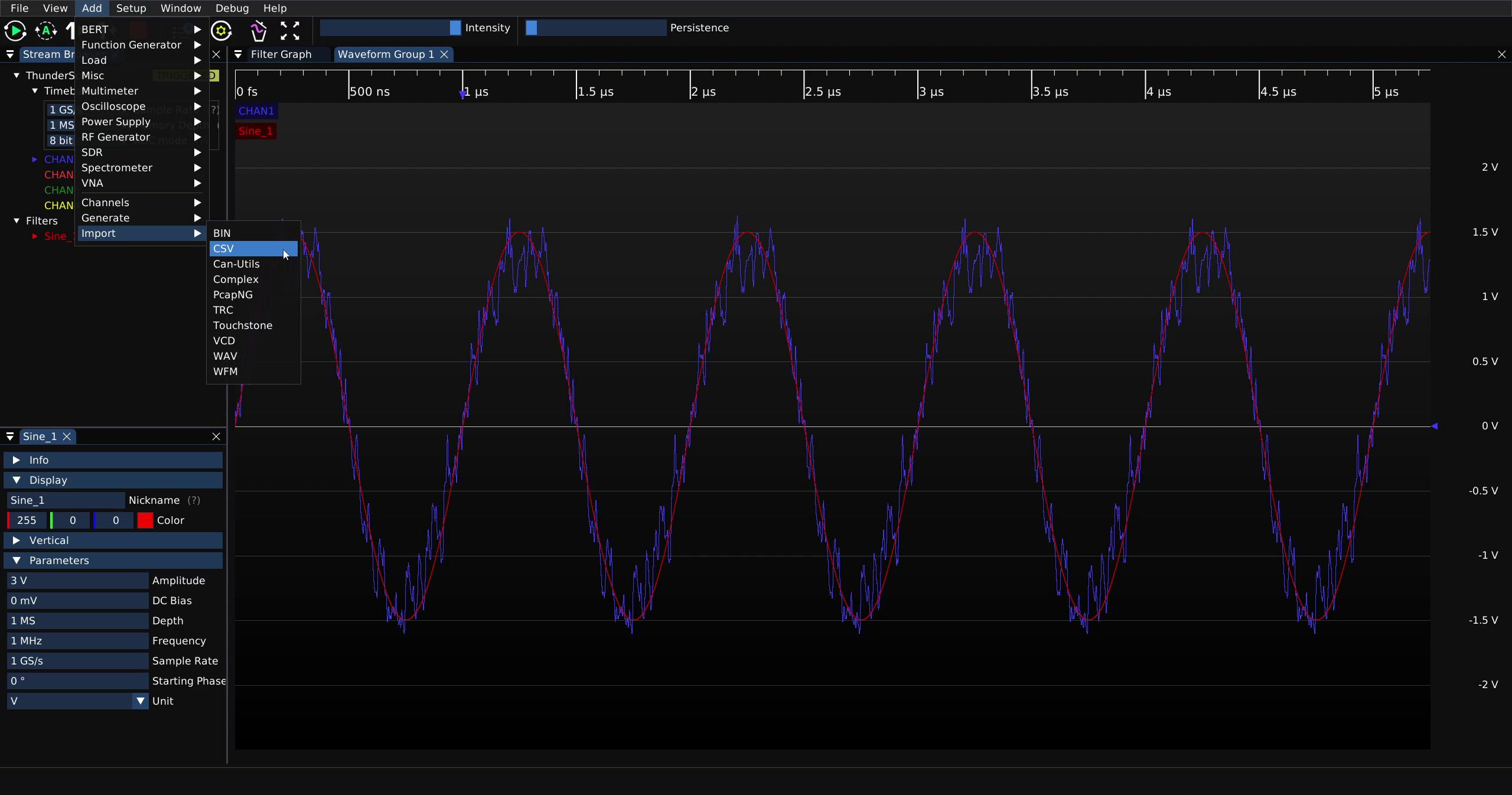
To add to this example, the unfiltered noisy sine waveform from the previous section can be imported. In order to import an arbitrary CSV waveform, click on “Add” on the main menu at the top of the window, mouse over “Import” and then click on “CSV”.
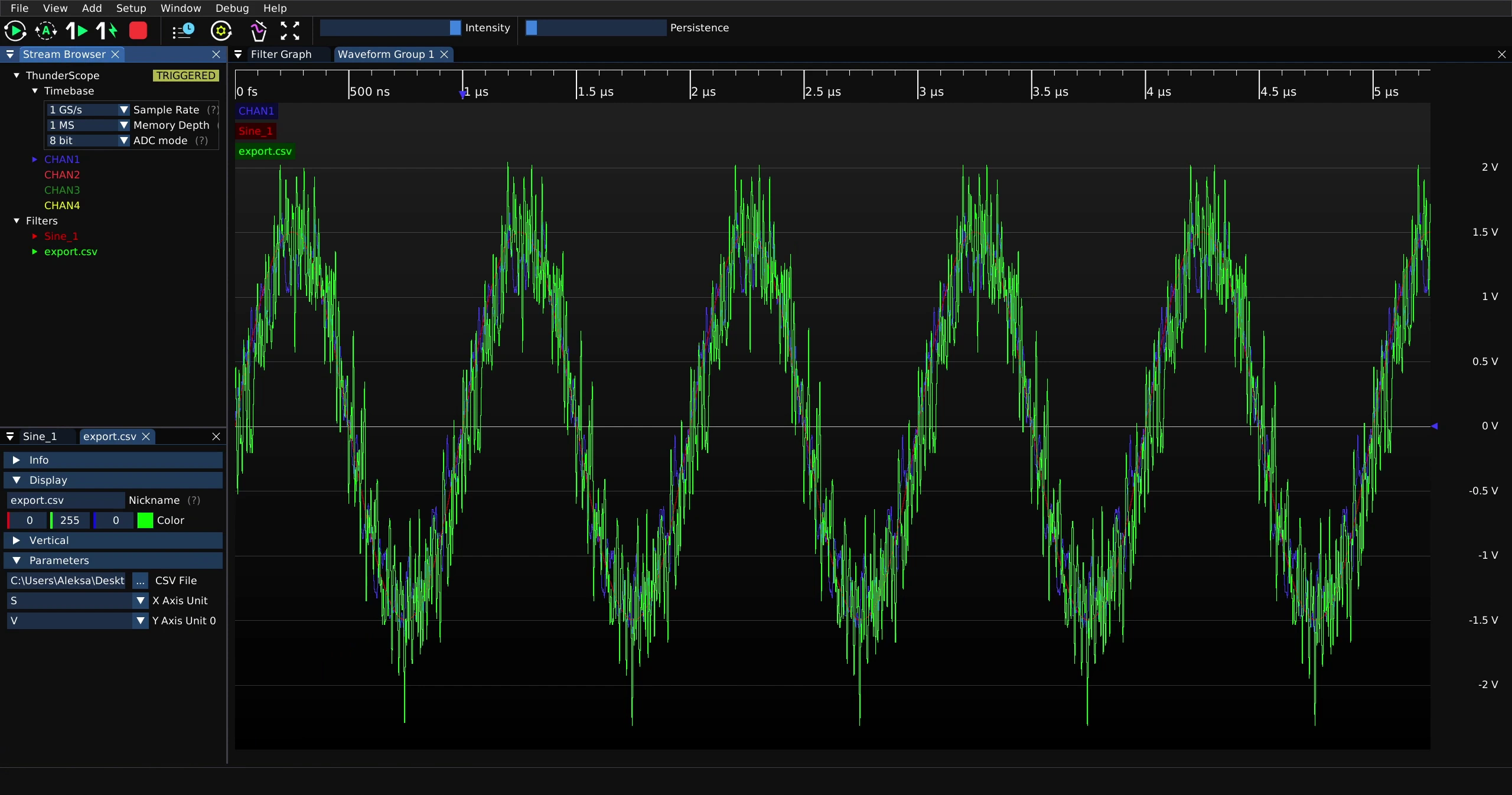
This will display the imported waveform and spawn a filter property menu, which is shown docked at the lower left corner below.
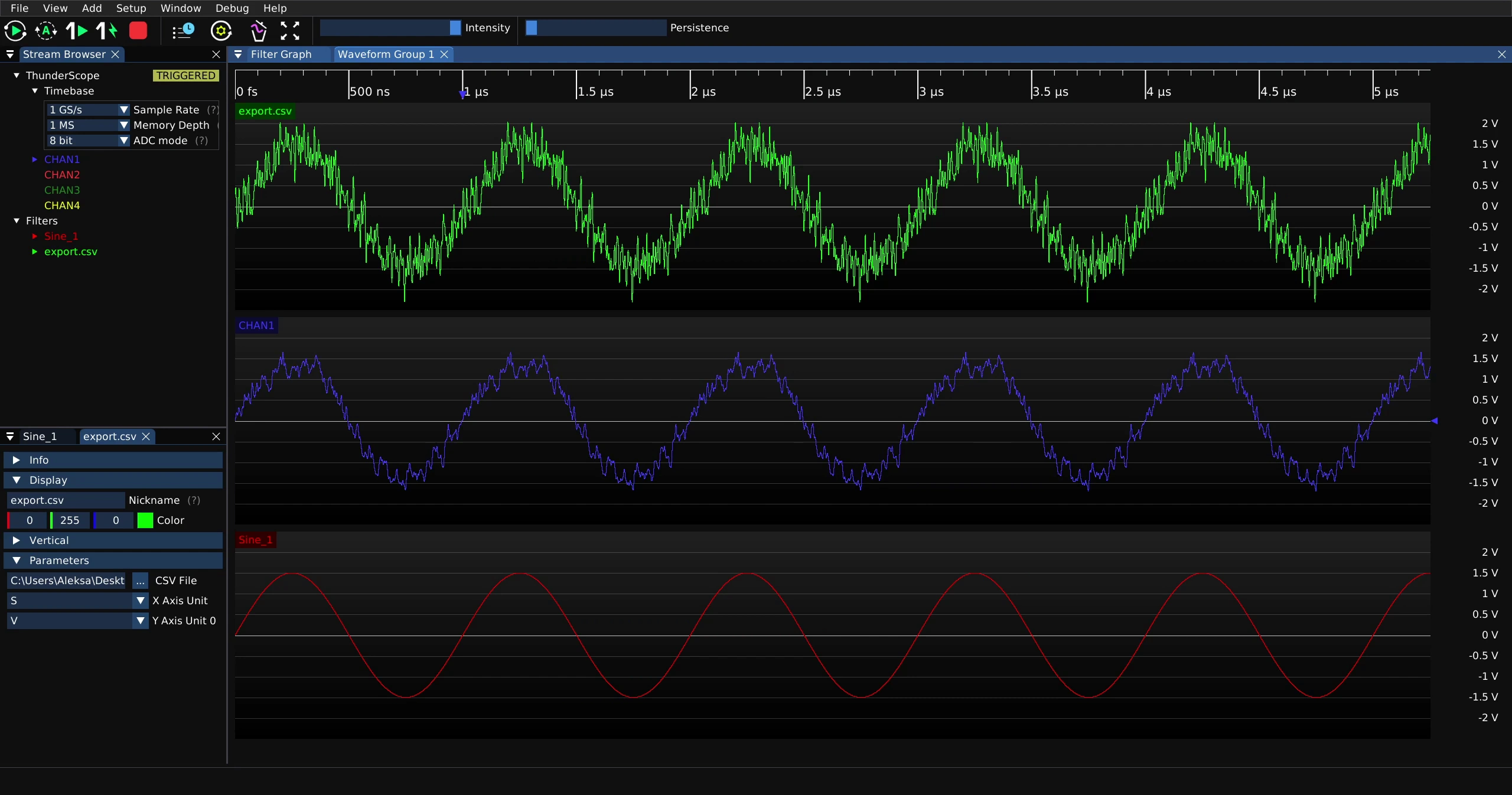
Shown below are the three waveforms placed in separate waveform views for better legibility.
Protocol Decode Example#
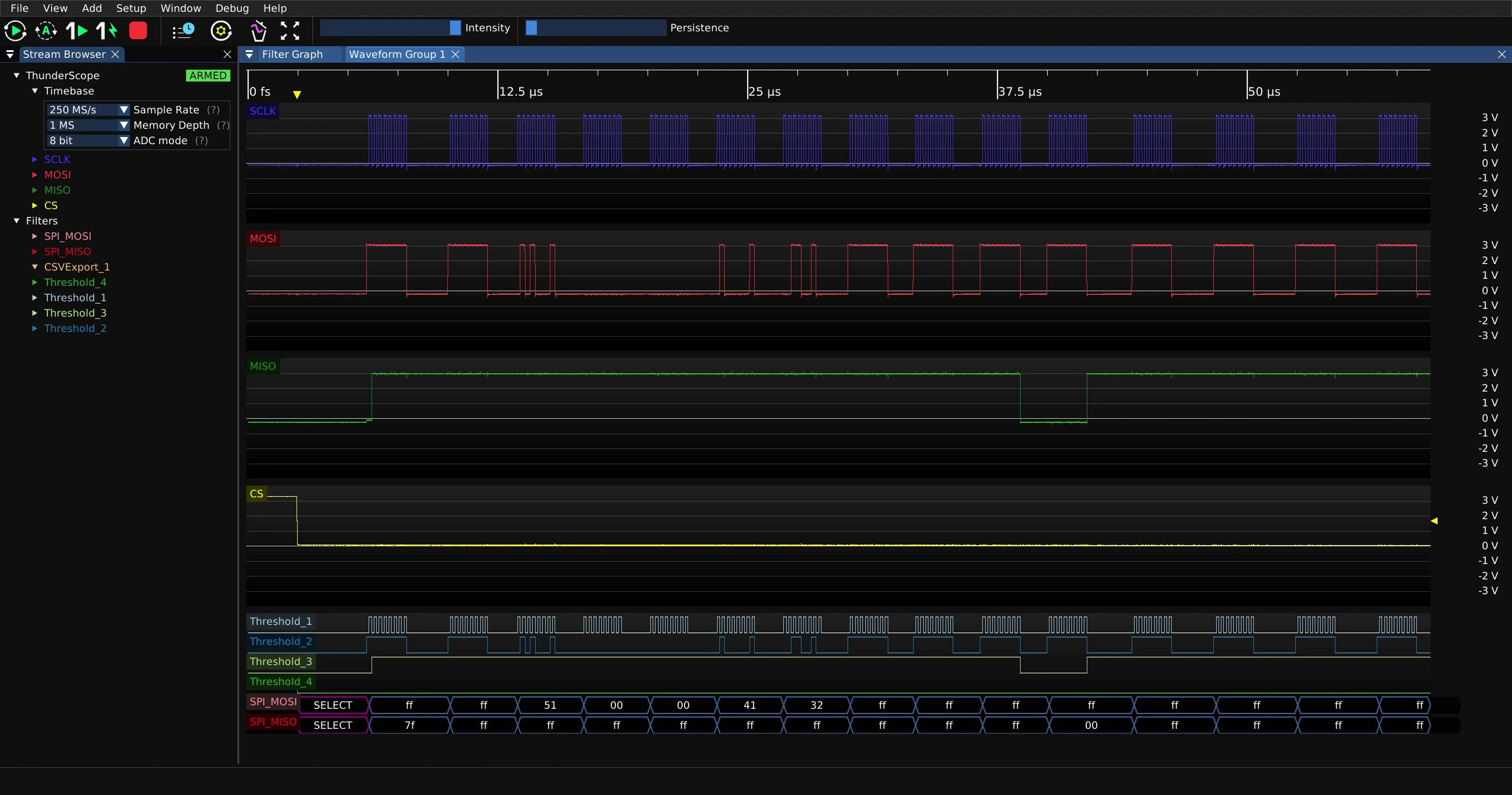
To tie everything in this users guide together, a SPI decode will be used as an example of a protocol decode. Below is a capture containing SPI transactions on both MOSI and MISO lines where each channel has been labelled with the SPI signal that is being probed on that channel.
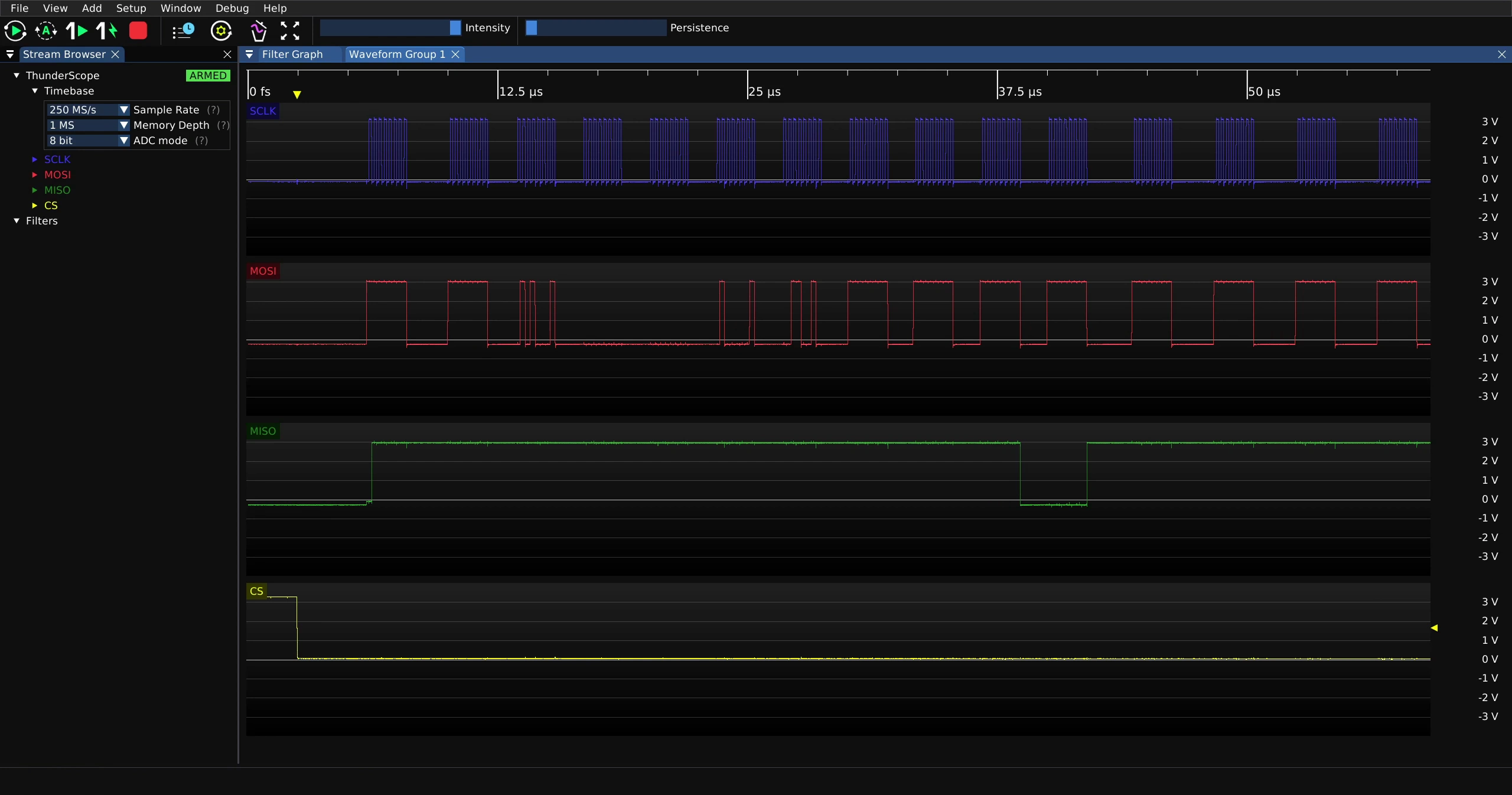
In the filter graph view, search for “Threshold” in the filter palette.
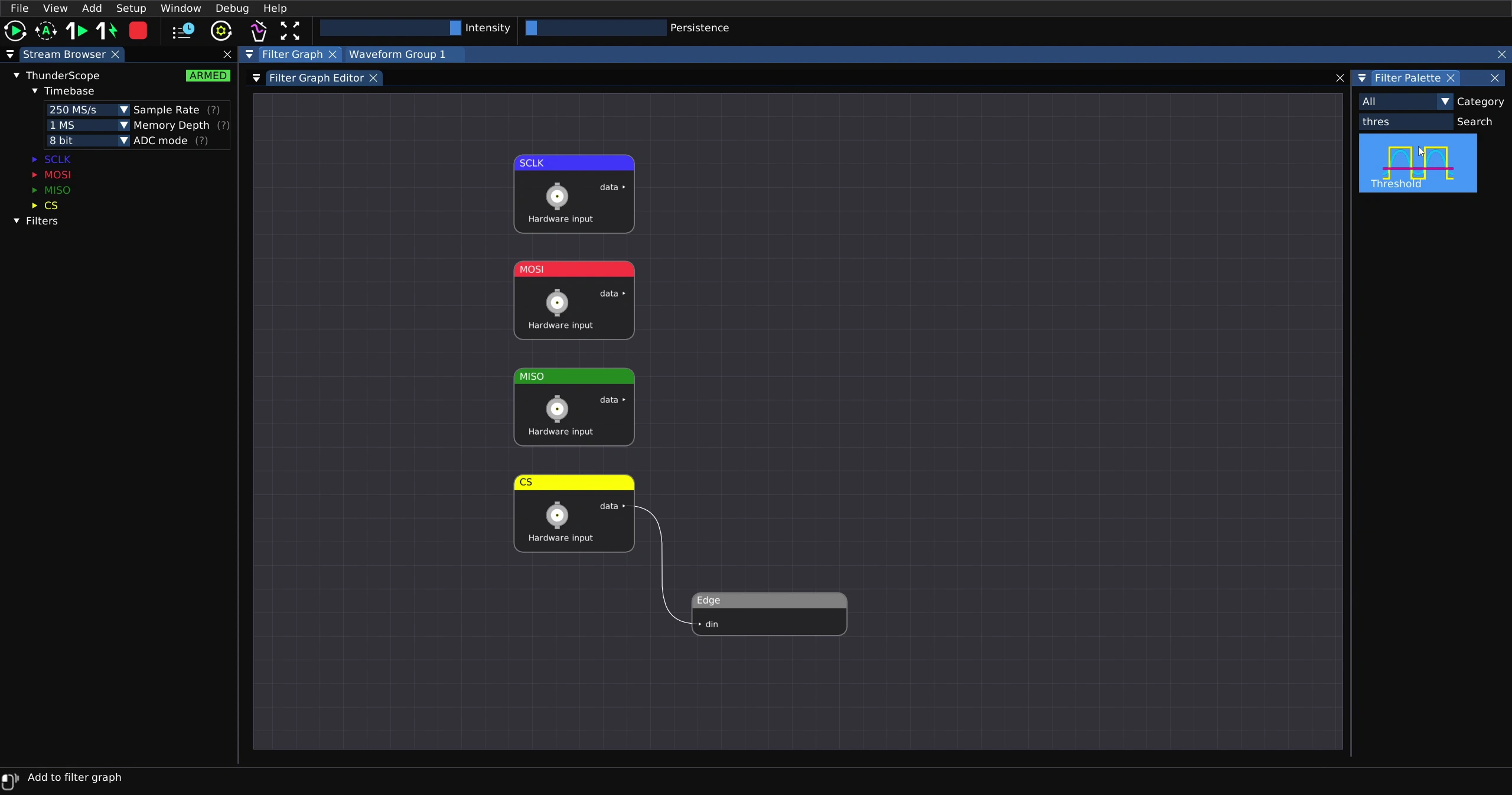
Add four Threshold filters to the filter graph and connect the analog waveform output from each channel to the “din” input of the corresponding Threshold filter. The Threshold filter is used to convert an analog waveform output to a digital waveform output, which is required by most protocol decode filters.
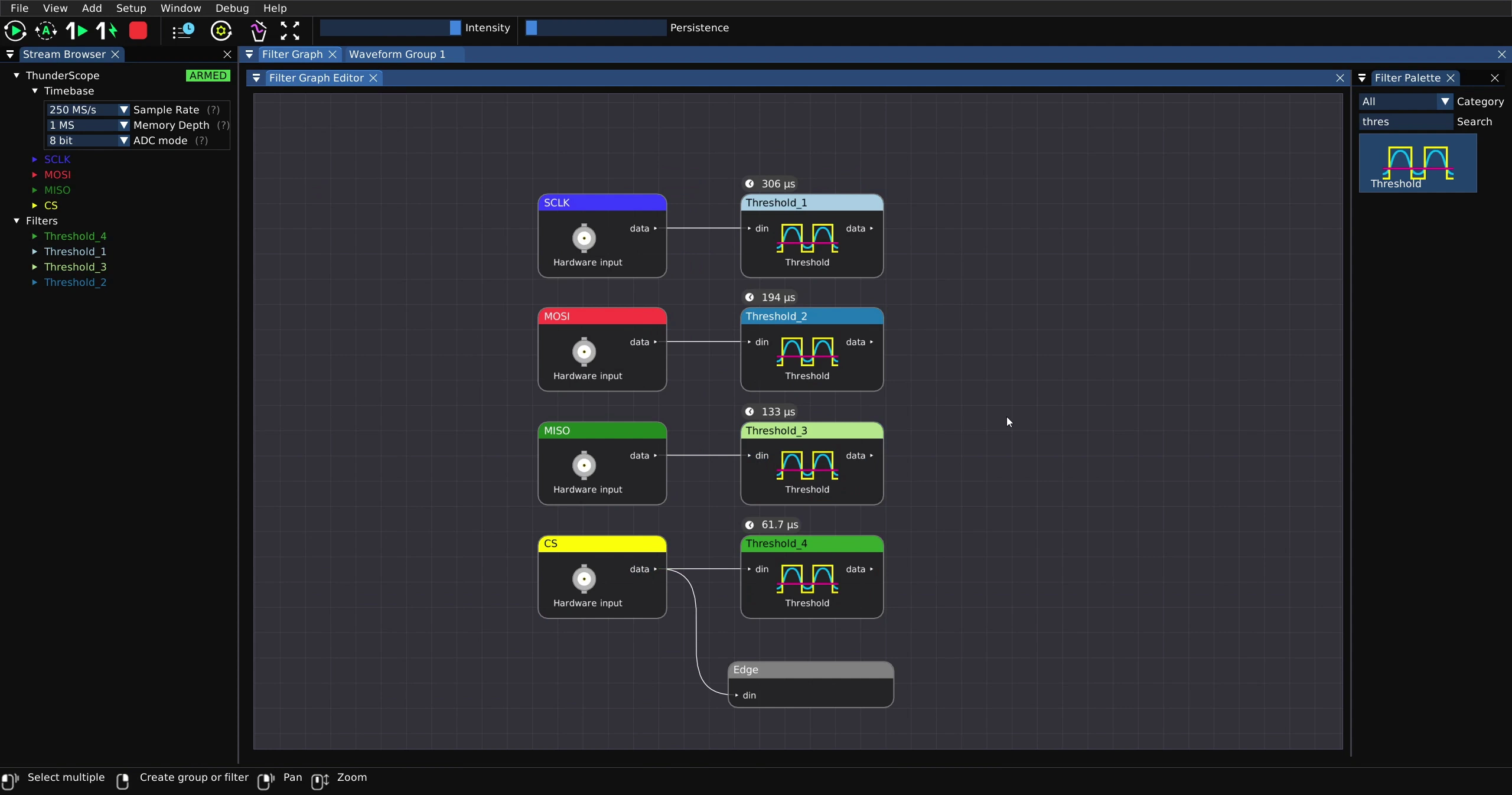
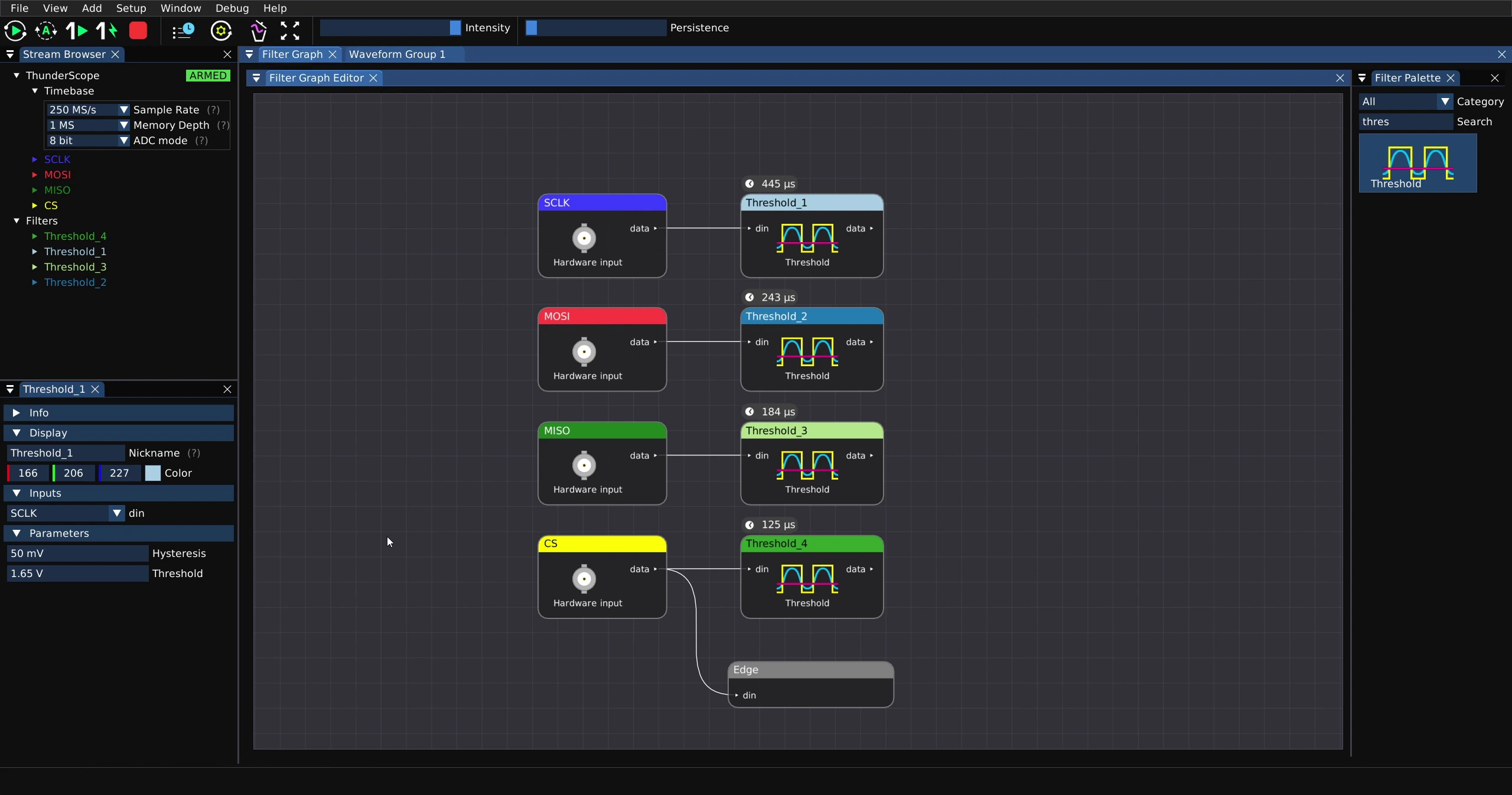
For each Threshold filter, set the “Hysteresis” and “Threshold” parameters to appropriate values. For the 3.3 V logic levels in this example, a threshold of 1.65 V is used with 50 mV of hysteresis.
Search for “SPI” in the filter palette.
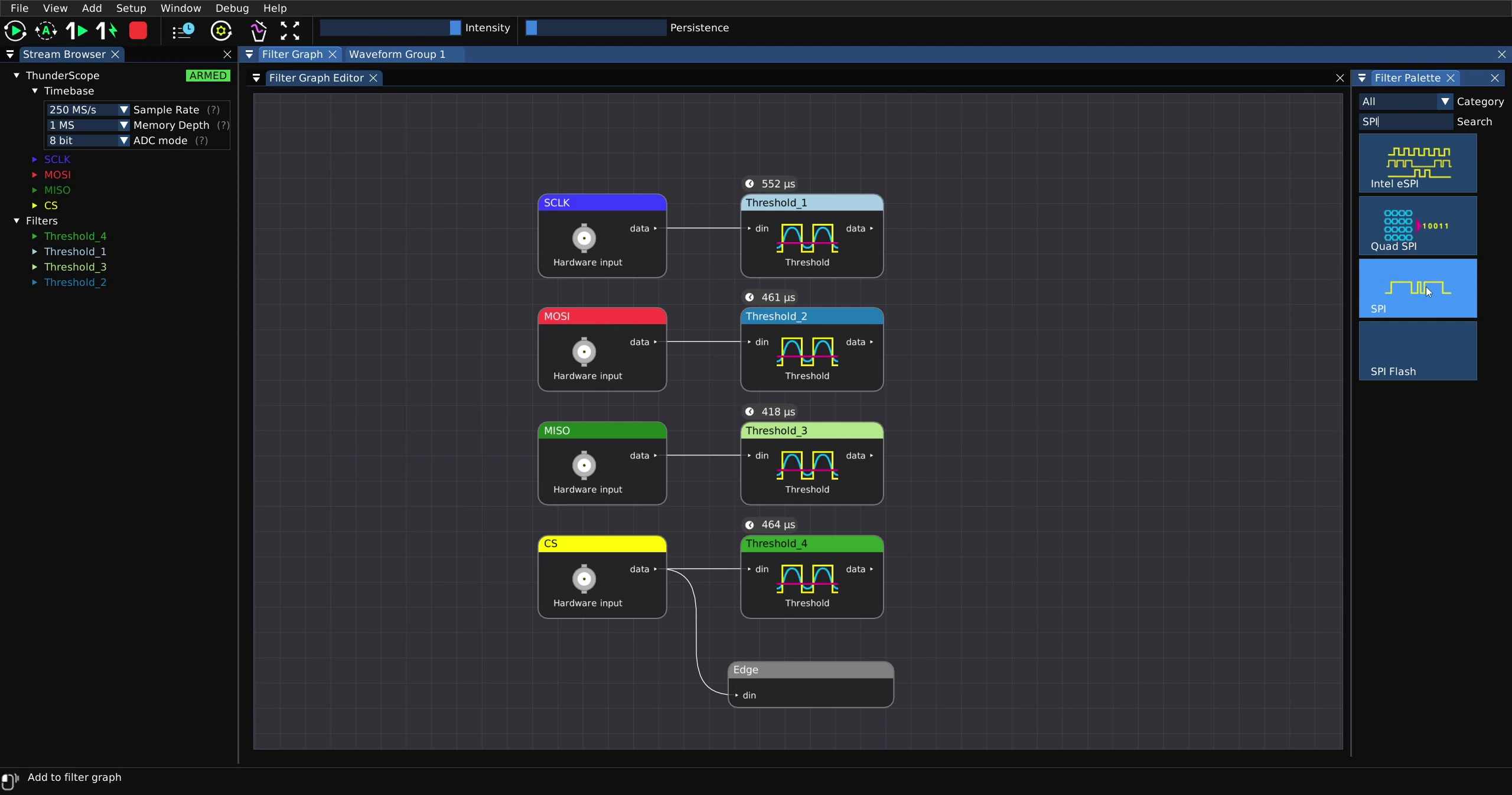
Add two SPI filters to the filter graph and connect the thresholded SCLK and CS to both of them. Then connect the thresholded MOSI to one of them and the thresholded MISO to the other. This will decode both sides of each SPI transaction and output the decodes as a protocol waveform.
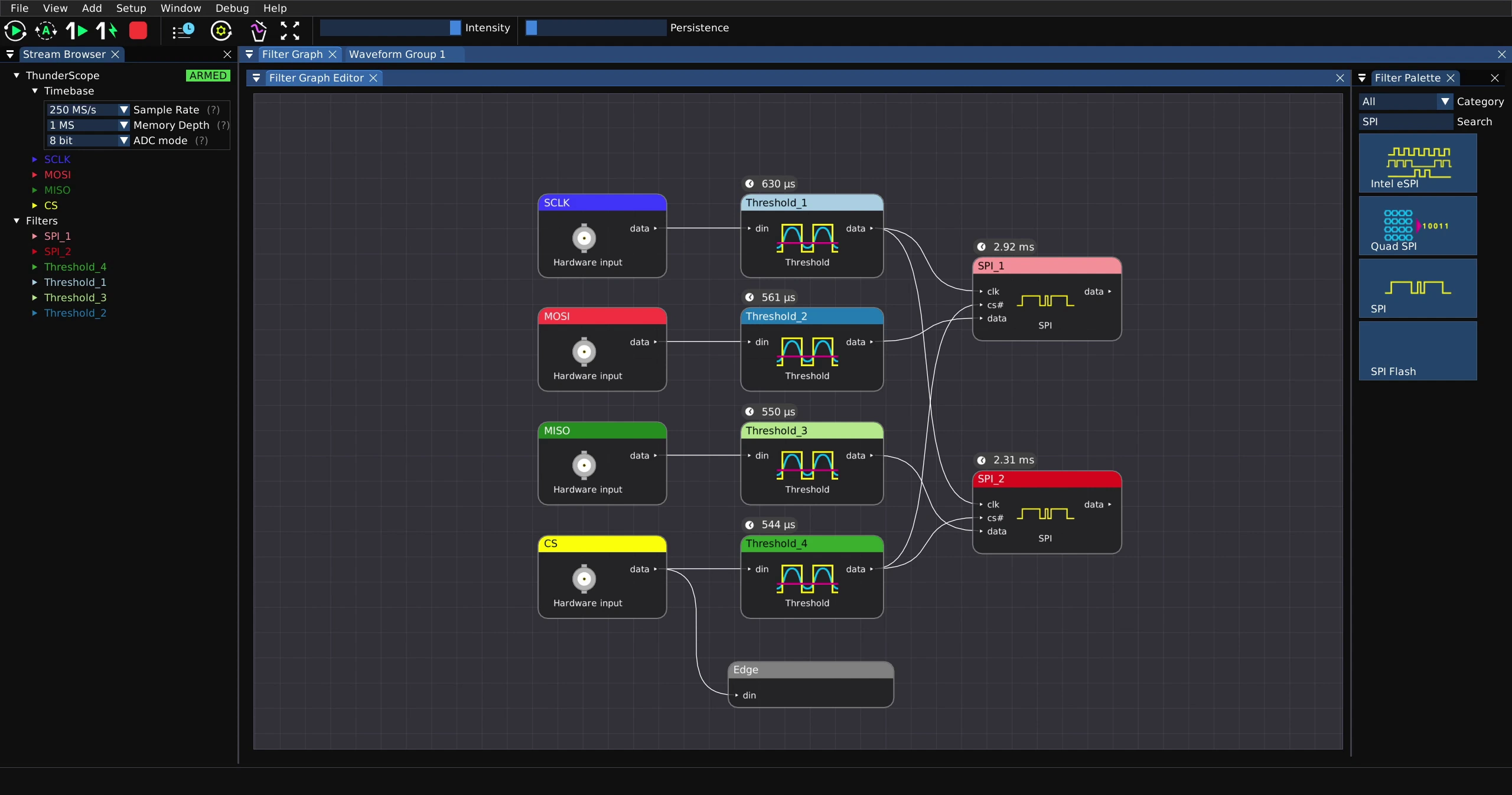
Search for “Export” in the filter palette. Any waveform type can be exported to a CSV, which can be useful for higher level protocol analysis. Protocol waveforms can also be exported to PcapNG and analyzed in Wireshark, while S-Parameters can be exported in Touchstone format.
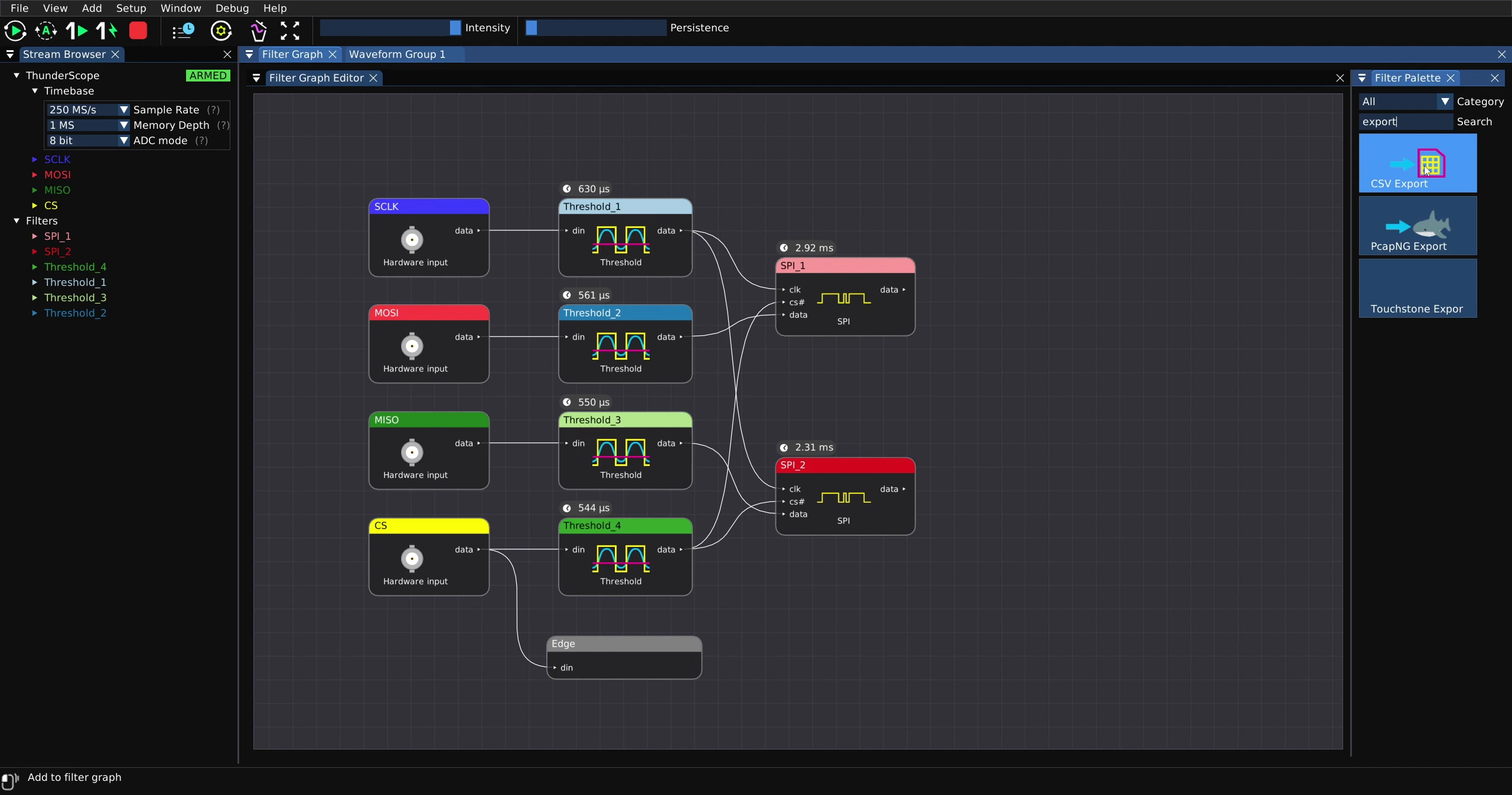
In this case to expand on the CSV export example, drag the CSV Export filter into the filter graph. Change the “Columns” parameter to “2”, this will add another input to the filter block. The decode filters can be renamed (in their filter properties, just like for a channel) for clarity and their outputs should be routed to the column inputs of the CSV Export filter. Then click on “Export” in the CSV Export filter properties.
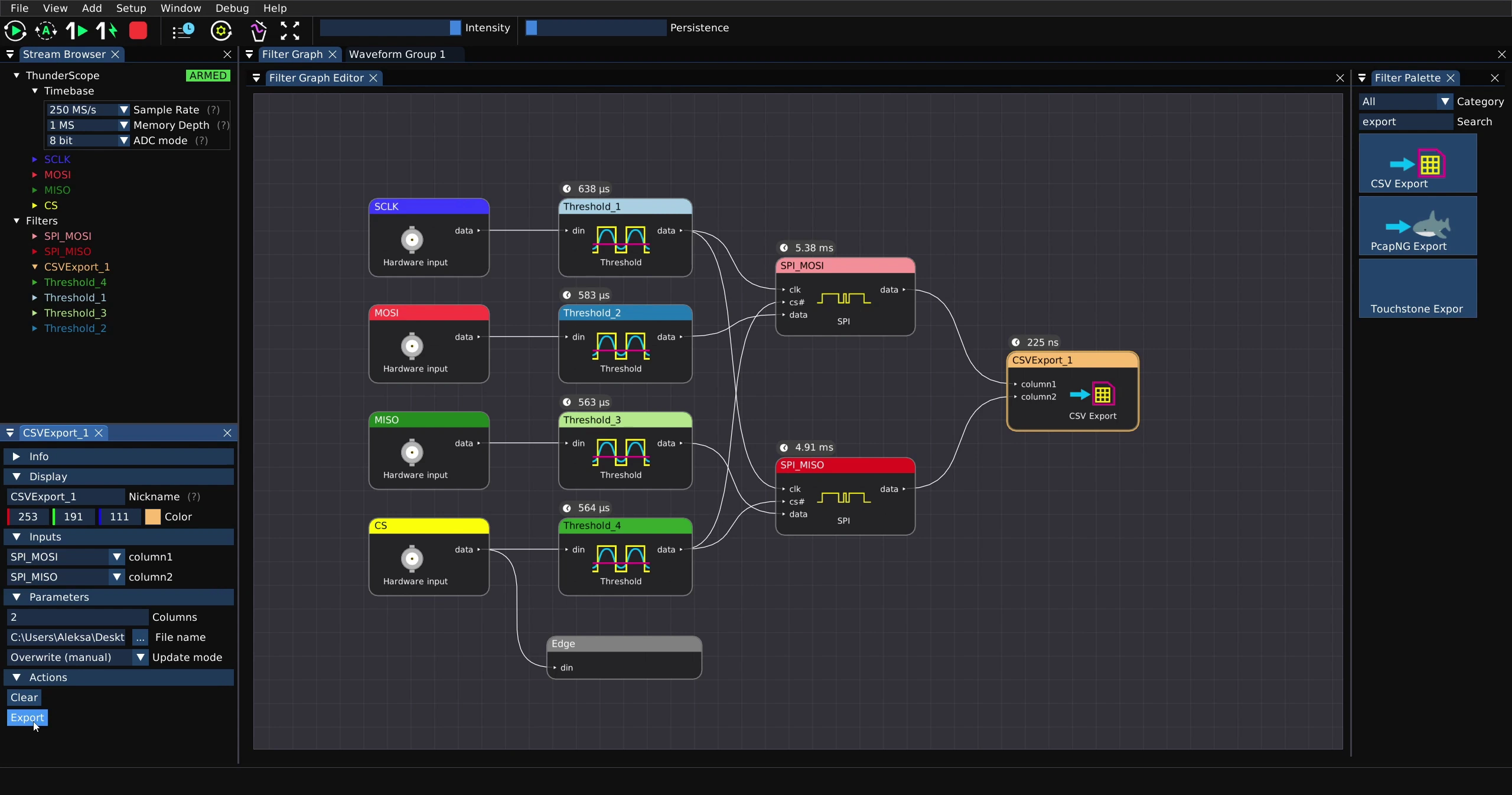
To take a look at the protocol waveforms, go to the “Waveform Group 1” view. All the digital and protocol waveforms have been arranged into their own waveform view for legibility. These can also be arranged in any way a channel can.
List of Filters with Usage Examples#
With these basic concepts of filters and how they are used, you are ready to use any of the filters offered by ngscopeclient. For a full list of filters with usage examples, check out the ngscopeclient Manual.